
This article walks through the manual flow for creating a contract and adding a license to it through the UI. It is the right starting point if you're loading a single new agreement, exploring LCM for the first time, or making a one-off addition.
For loading multiple contracts and licenses from a spreadsheet, see Bulk Upload: Contracts and Licenses Template instead.
Step 1: Open the Contracts tab
Go to Apps → License and Contracts Manager. The Contracts tab opens by default and lists every contract in the current project.
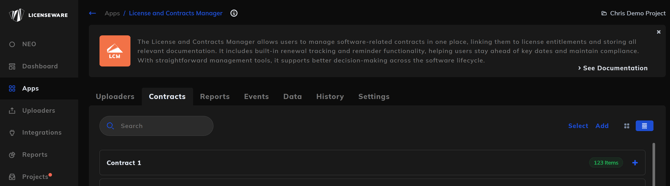
Click + Add contract in the top right.
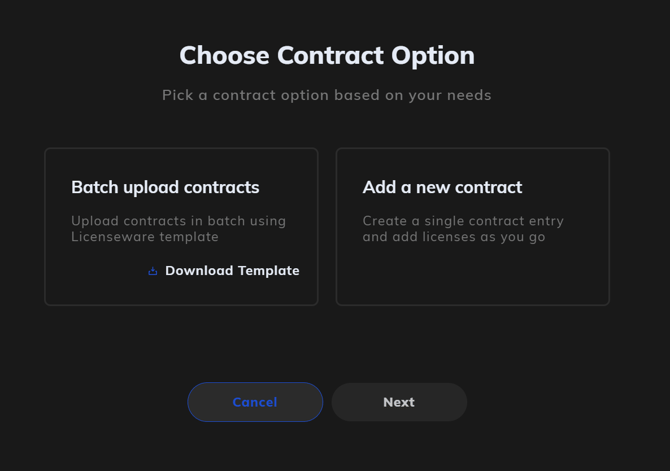
Step 2: Choose how to proceed
You'll be prompted to either batch upload contracts or add a single contract manually. Pick Add a new contract to continue with the manual flow.
Step 3: Fill in the contract details
Enter the following required fields:
- Contract Number: a unique identifier within the project, for example
AGR-12345orMS-EA-2024 - Contract Name: a clear descriptive title, for example
Microsoft EA 2024-2027 - Contract Type: select from the dropdown (License Agreement, Enterprise Agreement, Support Agreement, Subscription Agreement, etc.)
- Legal Entity: the entity within your organisation that signed the contract
- Vendor Name: the supplier or publisher
- Start Date and End Date: in
YYYY-MM-DDformat
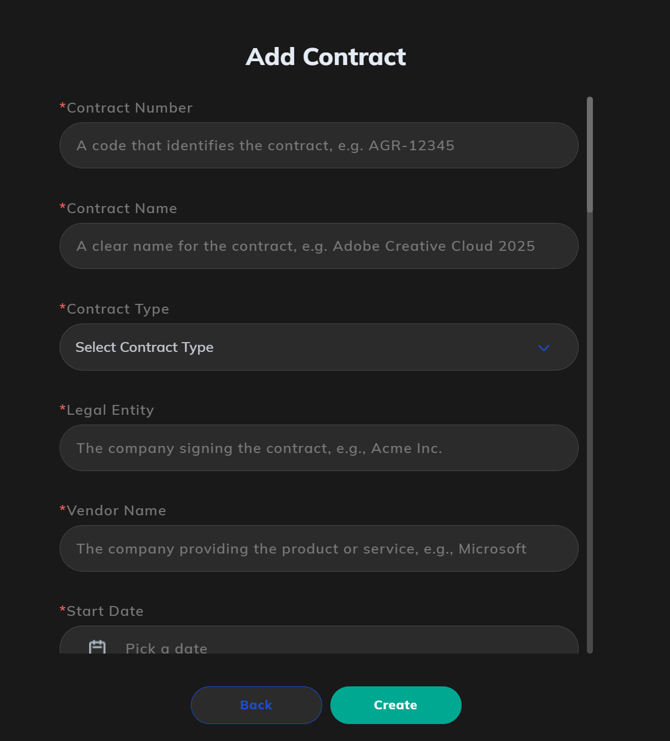
Optional fields cover business owner, PO number, invoice number, total value, currency, purchase date, renewal date, renewal notice days, SLA terms, reseller details, status, notes, and description. You can fill these in now or come back to them later. The full list and what each field means is in the LCM Schema Reference.
If your project has Settings template fields configured for contracts, those will appear in the form as well. See Custom Fields and Templates for how Settings templates work.
Renewal reminders
You can optionally enable renewal reminders during creation. Set how many days before the renewal date you want to be alerted. See Renewal Notifications and Reminders for the full details.
Per-record custom fields
At the bottom of the form, you can add custom fields specific to this contract. These appear as label/value pairs and stay on this contract only, they don't propagate elsewhere. See Custom Fields and Templates for when to use these versus Settings template fields.
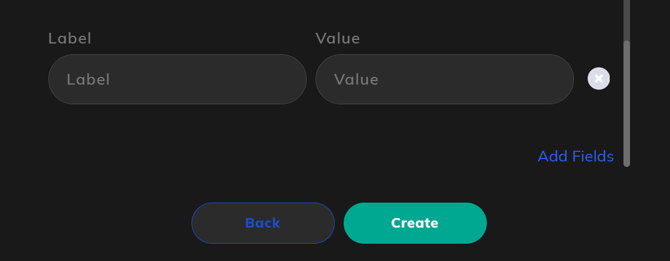
Click Create when you're done.
Step 4: Add licenses to the contract
Once the contract is created, it appears in the Contracts table. Click the contract to open its detail view, then go to the Licenses tab and click + Add license.
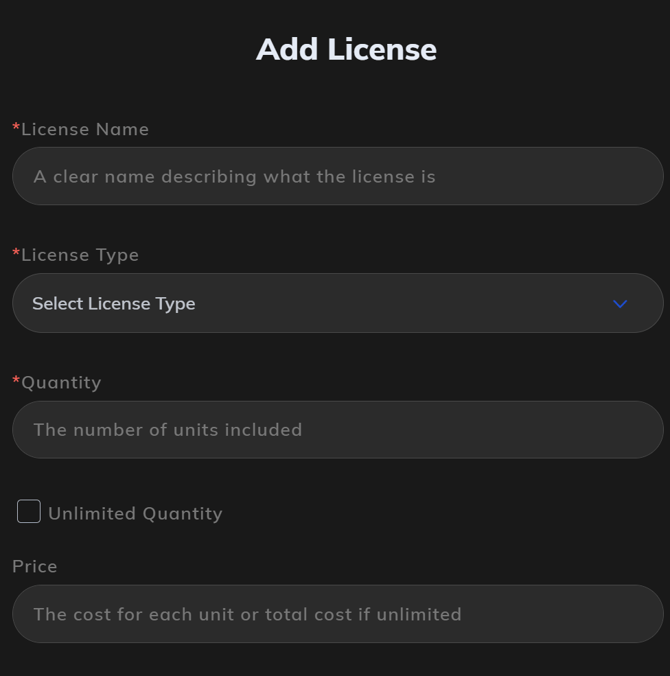
Required fields:
- License Name: a clear name, for example
Microsoft 365 E5 - License Type: Perpetual, Subscription, or Open-Source
- Quantity: number of units
- Unlimited Quantity: tick this for site licenses or other uncapped entitlements (the quantity field is then ignored for entitlement calculations)
Optional fields cover product details, license metric, license key, SKU, price, currency, maintenance and downgrade rights, dates, and description. License dates default to inheriting from the contract via the Use Contract Dates toggle; untick this only if the license has a different validity period from its parent contract.
Click Create to save.
The license now appears under the contract and is ready to be allocated. See Allocating Licenses for next steps.
Editing a contract or license
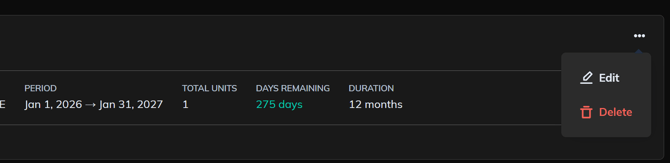
To edit a contract:
- Open the Contracts tab.
- Click the contract to open its detail page.
- Click the three-dot menu (⋮) in the upper right.
- Select Edit.
To edit a license, navigate into the contract, open the Licenses tab, and use the same three-dot menu on the license row.
Bulk delete
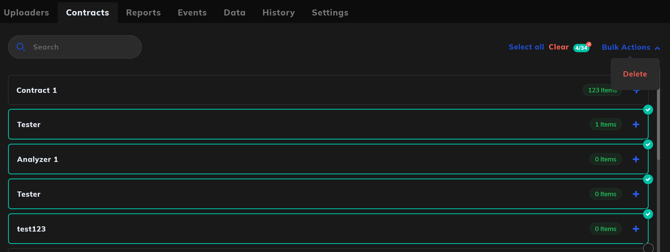
To remove multiple records at once:
- Open either the Contracts or Licenses tab.
- Click Select in the bottom left corner.
- Click the selection circle on each item you want to delete.
- A Bulk Actions panel appears on the right.
- Click Delete to remove the selected entries.
This action is irreversible. Make sure records are no longer needed before deletion. If you're not sure, export the table first using the Download as control.