
Every organisation tracks something the standard LCM schema doesn't cover, cost centres, internal classification codes, project references, approval flags. LCM supports two mechanisms for this, and choosing the right one matters: one stays on a single record, the other becomes a column across every contract or license in the project.
The two mechanisms at a glance
| Per-record custom fields | Settings templates | |
|---|---|---|
| Where you add them | On an individual contract or license, while creating or editing it | Settings tab → contract template or license template |
| Scope | Just that one record | Every contract or every license in the current project |
| Visible as a column? | No, only on the record itself | Yes, added to the relevant table view |
| In the bulk upload template? | No | Yes, included automatically in the next download |
| In reports? | No | Yes, available as a cuttable dimension |
| Field types | Free-text label/value | Text, number, date, dropdown, checkbox |
| Use it for | One-off notes, record-specific references | Anything you want to track consistently across the portfolio |
The rule of thumb: if you'd ever want to filter, sort, or report on the field, it belongs in a Settings template. If it's a one-off note that lives and dies with a single record, use a per-record custom field.
Settings templates are per-project. Fields added to a Settings template apply to the project you're working in only. If you maintain multiple projects (for example, one per customer), each needs its own Settings template configuration. This is intentional, different projects often need different schemas, but it does mean replicating template fields manually if you want consistency across projects.
Per-record custom fields
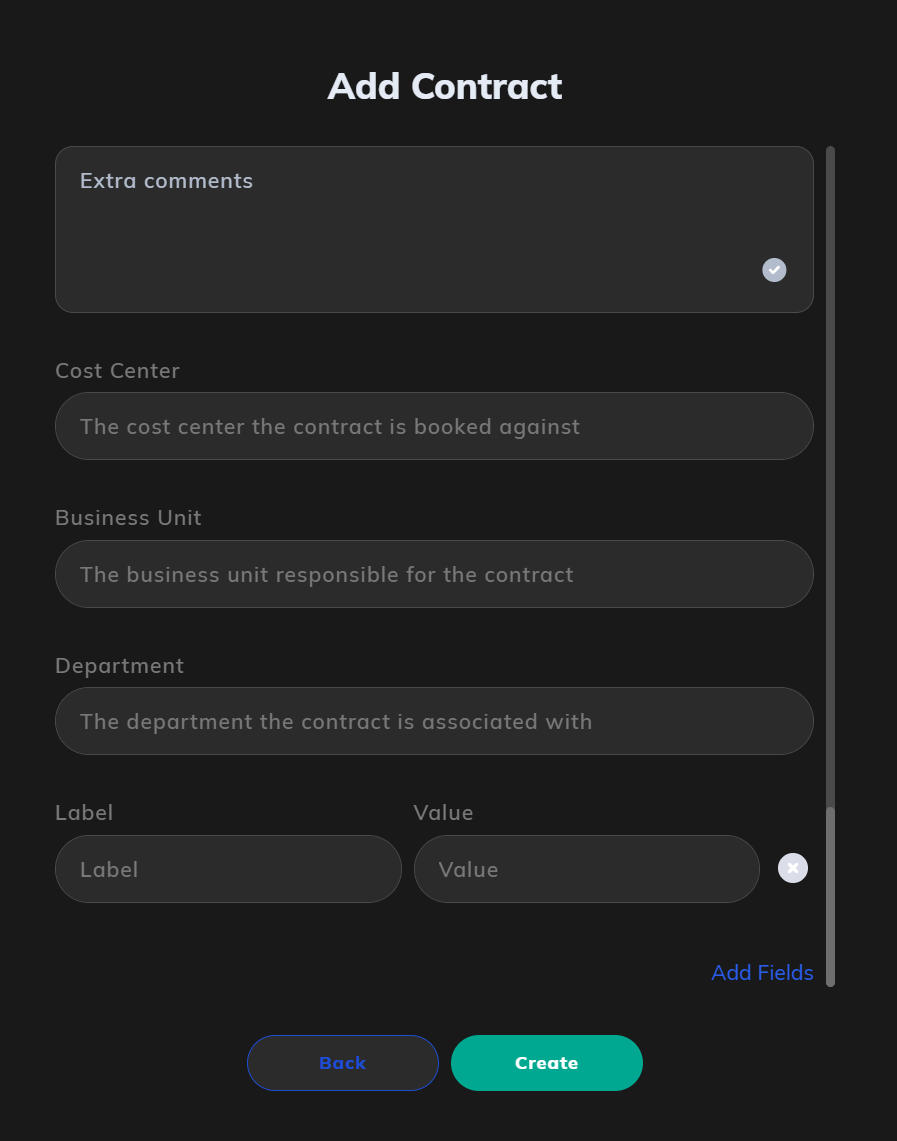
Per-record custom fields are added when you create or edit an individual contract or license. They appear as label/value pairs at the bottom of the create or edit form.
To add one:
- Open a contract or license, or start creating a new one.
- Scroll to the custom fields section at the bottom of the form.
- Enter a Label (the field name) and a Value.
- Click Add Fields to add another, or remove a row using the × button.
- Click Create (or Save when editing).
The field is stored against that record only. It will not appear on other contracts or licenses, will not be included in the bulk upload template, and will not appear as a dimension in reports.
When per-record custom fields make sense: a one-off legal note specific to a single agreement, a temporary tracking flag during a migration, or a piece of context you genuinely don't want elsewhere.
Settings templates
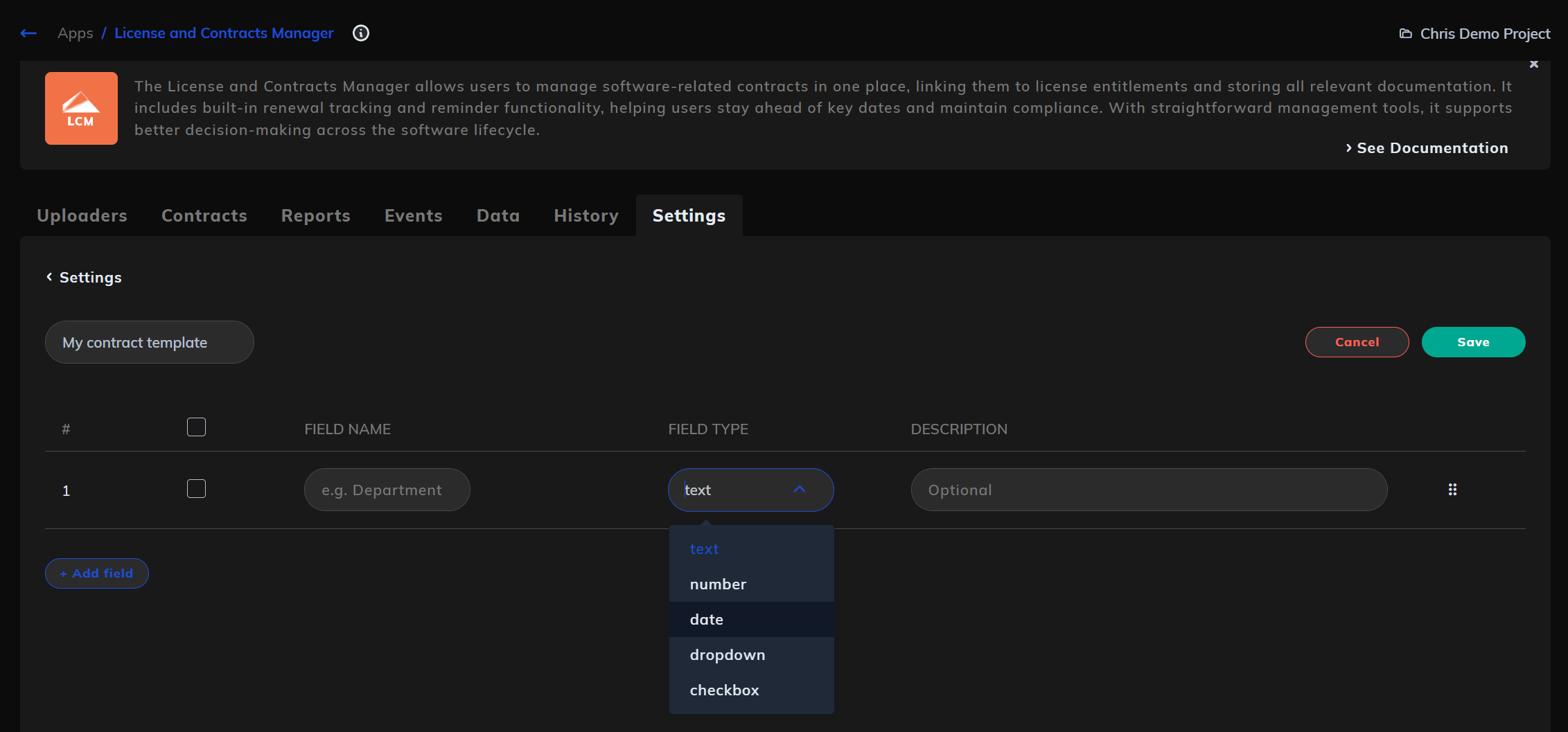
Settings templates are project-scoped field definitions that apply to every contract (or every license) in the current project. There are two templates per project, one for contracts, one for licenses, and they're managed independently.
When you add a field to a Settings template:
- It appears as a new column in the relevant table view.
- It is added to the bulk upload template the next time you download it (from within this project).
- It appears on existing records as well as new ones, with no value populated until you edit each record (or upload values via the template).
- It becomes available as a cuttable dimension in the LCM Reports. Settings template fields like Cost Center, Business Unit, and Department drive several of the breakdowns on the Software Licenses and Contracts report.
To add a field to a Settings template:
- Open the Settings tab in LCM.
- Choose the contract template or the license template.
- Click + Add field.
- Enter the Field Name. This becomes the column header and the bulk upload column name.
- Choose a Field Type:
- text: free-form text
- number: numeric values
- date: date picker
- dropdown: a fixed list of values; enter the options as comma-separated values (e.g.
High, Medium, Low) - checkbox: true/false
- Optionally add a Description to document what the field is for.
- Click Save.
Choose field types carefully. Dropdowns and dates give you cleaner reporting and consistent data. Reach for text only when the values are genuinely free-form. The Reports surface dropdown fields as proper categorical breakdowns; text fields are harder to chart usefully.
Editing or removing template fields
Template fields can be edited or removed from the Settings tab. As a precaution, before removing a field with data in it, export the relevant table to retain a record of any values that might be affected.
Worked example
You manage two projects in LCM, one for your own organisation and one for a managed-service customer.
For your own project, procurement needs to track every contract by cost centre and approval tier, and every license by whether it's been validated against an entitlement export.
You'd add to your project's contract template:
cost_center, Textapproval_tier, Dropdown, values:Tier 1, Tier 2, Tier 3
And to your license template:
entitlement_validated, Checkbox
After saving:
- Every contract row in your project's Contracts table now has Cost Center and Approval Tier columns.
- Every license row has an Entitlement Validated checkbox.
- The next downloaded upload template (from this project) includes all three as columns.
- Existing records show empty values until populated, either by editing each one or by uploading a populated template.
- The Software Licenses and Contracts report now shows a "Top Spend by Cost Center" breakdown, and the Data Completeness Action Items table flags any contracts where Cost Center isn't populated.
The customer project would need its own Settings template configuration, even if the customer wants identical fields. Template definitions don't replicate across projects.