
Missing a contract renewal is one of the more expensive ways to learn about contract management. LCM supports configurable renewal reminders so contracts don't auto-renew or lapse without you noticing.
This article covers how to configure reminders. For the broader portfolio view of upcoming renewals, see the LCM Reports article (Renewals & Lifecycle section).
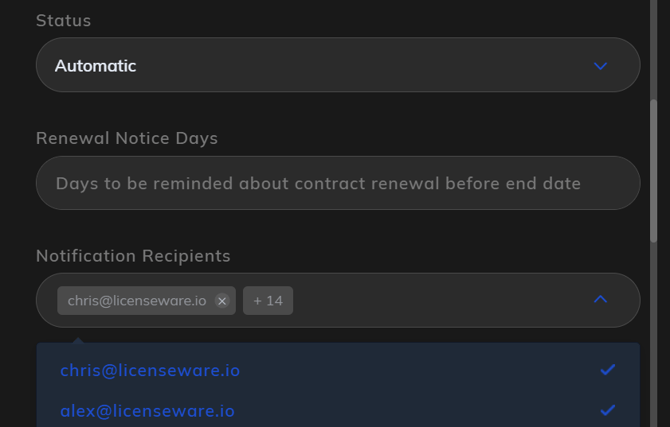
How reminders work
Each contract has two related fields under renewal settings:
- Renewal Notice Days: the number of days before the contract's
end_dateat which the first reminder fires. - Notification Recipients: which users receive the reminders.
When a reminder is configured, you don't get a single email at the notice point. You get a cascade: an initial reminder at the value you set, then follow-up reminders every 30 days from 90 down to the end date. The pattern is:
- 120 days set: reminders at 120, 90, 60, 30.
- 180 days set: reminders at 180, 90, 60, 30.
- 101 days set: reminders at 101, 90, 60, 30.
- 45 days set: reminders at 45, 30. (No 90/60 because the initial value is already below 90.)
- 30 days or less set: a single reminder at the value you set, with no further cascades.
Think of Renewal Notice Days as "first reminder at X" rather than "single reminder at X". The standard 90/60/30 cadence kicks in automatically once the contract enters the 90-day window, regardless of where you started.
Configuring a reminder
When creating or editing a contract:
- Open the contract in edit mode.
- Find the Renewal Notice Days field under renewal settings.
- Enter the number of days for the first reminder.
- In Notification Recipients, select the users who should receive the reminders. The picker shows everyone invited to the current project; pick one or many.
- Save.
The first reminder fires that many days before the contract's end_date, with the cascade as described above.
Choosing a notice period
A few sensible starting points:
- 365 days for major enterprise renewals (multi-million spend, board approval, full procurement and legal cycle, multi-vendor RFP). This gives you the full cascade (180, 90, 60, 30) and time to genuinely renegotiate or switch vendors.
- 180 days for standard enterprise renewals where you want a long lead time but don't expect to retender.
- 90 days for typical SaaS subscriptions and mid-tier agreements. The cascade collapses to 90, 60, 30, which is the procurement standard.
- 60 days for low-value or simple-to-renew agreements where the decision is essentially "keep or kill".
- 30 days for trivial or evergreen renewals. No cascade; one reminder, then it's on you.
Whatever value you choose, it should reflect how much lead time your organisation actually needs to make a renewal decision and act on it. Better to set a longer notice than a shorter one; the cascade ensures you'll still get the closer-to-expiry reminders regardless.
Notification Recipients
Recipients are scoped to users who have been invited to the current project. If the person who needs to receive renewal reminders isn't in the picker, invite them to the project first.
Multiple recipients are supported and recommended. Single-recipient setups risk reminders going to someone who's on holiday, has left the company, or has stopped reading their inbox. A typical recipient set might be the contract owner, the procurement lead for that vendor, and a shared inbox.
Best practices
Set the notice period based on the renewal complexity, not on a default. A 30-day notice on a contract that needs board approval to renew is too late; a 180-day notice on a $5K SaaS auto-renew is overkill.
Always add at least two recipients. Single points of failure are how renewals get missed.
Use the Renewals & Lifecycle report alongside reminders. Reminders fire per contract; the report gives you the portfolio view of everything coming up.
Populate Renewal Notice Days for every contract during initial loading. The Data Completeness Action Items table on the reports surfaces "Add Renewal Notice" as a Medium-severity item until this is set across the portfolio.
Review notice periods and recipients annually. As the business changes, your renewal processes change too. The notice that was right two years ago may not be right now, and the people who should be receiving reminders may have moved on.