
LCM ships with two project-level reports. Both run on the contract and license data in the current project, both use the same data quality engine to surface action items.
This article covers what's in each report, how the shared sections work, and how to use them together.
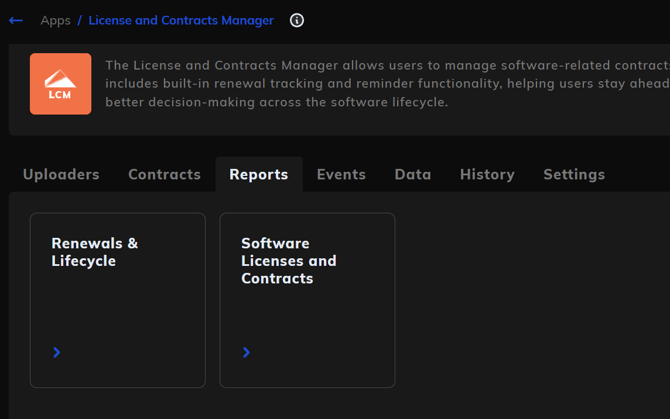
The two reports at a glance
| Software Licenses and Contracts | Renewals & Lifecycle | |
|---|---|---|
| Lens | What do we have, what's it costing us | What's coming up, what's at risk |
| Audience | License managers, finance, executives | Procurement, renewal managers |
| Time view | Snapshot of current state | Forward-looking on renewal calendar |
| Spend view | Total spend by vendor / type / dimension | Renewal spend by month, type, vendor |
| Action items | Yes (shared) | Yes (shared) |
The two reports complement each other. The first tells you what your portfolio looks like; the second tells you what's about to change.
Software Licenses and Contracts report
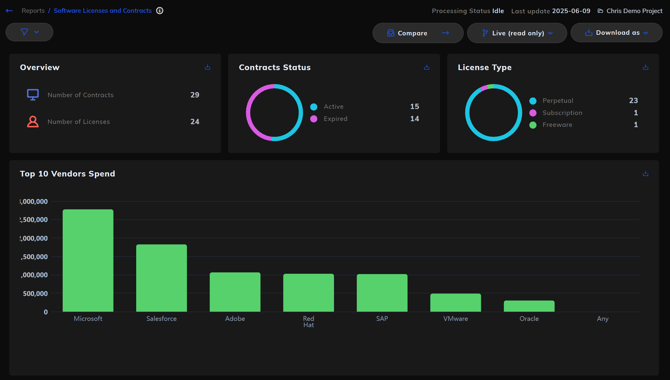
The portfolio composition view. What's in your contract estate, what's costing what, who you're spending with, and where the data quality gaps are.
Top summary tiles
- Overview: total Number of Contracts and Number of Licenses.
- Contracts Status: donut split between Active and Expired contracts.
- License Type: donut split across Perpetual, Subscription, Open-Source, and Freeware (where applicable). Pulls from the
license_typefield.
Spend visualisations
- Top 10 Vendors Spend: total spend per vendor, ranked. Pulls from
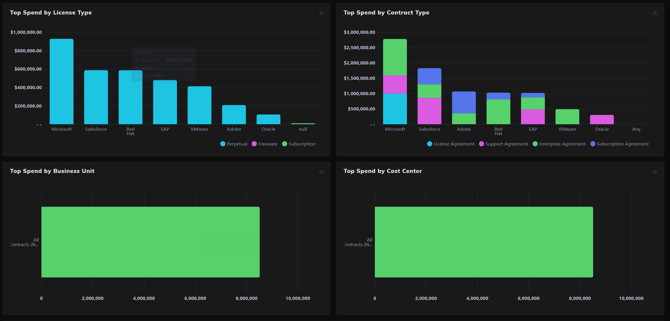
total_valueon the contract. - Top Spend by License Type: per-vendor spend split across Perpetual / Subscription / Freeware. Tells you the commercial model split per vendor.
- Top Spend by Contract Type: per-vendor spend split across the contract type categories. Multiple pages of breakdowns may be available depending on the diversity of contract types.
- Top Spend by Business Unit: spend rolled up by Business Unit.
- Top Spend by Cost Center: same, for Cost Center.
Tables
- Licenses table: every license in the project, fully filterable, sortable, and exportable.
- Contracts table: every contract in the project, same controls.
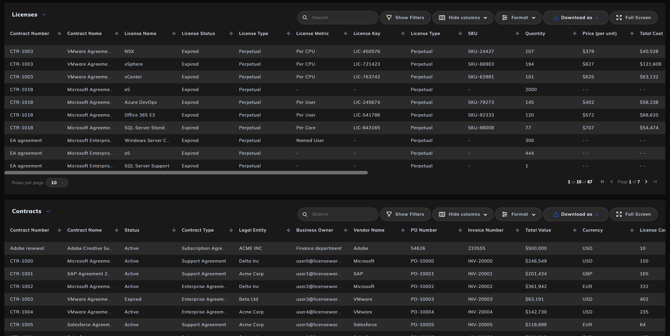
Both tables include all standard schema columns plus any Settings template columns. Use Hide columns to focus the view, Show Filters to slice, and Download as to export.
Renewals & Lifecycle report
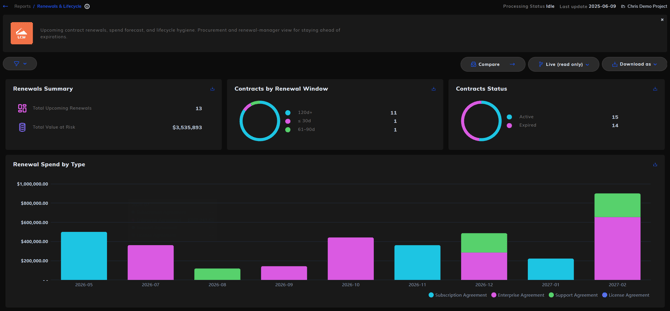
The forward-looking view. What's coming up for renewal, what's at financial risk, and what's already lapsed.
Top summary tiles
- Renewals Summary: Total Upcoming Renewals (count) and Total Value at Risk (sum of
total_valueacross upcoming renewals). - Contracts by Renewal Window: donut split across standard buckets (≤30d, 30-60d, 61-90d, 120d+).
- Contracts Status: same Active vs Expired split as on the other report. Useful as an anchor.
Spend forecast
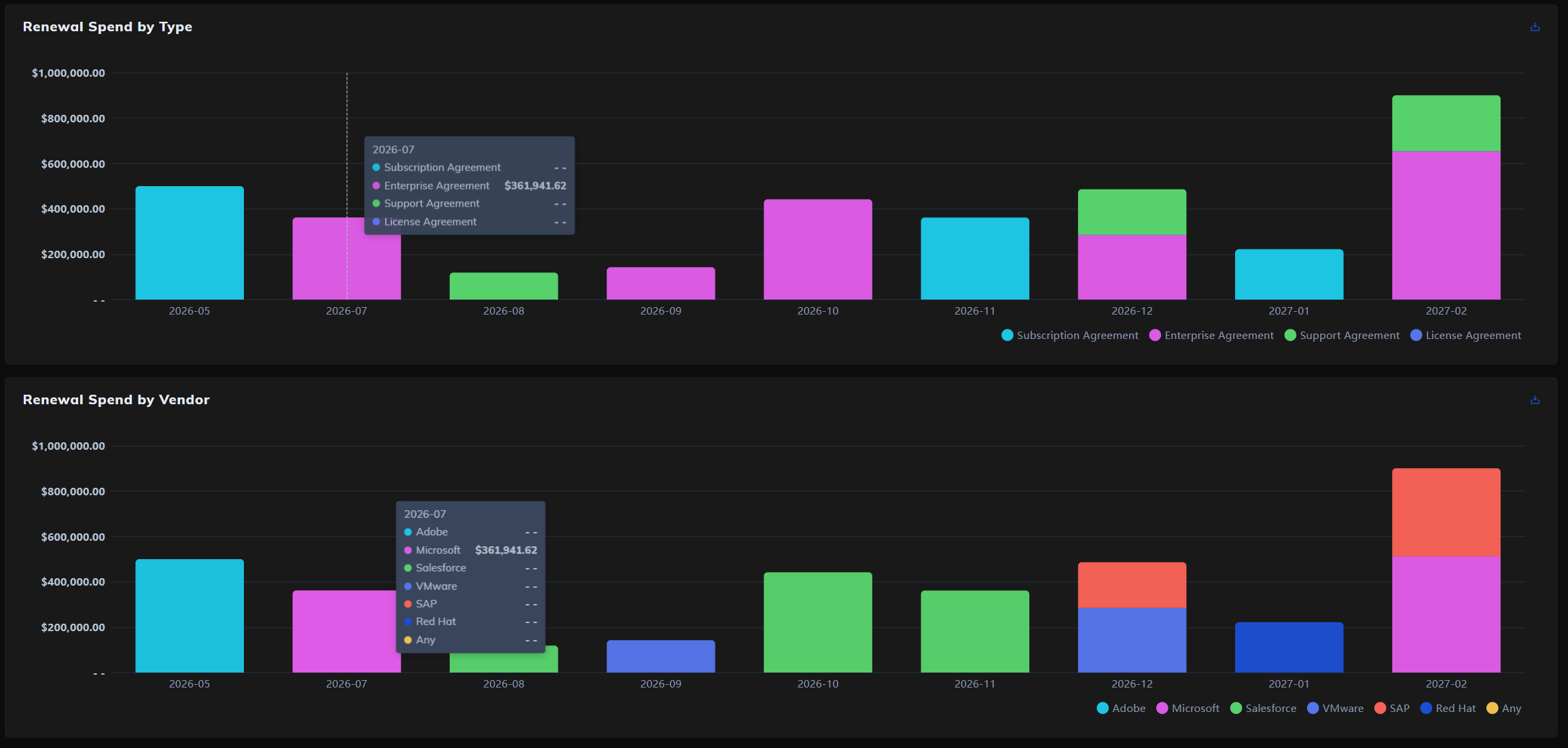
- Renewal Spend by Type: monthly stacked bar chart of renewal spend, broken down by
contract_type. Shows the renewal cliff. Use this to spot months where renewals will require disproportionate procurement effort. - Renewal Spend by Vendor: same monthly axis, broken down by vendor. Use this to identify which vendor relationships need attention in any given month.
Tables
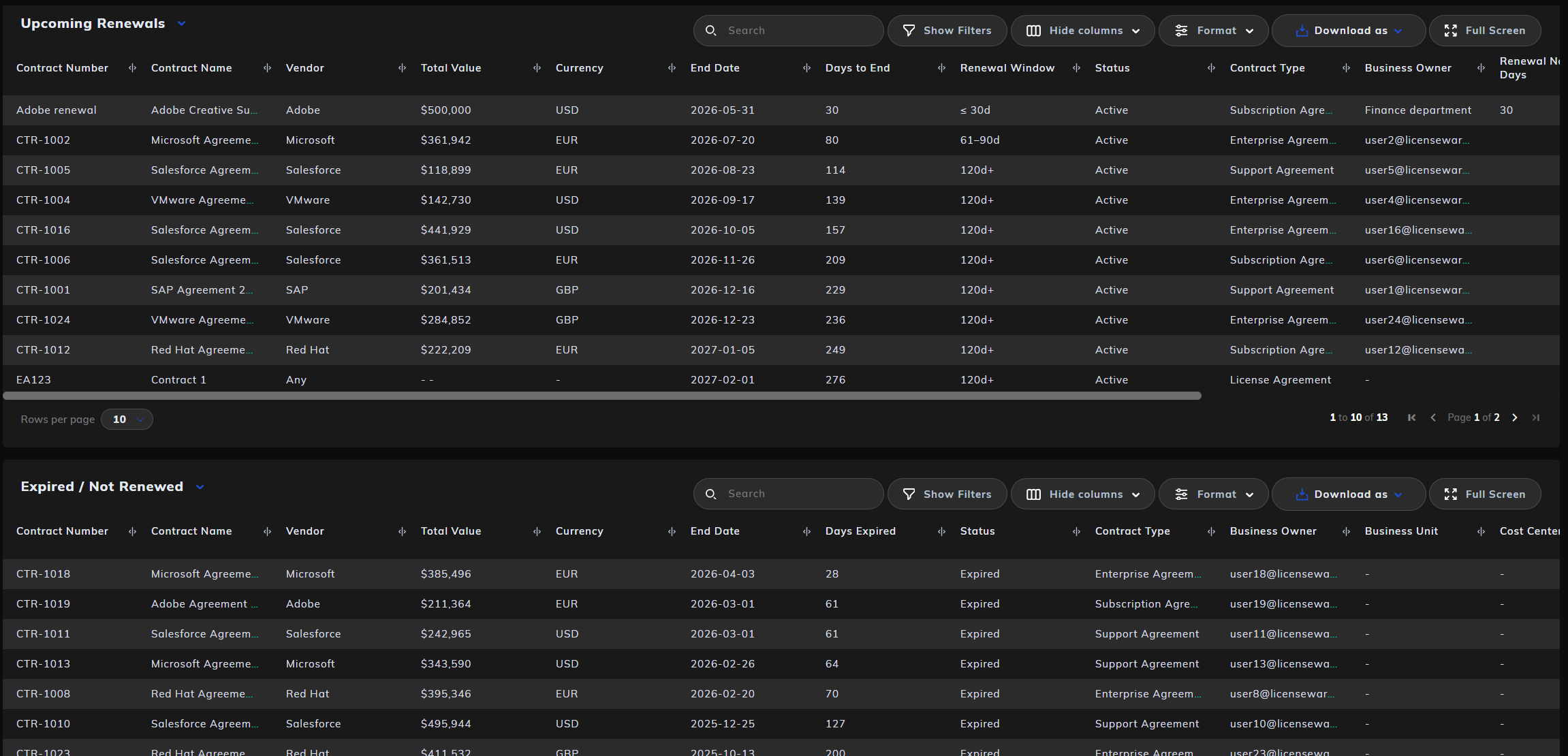
- Upcoming Renewals: every contract approaching renewal, sorted by End Date. Includes Days to End and Renewal Window columns (computed live against today's date).
- Expired / Not Renewed: contracts that have passed their end date and haven't been renewed. Days Expired column is the inverse computed column. This is the "what fell through the cracks" view, useful for both retrospective process improvement and triggering urgent renewal conversations.
Data Completeness, Action Items (shared)
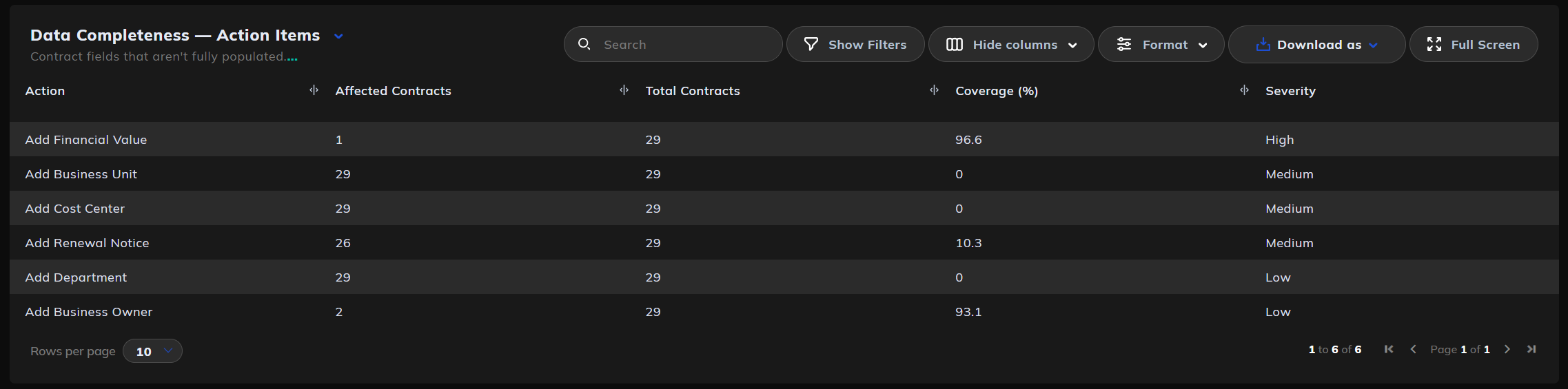
Both reports include a Data Completeness Action Items table. It's the same data, computed by a shared engine, and surfaces the same recommendations regardless of which report you're viewing it from.
The table lists actions like "Add Financial Value", "Add Business Unit", "Add Renewal Notice", with three columns:
- Affected Contracts: number of contracts where the field is unpopulated.
- Total Contracts: project total, for context.
- Coverage (%): percentage of contracts where the field is populated. Higher is better.
- Severity: see below.
How severity is scored
Severity reflects how important the field is to the value LCM can deliver. The current weighting:
- High: fields that materially block the platform from functioning as intended. Most notably
total_value. Without financial value populated, spend dashboards and value-at-risk calculations are incomplete. - Medium: fields that block specific reporting cuts or downstream automation.
renewal_notice_days(blocks reminders), Business Unit and Cost Center (block organisational breakdowns). - Low: fields that are useful for completeness but don't block core function.
business_owner, Department.
Severity is portfolio-wide, not per-contract. A High-severity row means the field is missing on many or all contracts; it's not a per-contract priority indicator. For per-contract action priorities, see the Actionable Insights table on the Software Licenses and Contracts report.
Actionable Insights (Software Licenses and Contracts only)
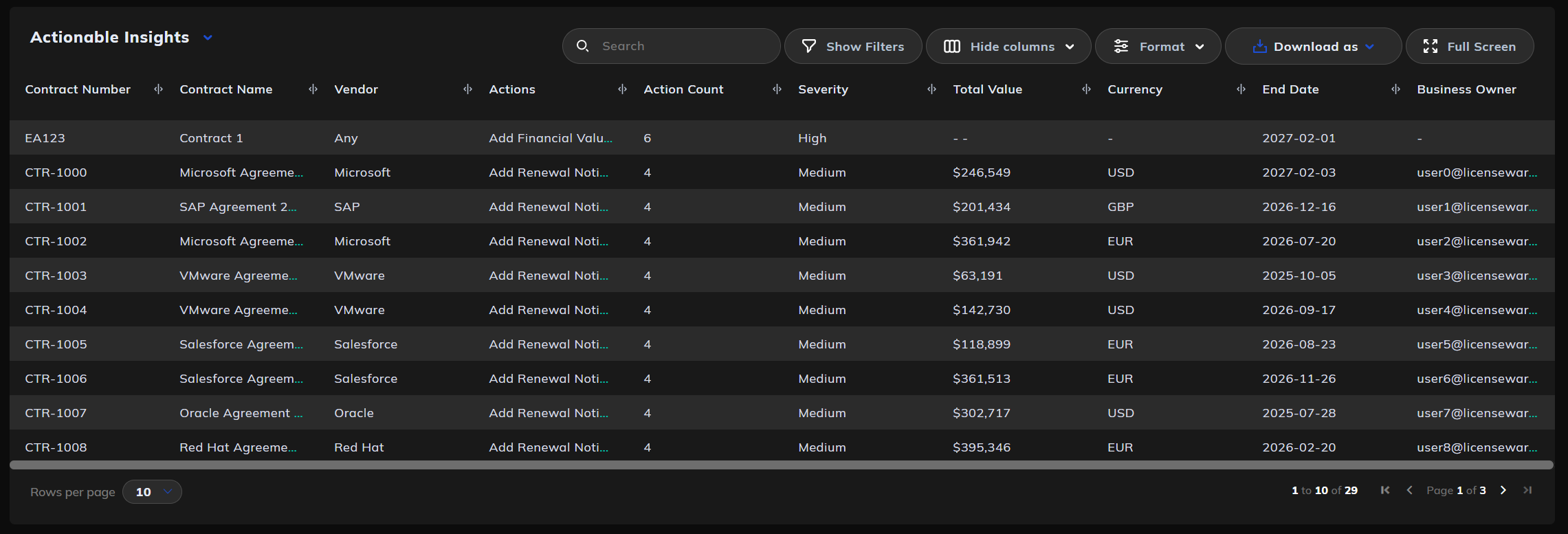
Sits below Data Completeness on the Software Licenses and Contracts report. Where Data Completeness tells you "what type of issues do I have across the portfolio", Actionable Insights tells you "which specific contracts need attention".
Each row is a single contract with:
- Contract Number, Name, Vendor
- The actions outstanding for that contract (Add Financial Value, Add Renewal Notice, etc.)
- Action Count
- Severity (the highest severity across the actions on that contract)
- Total Value, Currency, End Date, Business Unit
Sorted by severity and end date. Use this as your weekly worklist.
Using the two reports together
A typical workflow:
- Monthly portfolio review: open Software Licenses and Contracts. Check overall numbers, spot vendors creeping up the spend ranking, work through the Actionable Insights table.
- Weekly renewal triage: open Renewals & Lifecycle. Review Upcoming Renewals, prioritise the ≤30d bucket, check the spend-by-month chart for any approaching cliffs.
- Quarterly data quality push: use the shared Data Completeness table on either report to drive a sprint of data enrichment. Focus on High severity items first.
- Comparing across runs: use the Compare button to see what changed since last month. Useful for board reporting on portfolio health trend, not just current state.