
For anything beyond a handful of contracts, the template upload is the fastest way to get data into LCM. This article covers the template structure, the required fields, value constraints, and validation.
For one-off entries, use the manual UI flow described in Getting Started: Your First Contract.
Step 1: Download the template
In LCM, open the Contracts tab, select Add, and then download template.
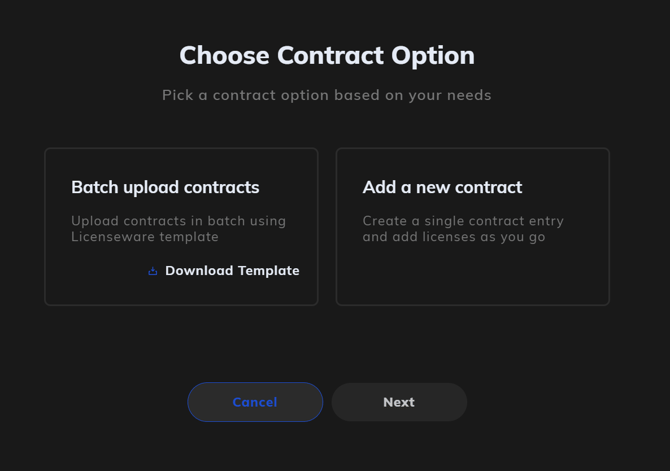
The file has two sheets:
- Contracts, one row per agreement
- Licenses, one row per license, linked to a contract via
contract_number
Always download a fresh template. The schema is extended periodically, and the template is generated based on your current project configuration (see below). An old saved template may be missing newly added fields or columns from your project's Settings templates.
The template reflects your project's schema
The Excel template is generated based on the project you're currently in. Specifically:
Standard required and optional fields are always included.
Any Settings template fields added in your current project (see Custom Fields and Templates) appear as additional columns.
Two important consequences:
Settings templates are project-scoped. Custom fields added in Project A do not appear in Project B's template, and vice versa. If you maintain multiple projects, download the template from inside the project you're loading into.
The template is always current. No need to manually add columns for project-level custom fields, they're already there.
Step 2: Fill out the template
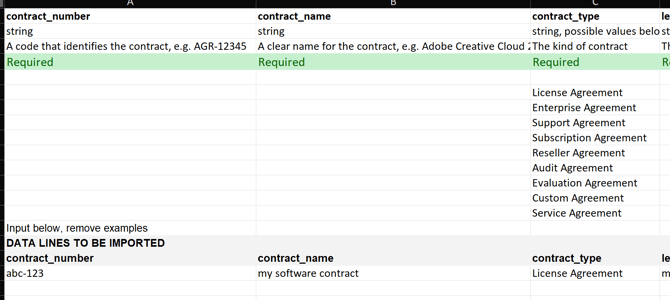
All data goes beneath the row marked "DATA LINES TO BE IMPORTED". The rows above the data area contain headers, type hints, descriptions, required/optional indicators, and example values for constrained fields. Leave them in place.
Contracts sheet, required fields
| Field | Description |
|---|---|
contract_number |
Unique identifier (e.g. AGR-12345). The key linking contracts to their licenses; must be unique within the project and consistent across both sheets. |
contract_name |
Descriptive title (e.g. Microsoft EA 2024-2027). |
contract_type |
Constrained value, see common values below. |
legal_entity |
The entity within your organisation that signed the contract. |
vendor_name |
The supplier or publisher (e.g. Microsoft, Oracle). |
start_date |
Format: YYYY-MM-DD. |
end_date |
Format: YYYY-MM-DD. |
Licenses sheet, required fields
| Field | Description |
|---|---|
contract_number |
Must match a value in the Contracts sheet. |
license_name |
A clear name describing the entitlement. |
license_type |
Constrained value, see common values below. |
quantity |
Number of units. Set to any value when unlimited_quantity is True. |
unlimited_quantity |
True or False. Set True for site licenses or other unlimited entitlements. |
Constrained-value fields
Several fields accept only a defined set of values. Common values are listed below. The canonical list lives in the manual creation form in the app and may grow over time.
contract_type: License Agreement, Enterprise Agreement, Support Agreement, Subscription Agreement, Reseller Agreement, Audit Agreement, Evaluation Agreement, Custom Agreement, Service Agreement.
status (contract): Automatic, Active, Expired, Future, Renewed, Terminated. Default is Automatic, which means LCM derives status from the contract's start and end dates.
license_type: Perpetual, Subscription, Open-Source.
status (license): Automatic, Active, Inactive. Default is Automatic.
If you're unsure what value to use, check the dropdown options in the app's manual creation form. That's the source of truth.
Date format
All dates: YYYY-MM-DD (for example, 2025-12-31).
Boolean fields
True or False, case-sensitive. Don't use Yes/No, 1/0, or other variants.
Optional fields
The full optional field set is documented in the LCM Schema Reference. The template includes every optional field as a column. Leave a column blank to skip it.
Step 3: Upload the file
- In LCM, open the Uploaders tab.
- Drag and drop the completed
.xlsxfile or click to browse. - LCM validates structure and content before importing.
- Any rows that fail validation are flagged with the row number and reason. Fix them in the file and re-upload.
Re-uploading is safe. The uploader is additive, so existing records aren't overwritten.
Common validation errors
Missing required field, one of the seven contract or five license required fields is blank.
Unknown value in a constrained field, contract_type, status, or license_type contains a value not in the current allowed list.
Orphan license, a contract_number in the Licenses sheet doesn't exist in the Contracts sheet (or in the existing data).
Malformed date, anything other than YYYY-MM-DD.
Boolean parsed wrong, anything other than True / False in a boolean field.
Currency code wrong, must be three-letter ISO (USD, not US$ or Dollar).
When to use bulk upload vs. manual entry
| Use bulk upload for... | Use manual entry for... |
|---|---|
| Initial migration from spreadsheets | A single new contract you've just signed |
| Annual loading of new agreements | Quick edits to an existing record |
| Loading licenses from a vendor entitlement export | Anything where filling out the template for one row would be slower than just clicking through the UI |