
Once licenses are in LCM, the next step is to allocate them. Allocations are what turn LCM from a contracts repository into a live view. They tell you, for any given product or pool, what you've bought, what's covered, and what isn't.
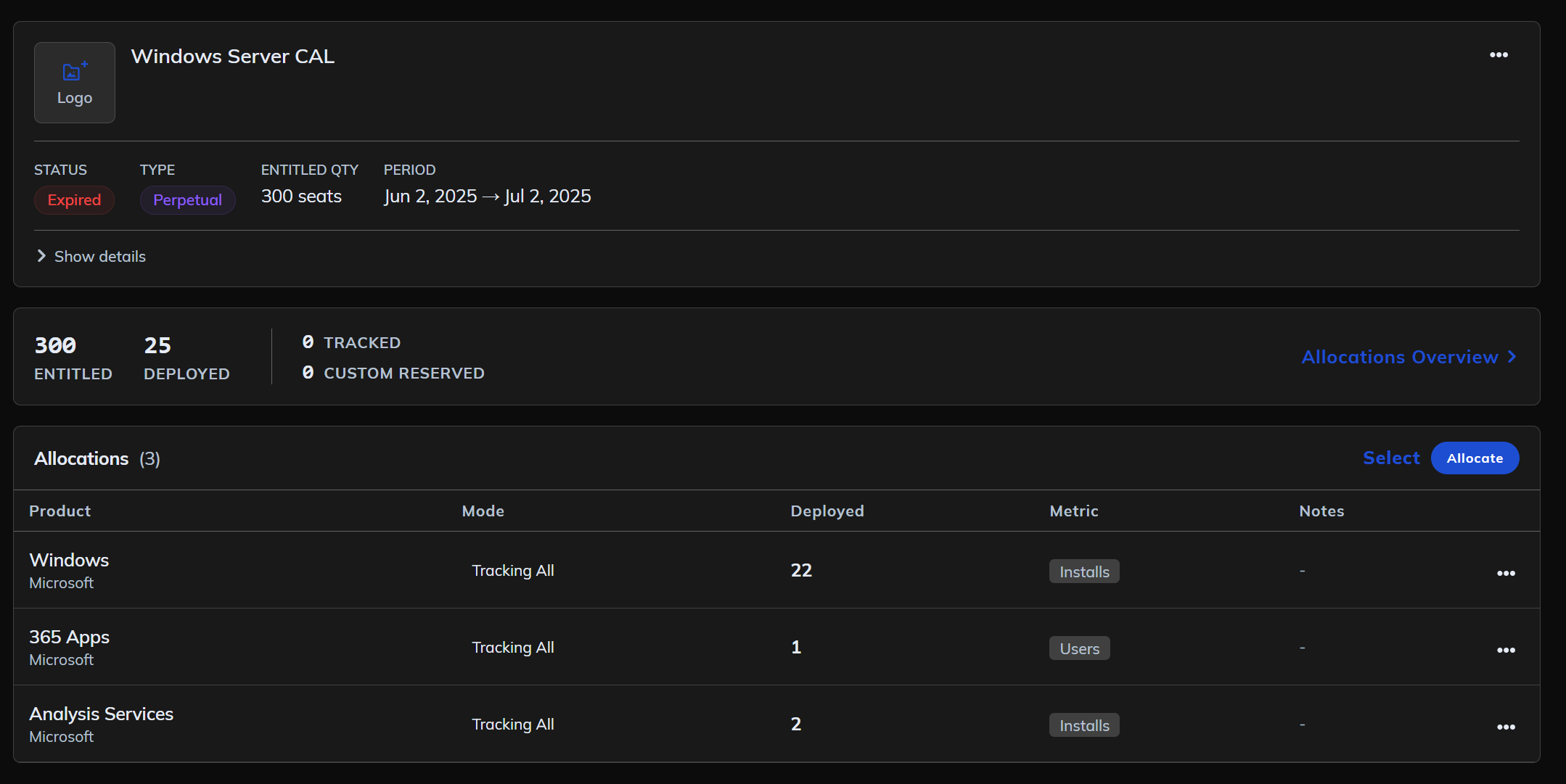
LCM supports two allocation types:
Track Deployment, for allocating against software discovered by collectors and visible in the deployment apps (Microsoft Deployment Manager, Oracle Database Manager, etc.).
Custom Reservation, for allocating against things that aren't deployment data. Examples include CALs covering devices, support entitlements, or a portion of a license pool ring-fenced for a department, project, or cost centre.
Both consume from the same license pool. A license with 275 units could have, for example, 100 allocated via Track Deployment to Microsoft 365 Apps, 50 reserved via Custom Reservation for Sales BU, and 125 remaining available.
Glossary
The terminology around allocations gets layered. A quick reference:
- License: an entitlement under a contract, with a fixed
quantity(orunlimited_quantity = True). - Allocation: a link between a license and either a deployment or a custom reservation, consuming some or all of the license pool.
- Allocated Quantity: the number of units a single allocation consumes, or
0for unlimited. - Deployed: the number of units the platform has discovered in your environment for a given product.
- Allocated: the total units assigned to a product across all allocations (both types).
- Uncovered: deployed units not covered by any allocation, calculated as
Deployed - Allocated, floored at zero.
Track Deployment
Use Track Deployment when you're allocating against software the platform has discovered. The allocation links the license to a specific deployed product, and the Deployed value updates automatically as collector data refreshes.
Before you start
A contract exists in LCM, with one or more licenses attached.
The deployment data for the relevant product is in the platform, meaning you've run a collector and the software is visible in the corresponding deployment app.
Step-by-step
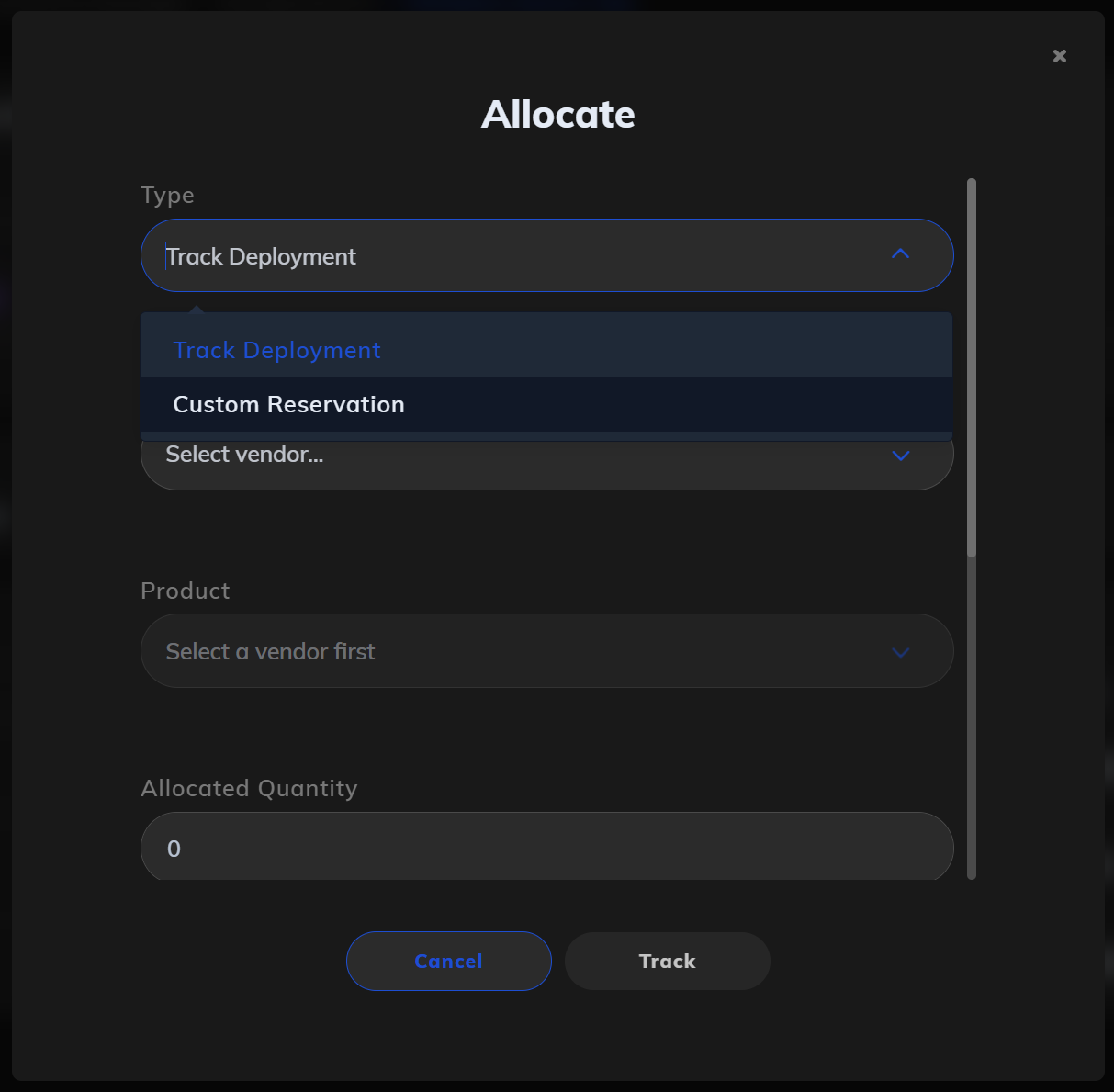
- Open the contract, then the license you want to allocate.
- In the license view, find the Allocations section and click Allocate.
- Select Track Deployment as the Type.
- Vendor: pick the publisher of the deployed software (e.g.
Microsoft). The product list filters based on this. - Product: pick the deployed product to allocate against (e.g.
365 AppsorOffice). This is what's visible in your deployment data, not necessarily what's on the contract. - Allocated Quantity: how many license units to allocate. Set to
0for unlimited (the deployment can consume from the full entitlement pool), or to a specific number to cap consumption. - Deployment Metric: how consumption is measured (
InstallsorUsers). Pick the one that matches how the license is actually consumed in practice. Getting this wrong is the most common cause of misleading utilisation numbers. - Notes (optional): assumptions, allocation logic, or anything an auditor would want to know.
- Click Track to save.
Custom Reservation
Use Custom Reservation when you're allocating against something that doesn't appear as a deployment. Common cases:
- Server CALs: licensing constructs (Client Access Licenses) that don't deploy as discoverable software but still consume from a license pool.
- Business unit allocations: ring-fencing a chunk of the pool for a specific department, project, or cost centre, for budgeting or chargeback purposes.
- Support entitlements: items like SQL Server Support that exist on the contract but aren't tied to a deployable artefact.
Step-by-step
- Open the license and click Allocate in the Allocations section.
- Select Custom Reservation as the Type.
- Enter a name for the reservation, for example
Server CALsorSales BU. - Allocated Quantity: how many license units this reservation consumes. The modal shows live remaining capacity (e.g. "275 units remaining from license") so you know what's left.
- Notes (optional): context for the reservation.
- Click Create to save.
Custom Reservations consume from the same pool as Track Deployment allocations. They contribute to the Allocated total in the Allocations Overview but won't have a Deployed counterpart.
Allocated Quantity: 0 for unlimited
For both allocation types, setting Allocated Quantity to 0 means unlimited (the allocation can consume from the full license pool). Set a specific number to cap what this allocation consumes.
This is independent of the license-level unlimited_quantity boolean:
- Capped license, capped allocation: standard case, both have a fixed cap.
- Capped license, unlimited (
0) allocation: the allocation can consume up to the full license entitlement. - Unlimited license, any allocation: Available is meaningless because the license has no cap. Use specific allocation values only if you want to ring-fence usage by deployment or reservation for reporting.
Allocations Overview
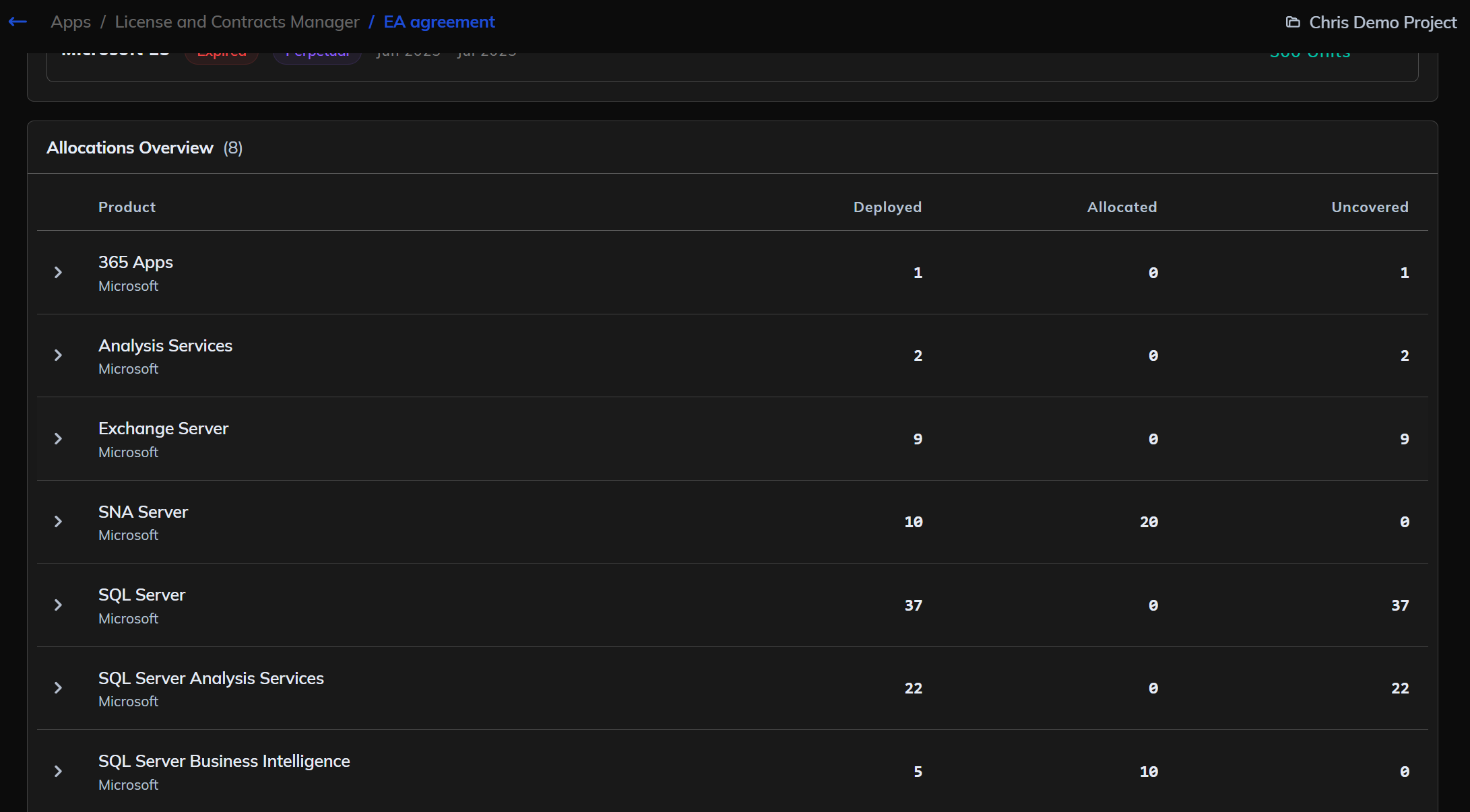
Each contract and each license has an Allocations Overview showing every product or reservation linked to it, with three numbers per row:
- Deployed: units the platform has discovered in the environment.
- Allocated: units assigned via any allocation (both Track Deployment and Custom Reservation).
- Uncovered: deployed units not covered by an allocation.
Deployed - Allocated, floored at zero.
The view is available at two levels:
- Per contract: rolls up all allocations across every license on the contract. Use this for the portfolio view.
- Per license: shows allocations against a single license. Use this when you're investigating a specific entitlement.
Best practices
Use unlimited (0) when possible. Most enterprise agreements are pooled; fixed allocations are only needed when you genuinely need to ring-fence consumption.
Use notes liberally. Allocations are the audit story. Anything that explains why you allocated this way belongs in the notes.
Use Custom Reservations for organisational allocations, not as a workaround for missing deployment data. If a deployment is genuinely deployable but not yet visible, the right fix is to get it into the platform.