
Upload history
Upload history is on the data source.
Upload history
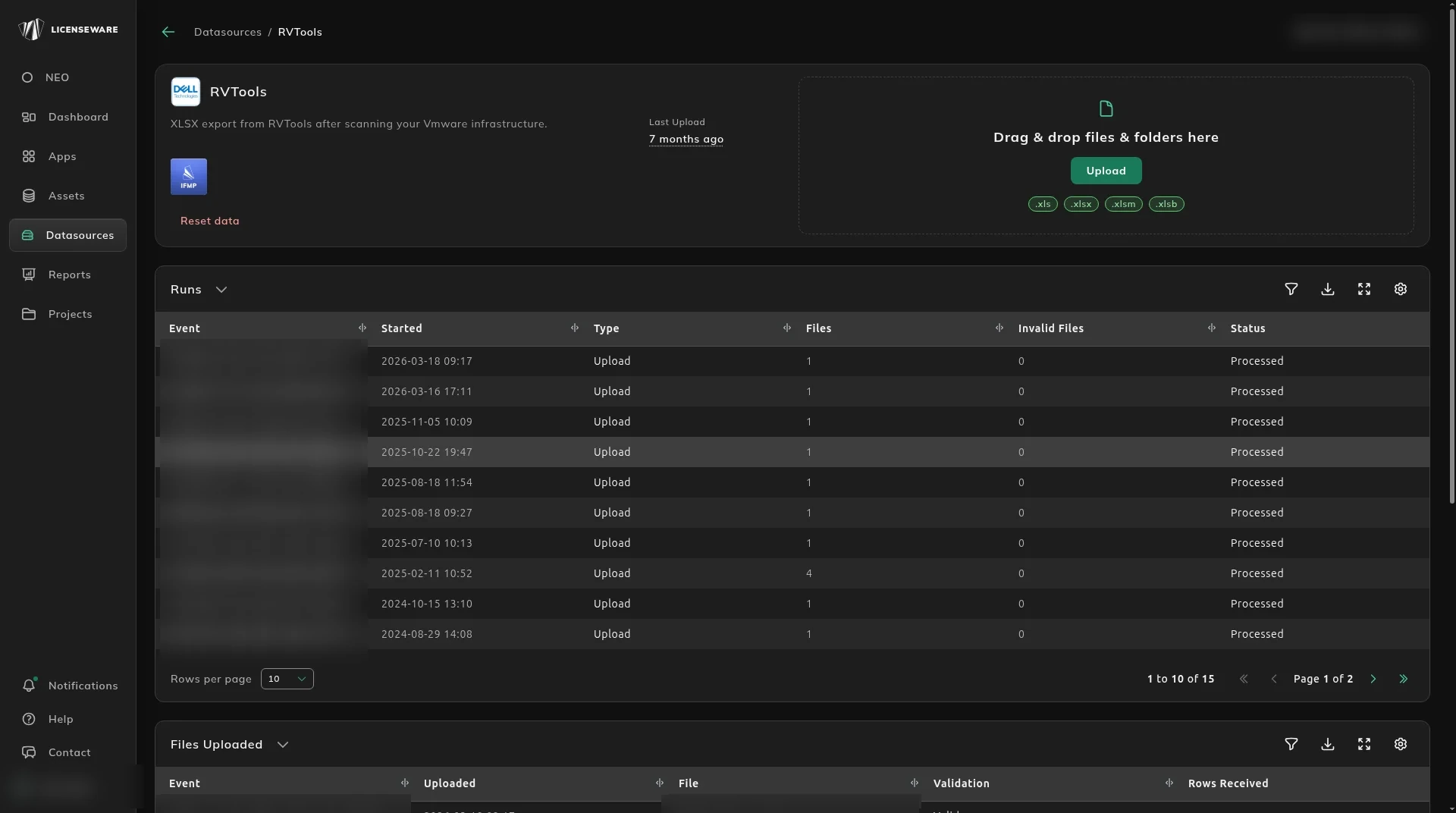
Open a data source’s history
Section titled “Open a data source’s history”- Open Datasources from the sidebar.
- Click the source, for example RVTools.
The same collapsible sections are on every data source. Runs and Files Uploaded are first. Validation Errors and Processing Errors sit below them. Open a section to see its table.
What each section shows
Section titled “What each section shows”| Section | What it lists |
|---|---|
| Runs | Each upload or sync: its Event ID, when it Started, its Type, how many Files and Invalid Files it had, and its Status, such as Processed. |
| Files Uploaded | Each file in those runs: its Event ID, when it was Uploaded, the File name, its Validation result and the Rows Received. |
| Validation Errors | Files rejected before processing, for example because they are unsupported or corrupt. |
| Processing Errors | Files that passed validation but failed while being analyzed. |
If an upload didn’t work
Section titled “If an upload didn’t work”- Check Validation Errors and Processing Errors for the reason.
- Confirm you uploaded to the right data source, and in a file type it accepts. The accepted types are shown under the upload area.
- Fix the file and upload it again.
For when a file finishes processing, see Notifications.