
Projects
A project is a separate workspace in Licenseware. Each one has its own data, apps, reports and members, so you can keep one customer, vendor or engagement apart from another.
What to use projects for
Section titled “What to use projects for”| Split by | Example |
|---|---|
| Customer or client | A service provider keeping each client’s data apart |
| Vendor or app | One project for Oracle, another for Microsoft |
| Task | A true-up, an audit, a renewal |
| Business unit | Software use per department |
| Geography | Data per region or country |
Everything in a project stays in that project:
- Uploads, API connections, apps and reports belong to the project you’re working in.
- Data, users and results can’t be moved between projects, so decide on the split before you upload.
- People only see a project once they’re invited to it.
The project you’re working in is shown at the top right of every page.
Find your projects
Section titled “Find your projects”Open Projects from the sidebar. My projects lists the projects you created, and Shared with me lists the ones others have invited you to. Use Search to find one by name.
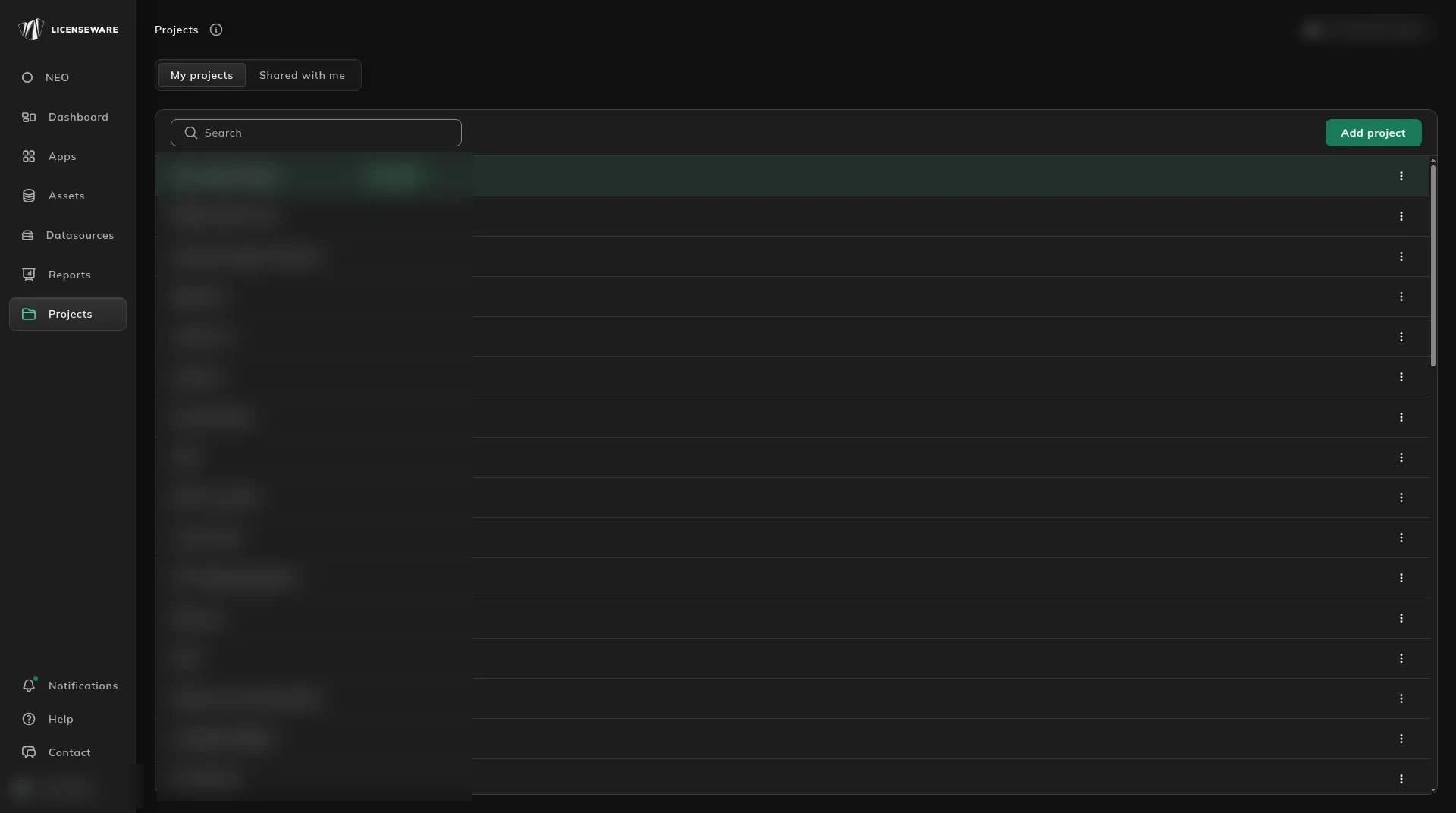
- A Default badge marks your default project.
- A Demo badge marks a demo project. See Sample data.
Create a project
Section titled “Create a project”- Click Add project.
- Enter a Project name.
- Optionally, add a logo, a favicon and a page title to brand it. See Brand a project.
- Tick Load sample data for my account only if you want a demo project to explore.
- Click Add.
Manage a project
Section titled “Manage a project”Click a project’s ⋮ menu to open its panel. From there you can:
- Invite people: see who is already a member under Members, then click Invite and enter their email address.
- Set as default: make this your default project.
- Edit: rename or rebrand the project.
- Delete: remove the project and everything in it.
Brand a project
Section titled “Brand a project”Click Edit in a project’s panel to change how it looks. This is useful when you deliver work to a client, or run projects for several business units.
| Field | What it does |
|---|---|
| Project name | The name shown in the project list and at the top right. |
| Logo | Your logo in place of Licenseware’s: SVG, 180 × 40 px, up to 1 MB. |
| Favicon | The browser-tab icon: PNG, 16 × 16 px, up to 1 MB. |
| Page title | The name shown on the browser tab. |
Click Update to save.
The Encrypted toggle in project settings is only for the Licenseware Encryptor, the script that hashes columns before an API upload. Turn it on only if you send data that way. Leave it off otherwise.