
Hardware assets
The Hardware tab on Assets lists every device from every connected source. Changes here, such as exclusions, source priority and bulk edits, apply to the data every app reads.
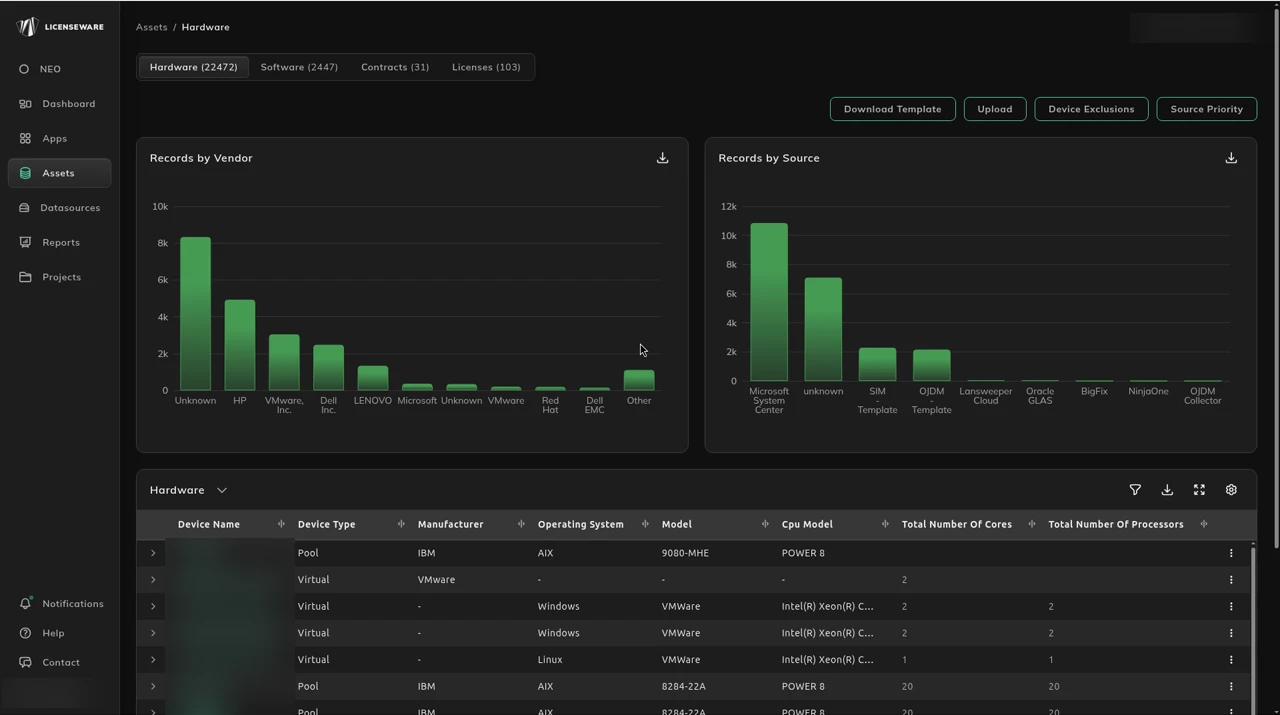
The Hardware view opens with two charts and a device table.
Records by Vendor and Records by Source
Section titled “Records by Vendor and Records by Source”- Records by Vendor shows how many devices you have from each manufacturer, such as HP, Dell or VMware. Use it to see what your estate is made of, and to spot records with no manufacturer, which show as Unknown.
- Records by Source shows how many devices each data source contributed, such as SCCM Queries, SIM - Template, Lansweeper Cloud or NinjaOne. Use it to confirm an integration or upload is delivering data, and to see which sources most of your devices come from.
The Hardware table
Section titled “The Hardware table”The table lists one device per row. Its default columns are Device Name, Device Type, Manufacturer, Operating System, Model, CPU Model, Total Number Of Cores, Total Number Of Processors, Serial Number and Sources, the data sources that reported the device.
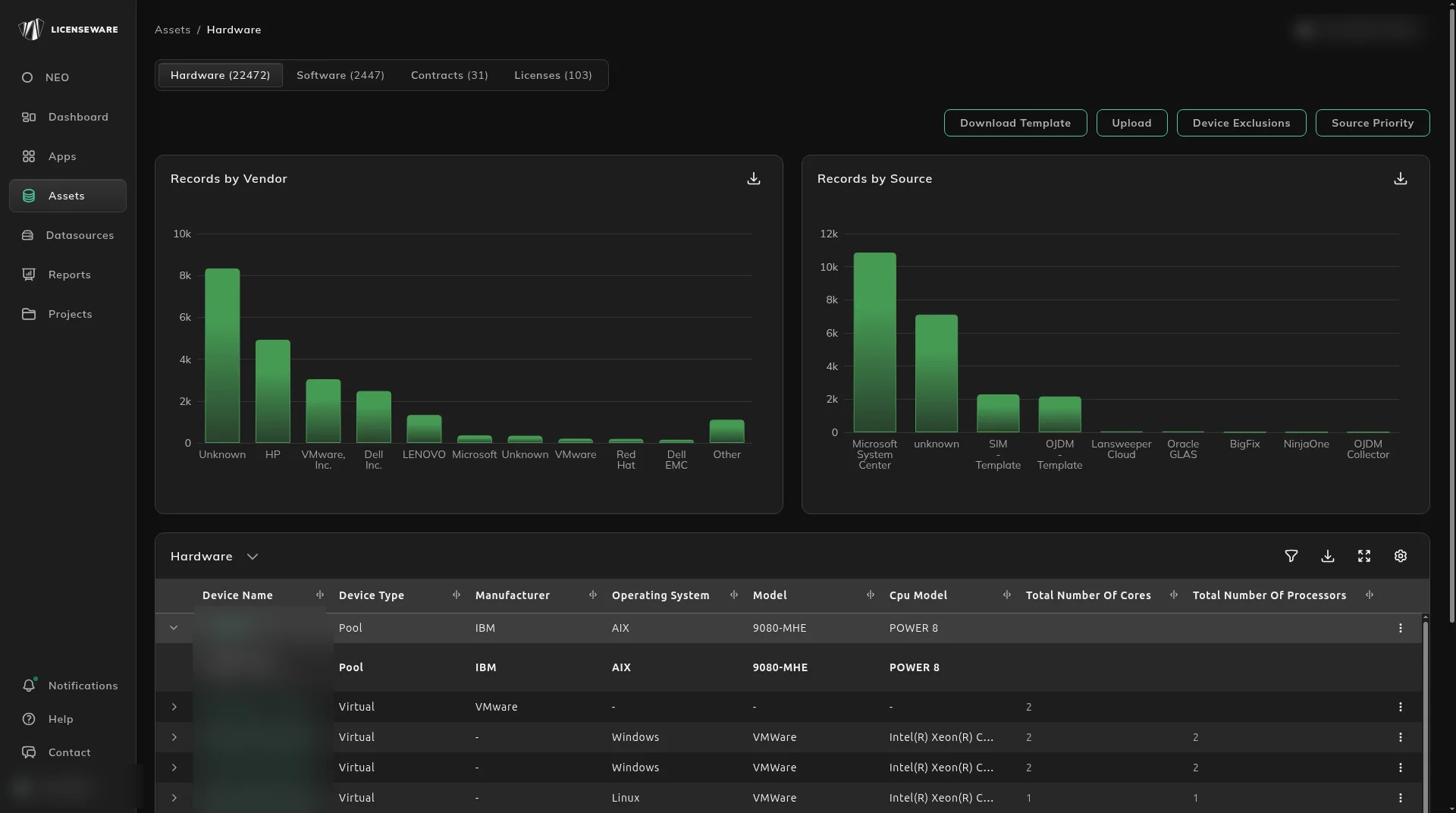
Click the arrow at the start of a row to see more about the device. Each source that reported it is listed with the device’s name and type in that source, and when the data was received.
Edit or exclude a device
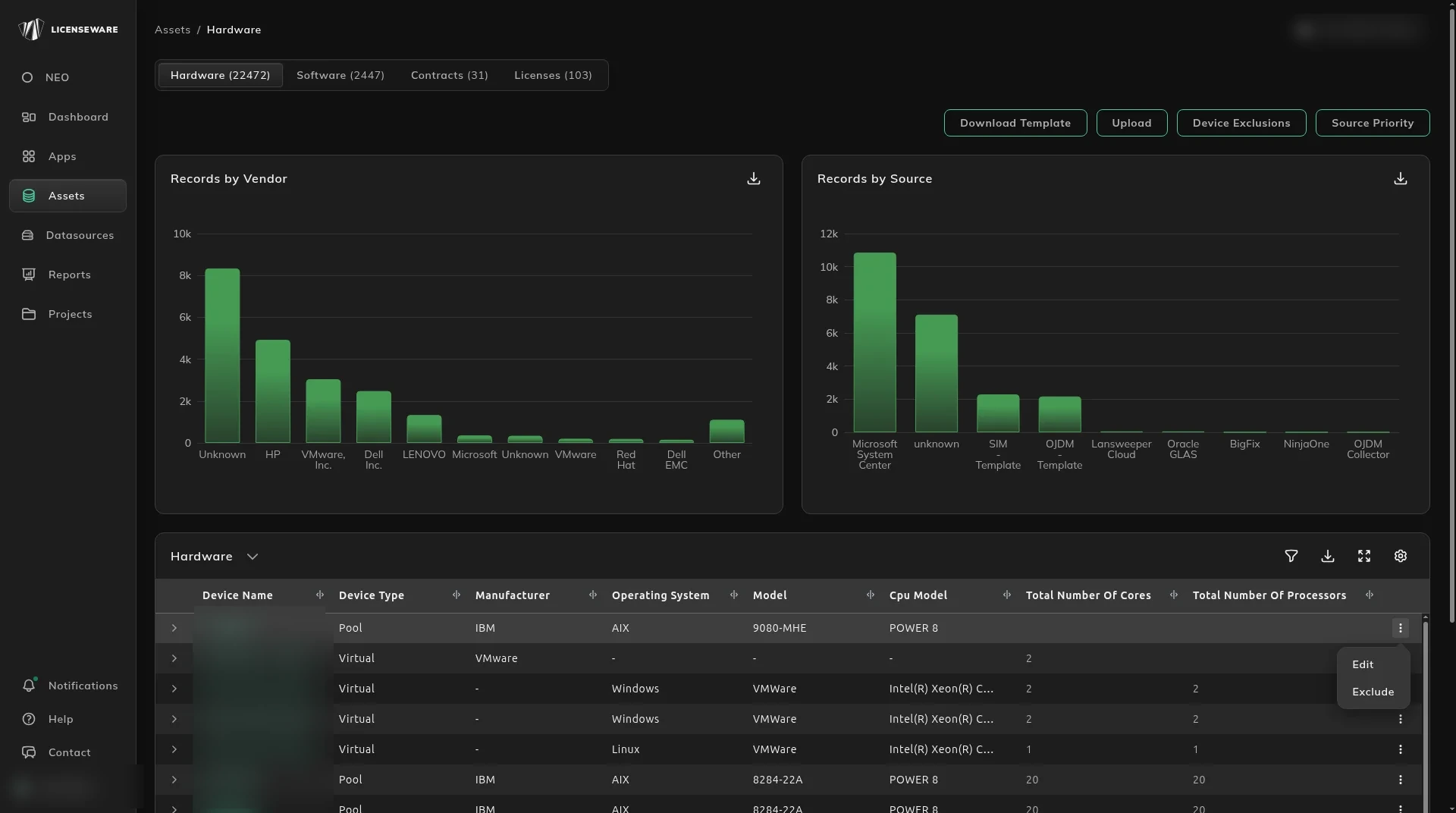
Section titled “Edit or exclude a device”Click the ⋮ at the end of a row to open its menu:
- Edit changes the device’s details.
- Exclude takes the device out of analysis.
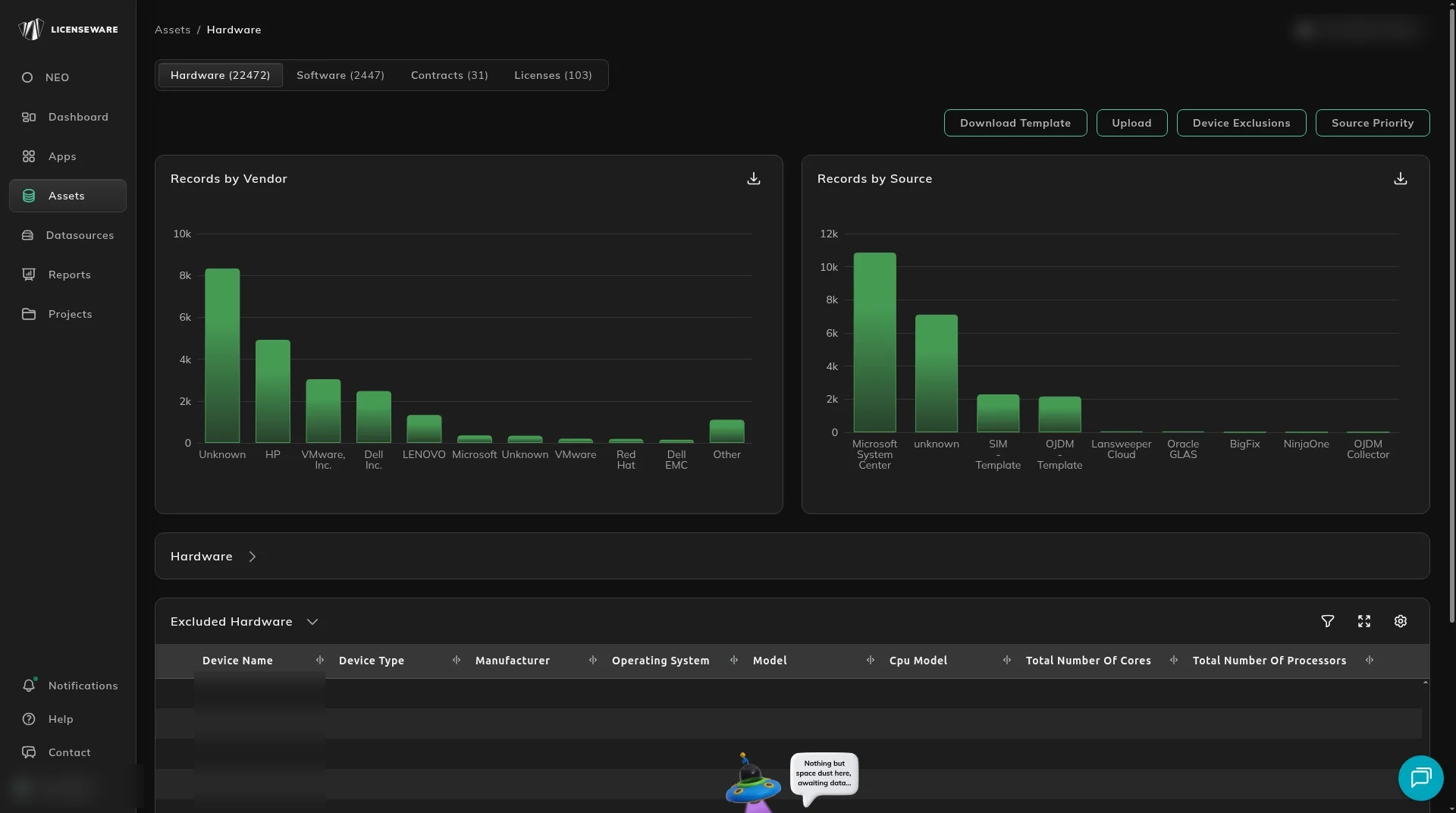
An excluded device stays in Assets but moves to the Excluded Hardware table, under the main Hardware table, and is no longer passed to the applications.
Device Exclusions
Section titled “Device Exclusions”To exclude devices by rule rather than one at a time, use Device Exclusions. Excluded devices remain visible in Assets but are never passed to SIM, MDM, OJDM, RDM or IFMP.
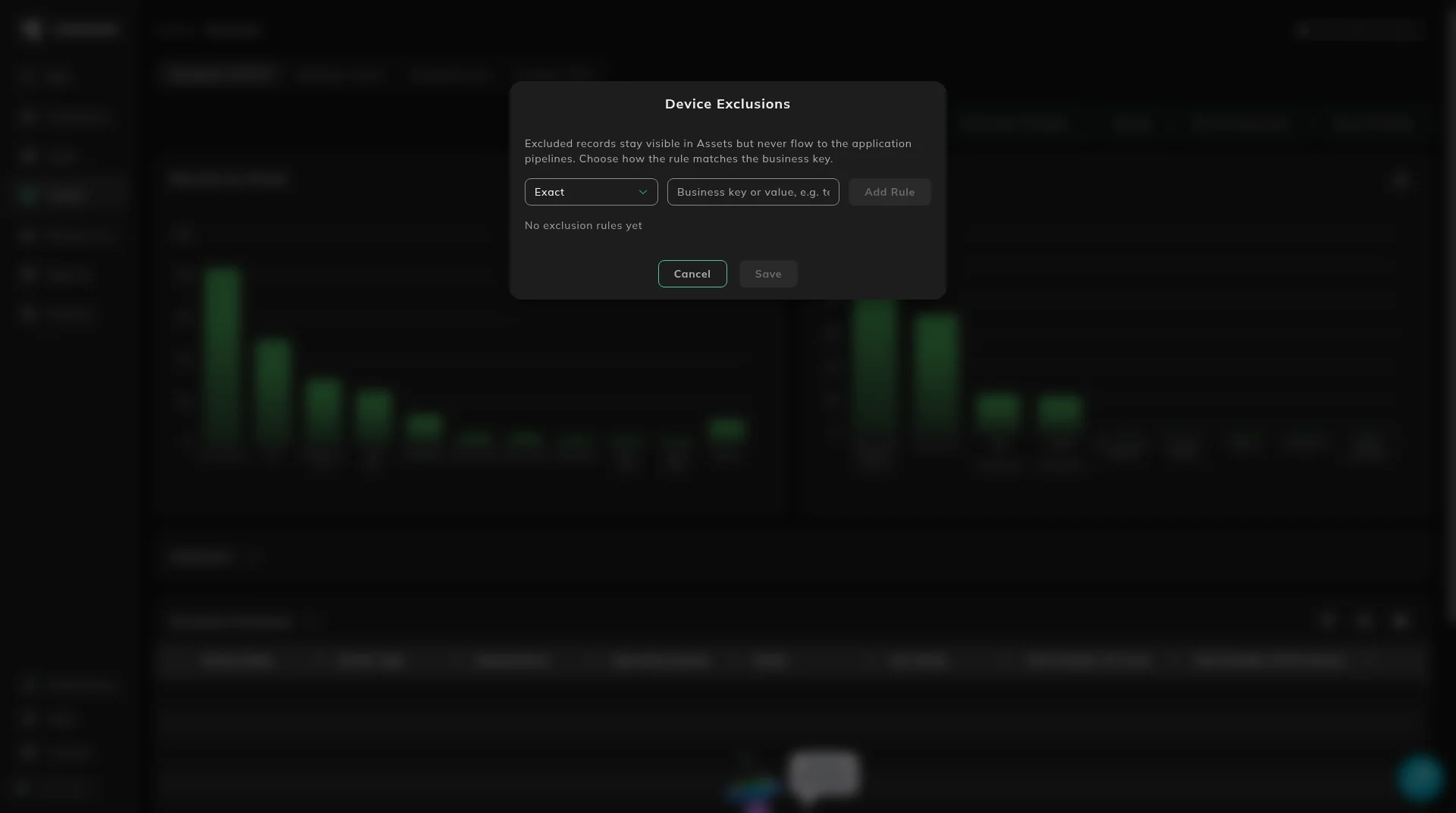
Rules match against the device business key: the device identifier as it appears in the source data.
| Match type | Excludes devices where the business key | Example rule | Matches |
|---|---|---|---|
| Exact | equals the value | test-vm-01 | test-vm-01 only |
| Contains | includes the value anywhere | test | test-vm-01, uat-test-02, latest-build |
| Starts with | begins with the value | dev- | dev-web-01, dev-sql-03 |
| Ends with | ends with the value | -lab | nyc-lab, ldn-01-lab |
To add rules:
- Click Device Exclusions.
- Select a match type.
- Enter the business key or pattern.
- Click Add Rule. Repeat for additional rules.
- Click Save.
Rules are evaluated against all current and future records. Removing a rule restores the matched devices to the pipelines on the next analysis run.
Source Priority
Section titled “Source Priority”When the same device is reported by more than one source, Source Priority decides which source’s values are used, for the device record and for its software data points.
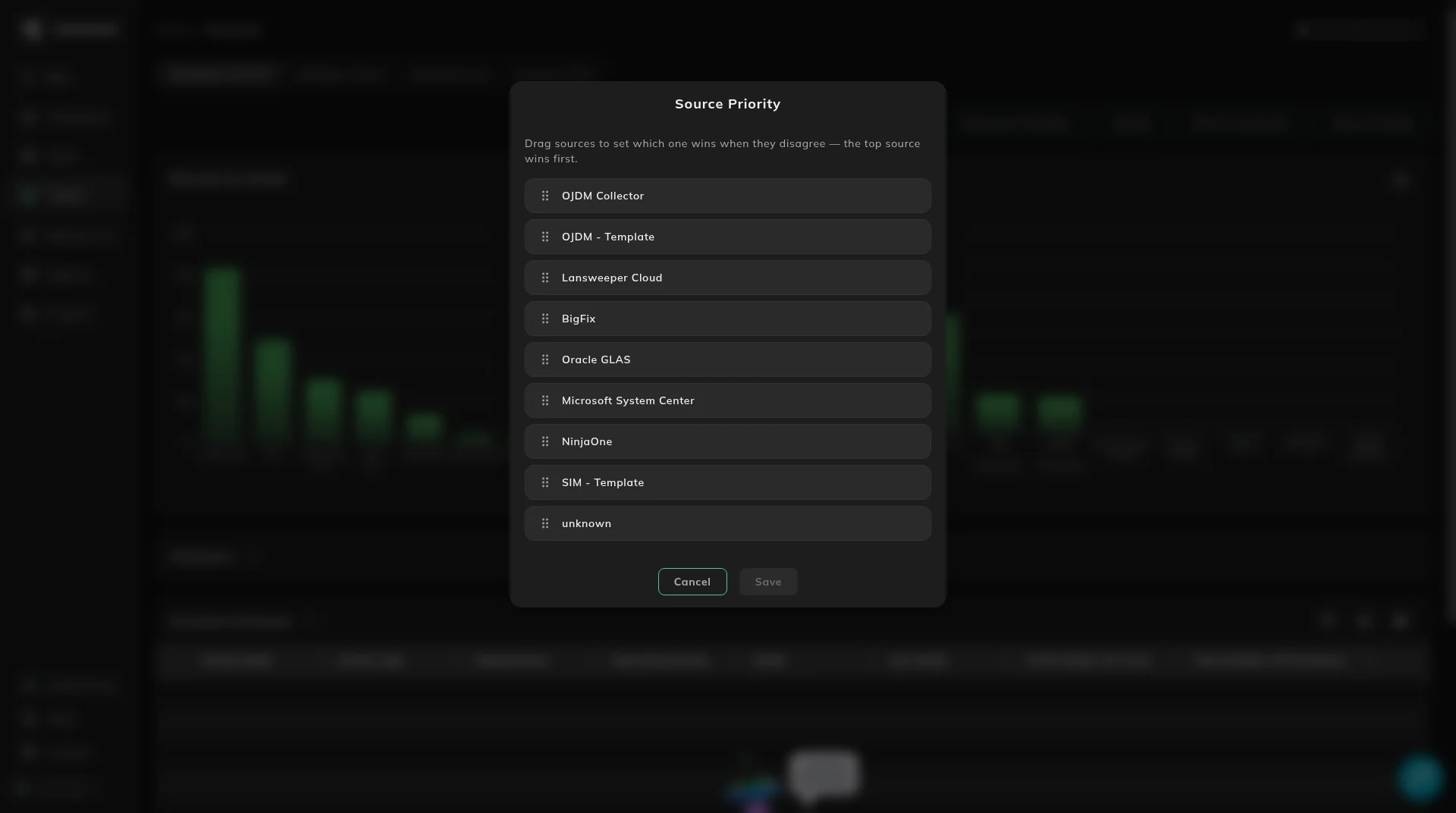
- Click Source Priority.
- Drag the sources into order, highest priority first. Where two sources disagree, the higher one wins.
- Click Save.
Source Priority applies to hardware and software data in the project. A typical order puts authoritative agent-based sources (SCCM, NinjaOne, BigFix) above manually maintained templates, so that a template upload can’t override live discovery data unless you intend it to.
Bulk edit via template
Section titled “Bulk edit via template”You can change hardware data in bulk by downloading a template, editing it and uploading it again. Licenseware keeps track of your changes and applies them on top of the data from your sources. Use it, for example, to:
- standardize vendor names, so
Dell Inc.andDellcount as one manufacturer - apply a naming convention to device names
- add devices that no integration reports, or correct other attributes
| Step | Action |
|---|---|
| 1 | Click Download Template. It contains the hardware column schema. |
| 2 | Add or edit rows. Don’t change the device identifier column: it’s the match key. |
| 3 | Save as CSV, UTF-8. |
| 4 | Click Upload and select the file. |
How uploaded records rank against other sources is set by Source Priority.
SQL Server edition overrides
Section titled “SQL Server edition overrides”Discovery often reports a generic SQL Server edition, or reports Developer or Evaluation as a paid edition. The SQL edition file has three required columns:
| Column | What to enter |
|---|---|
device_name | The hostname as it appears in the inventory, including case and any domain suffix. |
product_family | SQL Server |
edition | Enterprise, Standard, Web, Express, Developer or Evaluation. |
One row per device. A host with several instances of different editions is not one row.
Hardware files go through Assets, then the Hardware tab. The toolbar is Download Template, Upload, Device Exclusions and Source Priority.
The SQL edition file is still uploaded in the app. Keep the column rules above.
Rejected rows are on the History tab. The file needs these columns:
Exclude devices in bulk for a licensing reason
Section titled “Exclude devices in bulk for a licensing reason”A separate file excludes devices that are already covered, for example disaster-recovery and failover rights, or user-based entitlements such as MSDN and Visual Studio on development and test machines. The file is a CSV with three columns, all required:
| Column | What to enter |
|---|---|
device_name | The device name as the discovery tool has it. |
excluded | TRUE to leave the device out of the Microsoft calculation. |
exclusion_reason | A short reason you can show in an audit, such as DEV, DR, UAT, TEST or PASSIVE. |
This exclusion file is still uploaded in the app. Keep the three columns above.
Device names have to match the discovery record, including the way they are spelled.