
Upload & manage data
Upload a file for a tool that has no API connection. Connect an API integration and install the Collector first, from Data sources and Install Collector agents.
Every file you upload goes to a data source: the tool or template it came from, such as the SIM template, RVTools or Microsoft System Center. Licenseware then feeds it to every app that uses that source.
Upload a file
Section titled “Upload a file”- Open Datasources from the sidebar. Use File Upload at the top to show only the sources that take files, or search for the one you need.
- Click the data source.
- The upload area reads Drag & drop files & folders here. Drop the files there, or click Upload and choose them. The accepted file type is shown as a tag under the area, for example .csv.
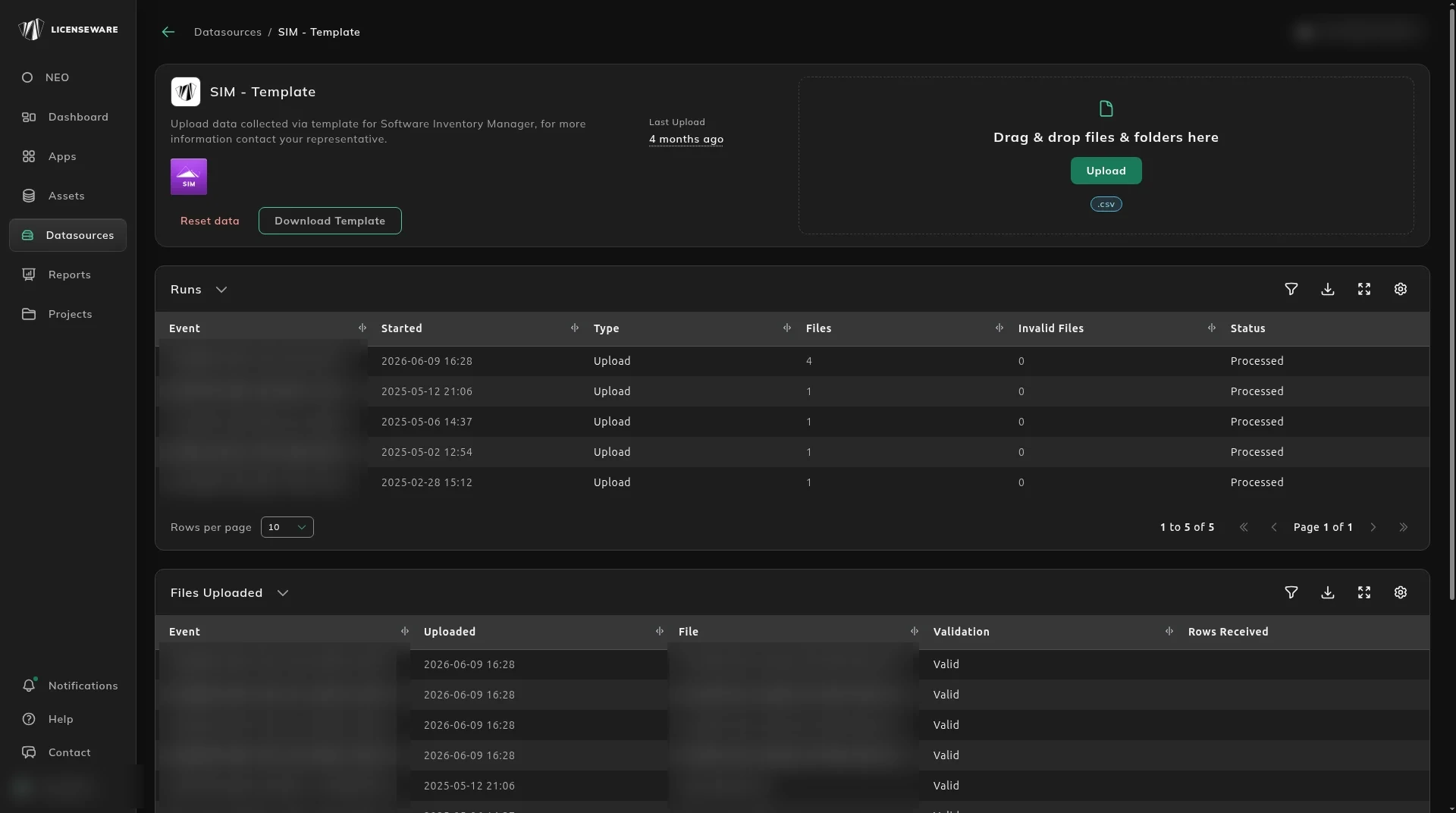
The page also shows when the source was last uploaded to and which apps use it.
Use a template
Section titled “Use a template”Some data sources are Licenseware templates, such as SIM - Template, MDM - Template and IFMP - Template. Use one when your tool isn’t supported directly.
On the template’s data source page, click Download Template, fill it in, and upload it back to the same source. Download a fresh template each time, as templates are updated from time to time.
Check that the upload worked
Section titled “Check that the upload worked”The Runs table below the upload area lists each upload and its Status, such as Processed. If a file was rejected or failed, Validation Errors and Processing Errors tell you why. See Upload history.
Notifications also tells you when processing has finished.
Most failures come from:
- uploading to the wrong data source
- a file type the source doesn’t accept
- files named differently from what the source’s setup guide says
Contact support@licenseware.io if the error doesn’t make the fix clear.
Add data to an existing project
Section titled “Add data to an existing project”Upload the new file the same way. Where it contains the same assets as an earlier upload, such as devices, instances, databases or environments, their values are updated to the new ones.
Reset a data source
Section titled “Reset a data source”Reset data, on a data source’s page, removes all the data imported from that source, and only that source. For example:
- on Lansweeper Cloud, it removes everything imported from Lansweeper
- on Microsoft Graph, it removes everything imported from Microsoft Graph
- on a template, such as SIM - Template, it removes all the data uploaded through that template
Data from your other sources stays. Use it to start a source again from scratch, and make sure you have the files to upload again first.
To remove all of a project’s data, delete the project. See Projects.
Large uploads
Section titled “Large uploads”Processing is fast whatever the size of the data. How long the upload itself takes depends on your connection and the size of the files.