
Microsoft Graph
Microsoft Graph is an API integration. It brings in Microsoft 365, Intune and Microsoft Entra ID data.

The integration is API-based and does not require agent deployment. Once connected, it syncs twice a week, every Monday and Wednesday at 22:00 UTC.
Granted permissions
Section titled “Granted permissions”- Read all users’ full profiles
- Read all usage reports
- Read all devices
- Read Microsoft Intune managed devices
- Read directory data (Microsoft Entra ID)
What data is collected
Section titled “What data is collected”1. User & directory data (Microsoft Entra ID)
Section titled “1. User & directory data (Microsoft Entra ID)”Used for Microsoft 365 license position analysis.
Includes:
- User profiles
- Assigned licenses
- Service plan assignments
- Disabled accounts
Purpose:
- Identify assigned vs unassigned licenses
- Detect inactive and disabled users consuming licenses
- Build effective license position (ELP) models
2. Usage & activity reports (Microsoft 365)
Section titled “2. Usage & activity reports (Microsoft 365)”Used for optimization and cost control.
Includes:
- Microsoft 365 service usage
- Activity reporting
- Workload-level engagement (where available)
Purpose:
- Identify underutilized subscriptions
- Support downgrade recommendations
- Detect dormant accounts
3. Device inventory data (Microsoft Entra ID & Intune)
Section titled “3. Device inventory data (Microsoft Entra ID & Intune)”Supports both Microsoft analysis and SIM software recognition.
Includes:
- Entra ID joined devices
- Hybrid Entra ID devices
- Microsoft Intune managed devices
- Device metadata (OS, ownership, compliance state, etc.)
Purpose:
- Cross-checking user-device relationships
- Software inventory for SIM and the other apps.
Configuration
Section titled “Configuration”Step 1, Open Microsoft Graph in Datasources
Section titled “Step 1, Open Microsoft Graph in Datasources”In Licenseware, open Datasources and search for Microsoft. Click Microsoft Graph.
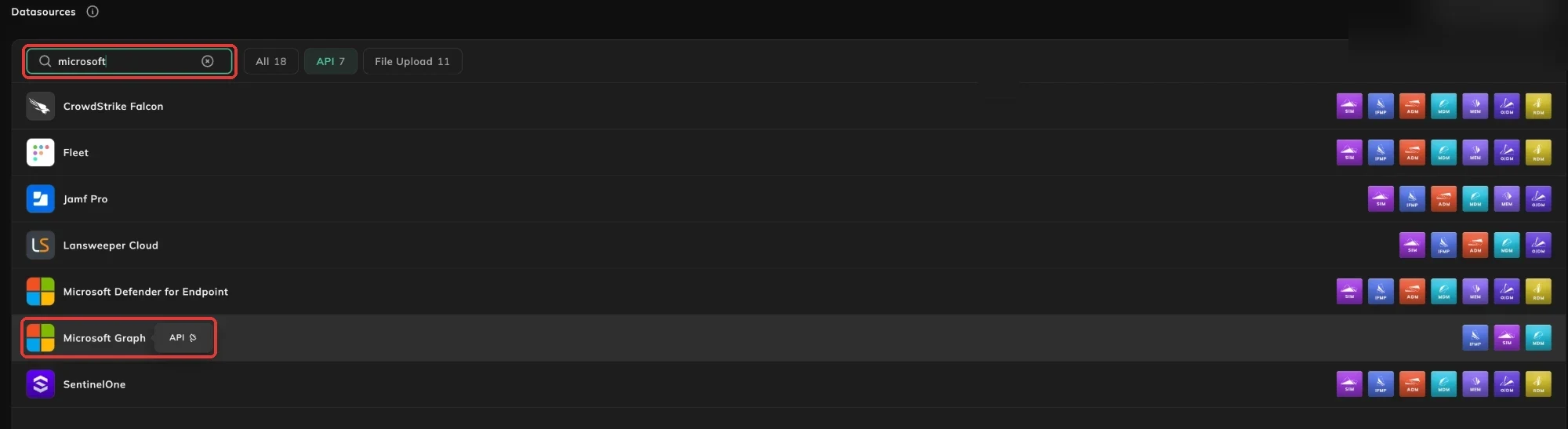
Click Connect.

An administrator authorizes Licenseware’s connection, and you are redirected to Microsoft to sign in and grant access. Click Continue.

Step 2, Authorize tenant
Section titled “Step 2, Authorize tenant”- Sign in with a Administrator or appropriate delegated role.
- Review requested read-only permissions.
- Grant tenant consent.
Check and manage the connection
Section titled “Check and manage the connection”In Datasources, click Microsoft Graph to open its page. Once it is configured, the page shows Update Credentials and Verify Connection instead of Connect. It brings in Intune and Entra devices, Intune app inventory and Microsoft 365 licenses, and feeds IFMP, SIM and MDM.
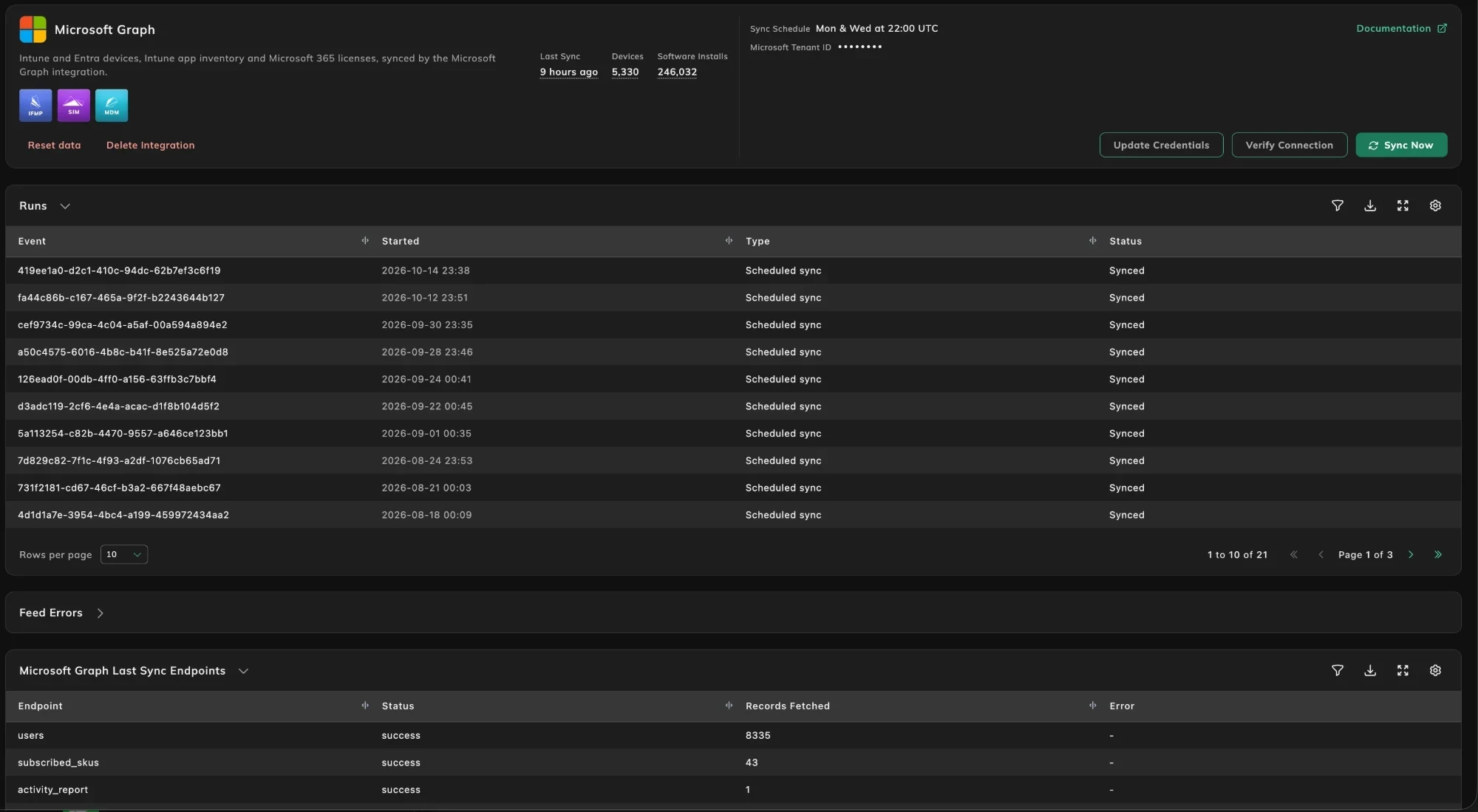
The top of the page shows:
- Last Sync, and how many Devices and Software Installs the source brought in.
- Sync Schedule: API connections sync automatically twice a week, Mon & Wed at 22:00 UTC.
- The connection’s settings, such as the Microsoft Tenant ID for Microsoft Graph. Stored values stay hidden.
- Documentation: the setup guide for this source.
Buttons
Section titled “Buttons”| Button | What it does |
|---|---|
| Sync Now | Starts a sync straight away instead of waiting for the next scheduled one. |
| Update Credentials | Opens the connection’s credentials so you can replace them. |
| Verify Connection | Checks that Licenseware can connect with the credentials it has stored. |
| Reset data | Removes everything this data source has imported. The connection itself stays. |
| Delete Integration | Removes the connection’s configuration together with the devices it brought in. |
The Runs table lists every sync, newest first, with when it Started, its Type, such as Scheduled sync, and its Status, such as Synced.
Feed Errors
Section titled “Feed Errors”Feed Errors collects the errors the source reported while syncing. Expand it when a run didn’t complete or the data looks incomplete.
Microsoft Graph Last Sync Endpoints
Section titled “Microsoft Graph Last Sync Endpoints”For Microsoft Graph, this table breaks the last sync down by the Microsoft Graph endpoint it read from, such as users, subscribed_skus and activity_report. Each row shows the endpoint’s Status, how many Records Fetched, and any Error. Use it to see which part of a sync failed.