
Microsoft Defender for Endpoint
Connect Microsoft Defender for Endpoint (MDE) to Licenseware through its API. Licenseware pulls the software inventory from Defender on a schedule, so you don’t need to export or upload anything.
Create credentials in Microsoft Defender for Endpoint
Section titled “Create credentials in Microsoft Defender for Endpoint”In Microsoft Entra, register an application. On the app Overview, copy the directory (tenant) ID and the application (client) ID. Under Certificates & secrets, create a client secret and copy the value. It is shown once.
Under API permissions, choose Add a permission, then APIs my organization uses, search for WindowsDefenderATP, add the application permission, then grant admin consent. Microsoft’s steps: Create an app to access Defender for Endpoint without a user. The list software call uses Software.Read.All (Read Threat and Vulnerability Management Software information). The per-device software inventory export uses the same permission and returns the device name with each row. The API list is Exposed APIs.
Connect in Licenseware
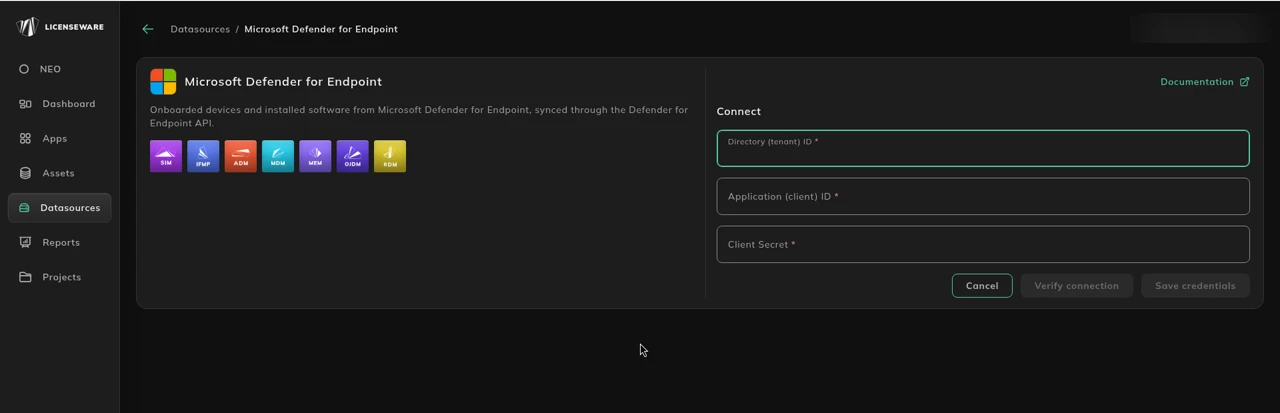
Section titled “Connect in Licenseware”- Open Datasources from the sidebar and click Microsoft Defender for Endpoint.
- Click Connect. Documentation is at the top right of the source page.
- Fill the required fields. Each one is marked with *.
- Directory (tenant) ID
- Application (client) ID
- Client Secret
- Verify connection and Save credentials stay disabled until every required field is filled. Click Verify connection first, then Save credentials.
See Data sources for how to check a connection.
If you can’t connect
Section titled “If you can’t connect”Microsoft Defender for Endpoint collects endpoint and application inventory data via the Defender sensor. The relevant data sources for SIM import include:
- Devices (Machine Inventory), Device name, OS, and onboarding status.
- Software Inventory, Installed software name, version, and vendor detected per device.
- Microsoft Defender for Endpoint REST API, Programmatic access to device and software inventory data.
Note: Software inventory visibility requires Device Inventory / Software Inventory to be enabled in Microsoft Defender for Endpoint.
Prerequisites
Section titled “Prerequisites”For console (UI) method
Section titled “For console (UI) method”- Access to the Microsoft 365 Defender Portal (
https://security.microsoft.com). - Role with permission to view Endpoints and Software Inventory (e.g. Security Reader, Security Administrator).
- Devices onboarded and actively reporting to Microsoft Defender for Endpoint.
- Permission to export data from inventory views.
For API method
Section titled “For API method”- Azure AD application with API permissions for Microsoft Defender for Endpoint.
- Required permissions:
Machine.Read.AllSoftware.Read.All
- Client ID, Tenant ID, and Client Secret for OAuth2 authentication.
- A PowerShell or REST-capable environment (PowerShell, curl, Postman).
- Access to the Defender API endpoint (
https://api.security.microsoft.com).
Export methods
Section titled “Export methods”Option 1: Microsoft 365 Defender portal export (UI)
Section titled “Option 1: Microsoft 365 Defender portal export (UI)”This method is suitable for manual or ad-hoc exports.
- Log in to the Microsoft 365 Defender Portal.
- Navigate to Endpoints → Software inventory.
- Apply filters as required (e.g. all devices, specific OS).
- Ensure the following fields are visible:
- Device name
- Software name
- Version
- Vendor / Publisher
- Click Export and choose CSV.
- Save the file as
MDE_SIM_Export.csv.
Tip: You can also export from Endpoints → Device inventory and include software-related fields in the export.
Option 2: Microsoft Defender for Endpoint API (recommended for automation)
Section titled “Option 2: Microsoft Defender for Endpoint API (recommended for automation)”For automated or large-scale exports, use the Defender for Endpoint REST API.
Step 1: Authenticate with OAuth2
Section titled “Step 1: Authenticate with OAuth2”# Microsoft Defender for Endpoint SIM Template Export Script# Requires Azure AD App Registration with MDE permissions
$TenantId = "YOUR_TENANT_ID"$ClientId = "YOUR_CLIENT_ID"$ClientSecret = "YOUR_CLIENT_SECRET"$ExportPath = "C:\Exports\MDE_SIM_Export.csv"
# Get OAuth2 token$Body = @{ grant_type = "client_credentials" client_id = $ClientId client_secret = $ClientSecret scope = "https://api.security.microsoft.com/.default"}
$TokenResponse = Invoke-RestMethod -Method Post ` -Uri "https://login.microsoftonline.com/$TenantId/oauth2/v2.0/token" ` -Body $Body ` -ContentType "application/x-www-form-urlencoded"
$AccessToken = $TokenResponse.access_tokenStep 2: Retrieve software inventory
Section titled “Step 2: Retrieve software inventory”$Headers = @{ "Authorization" = "Bearer $AccessToken" "Accept" = "application/json"}
# Retrieve software inventory$Url = "https://api.security.microsoft.com/api/software"$SoftwareResponse = Invoke-RestMethod -Uri $Url -Headers $Headers -Method Get
$ExportData = @()
foreach ($Software in $SoftwareResponse.value) { foreach ($Device in $Software.devices) { $ExportData += [PSCustomObject]@{ "Device Name" = $Device.deviceName "Software Name" = $Software.name "Software Version" = $Device.version "Software Publisher" = $Software.vendor } }}
# Export to CSV$ExportData | Export-Csv -Path $ExportPath -NoTypeInformation -Encoding UTF8Write-Host "Export complete: $ExportPath"For large environments, handle pagination using the
@odata.nextLinkvalue returned by the API.
Preparing for SIM import
Section titled “Preparing for SIM import”The CSV header row must be exactly Device Name,Software Name,Software Version,Software Publisher.
- Open the Licenseware SIM Template.
- Go to the Software Inventory tab.
- Paste the CSV data into the template
Remove blank or extraneous rows before saving.
Then upload it on the SIM - Template data source. See SIM template.
Troubleshooting
Section titled “Troubleshooting”| Issue | Cause | Resolution |
|---|---|---|
| No software data visible | Software inventory not enabled | Enable Software Inventory in Defender for Endpoint settings. |
| 401 / 403 API error | Missing API permissions | Verify Azure AD app permissions and admin consent. |
| Partial dataset | Pagination not handled | Implement looping using @odata.nextLink. |
| Missing vendor information | Software metadata incomplete | Leave blank or enrich manually after import. |
| Encoding issues | CSV not saved as UTF-8 | Re-save file as UTF-8 before SIM import. |
Example output
Section titled “Example output”Device Name,Software Name,Software Version,Software PublisherLAPTOP-001,Google Chrome,129.0.6668.90,Google LLCDESKTOP-04,Microsoft Teams,1.7.00.12345,Microsoft CorporationSERVER-02,Microsoft SQL Server 2022,16.0.432,Microsoft CorporationWS-015,Adobe Acrobat DC,24.002.20933,Adobe Inc.