
Microsoft 365 Admin Portal
Export usage reports from the Microsoft 365 / Office 365 admin portal and upload them to Microsoft Deployment Manager (MDM).
Notes
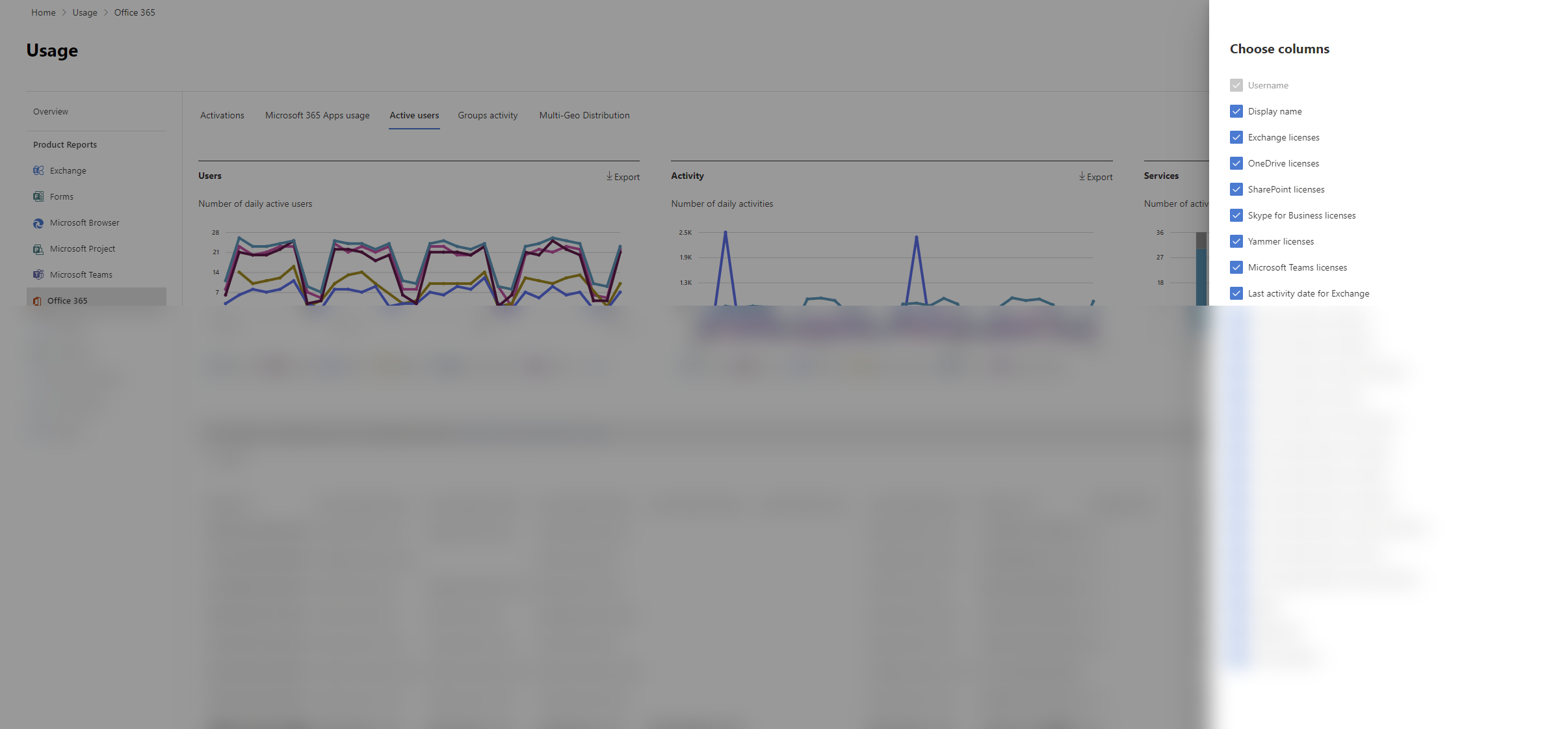
- Generate usage reports for all active users in Office 365.
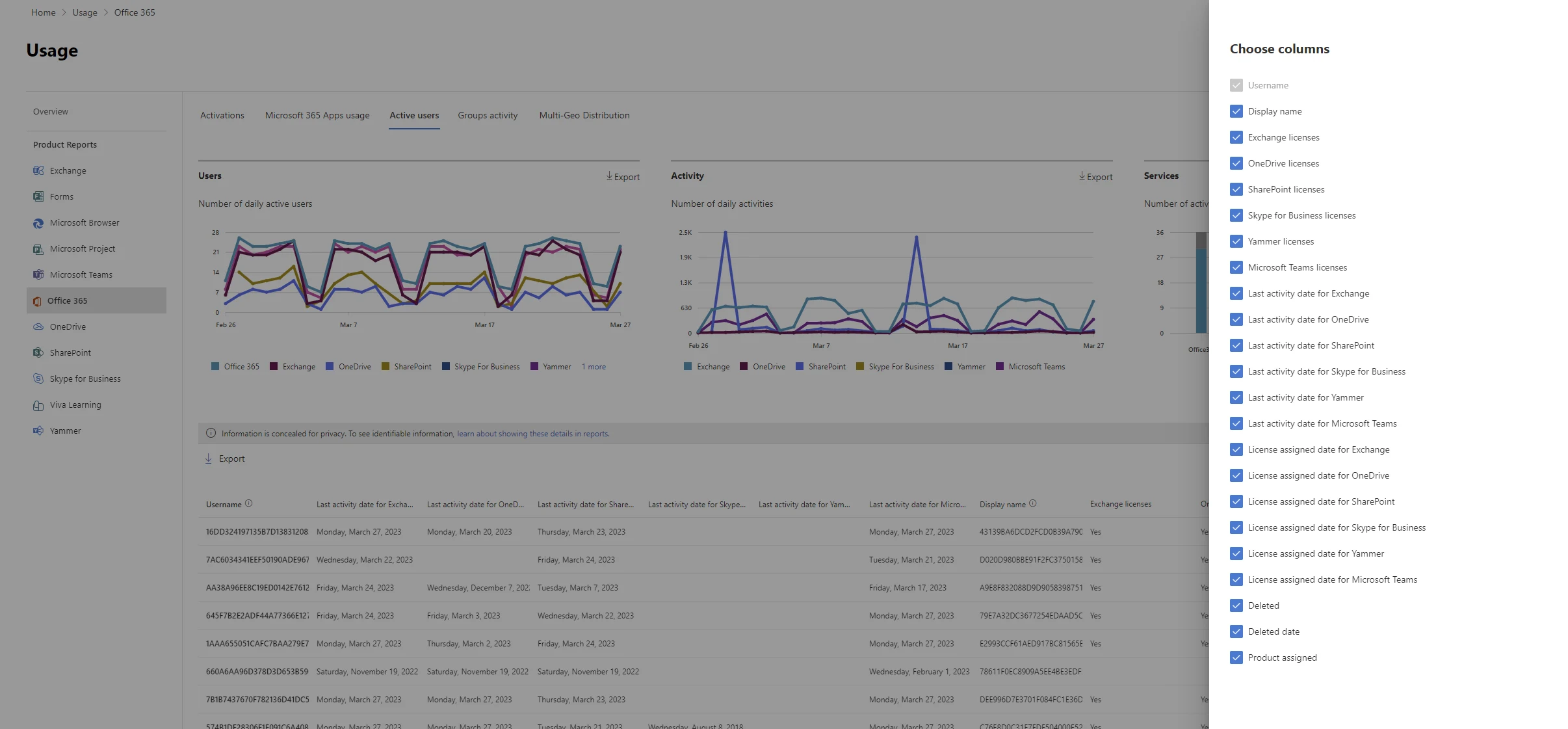
- Ensure all available columns are selected and included in the report.
Requirements
Section titled “Requirements”- Access to Office 365 Admin Portal.
- Necessary permissions to view and generate usage reports.
- In the admin center, go to the Reports > Usage page.
- From the dashboard homepage, click on the View more button on the Active users - Microsoft 365 Services card.
- Customize the table columns: - Locate the table displaying all active users. - At the top-right corner of the table, click on the “Columns” button (represented by a gear icon). - Make sure all columns are selected by checking the boxes next to each column name.
- Export the report: - Once all columns have been selected, click on the “Export” button located at the top-right corner of the table. DO NOT SELECT export deleted users.
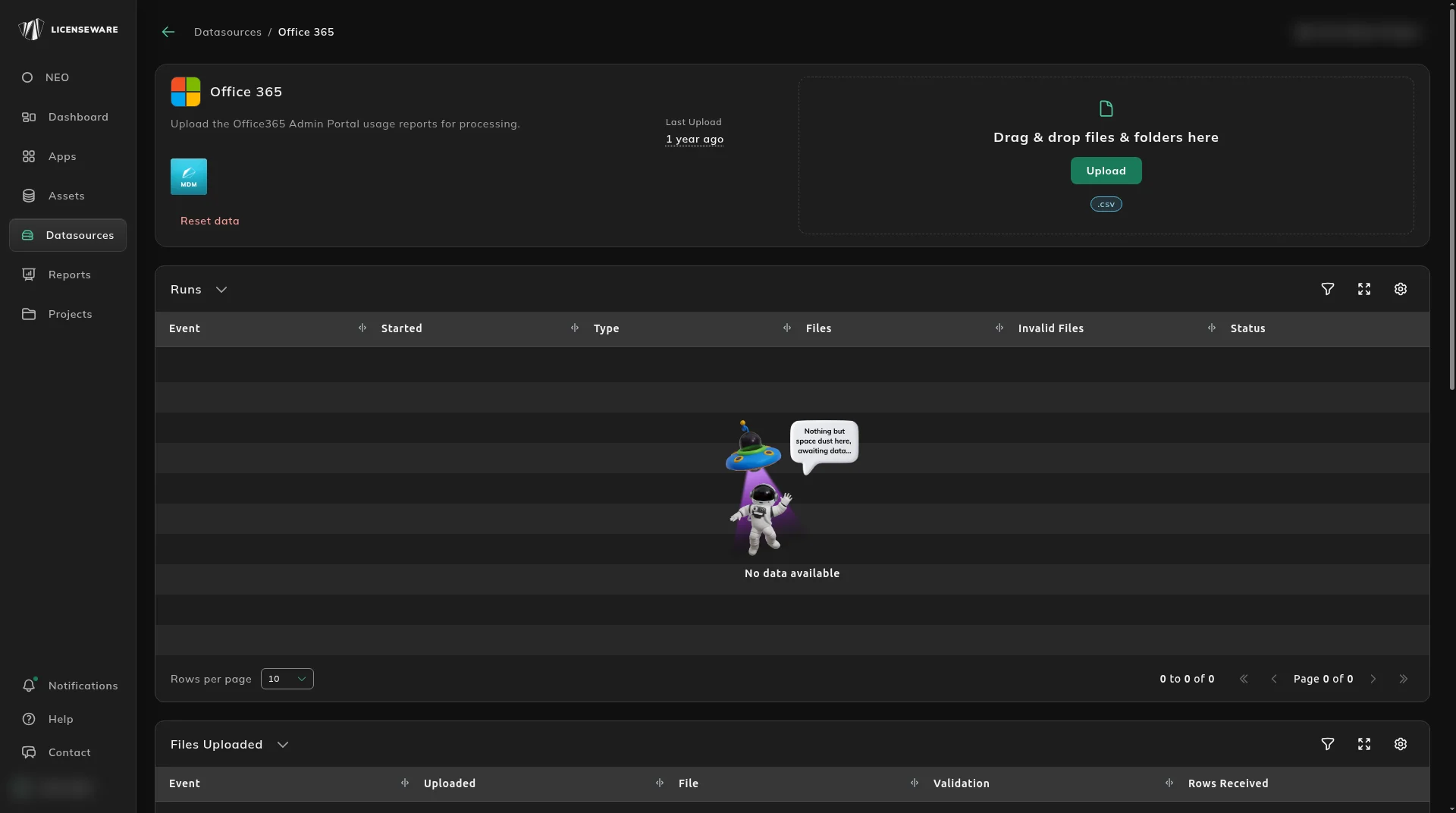
- In Licenseware, open Datasources, click Office 365, and drag the exported .csv into the upload area. The source is named Office 365. Its description is “Upload the Office365 Admin Portal usage reports for processing.” It accepts .csv. Do not export deleted users.
ProPlus Usage report
Section titled “ProPlus Usage report”To obtain the required data for the 365 NEO Insights report without using the graph API please extract the ProPlus Usage report table