
Microsoft entitlements template
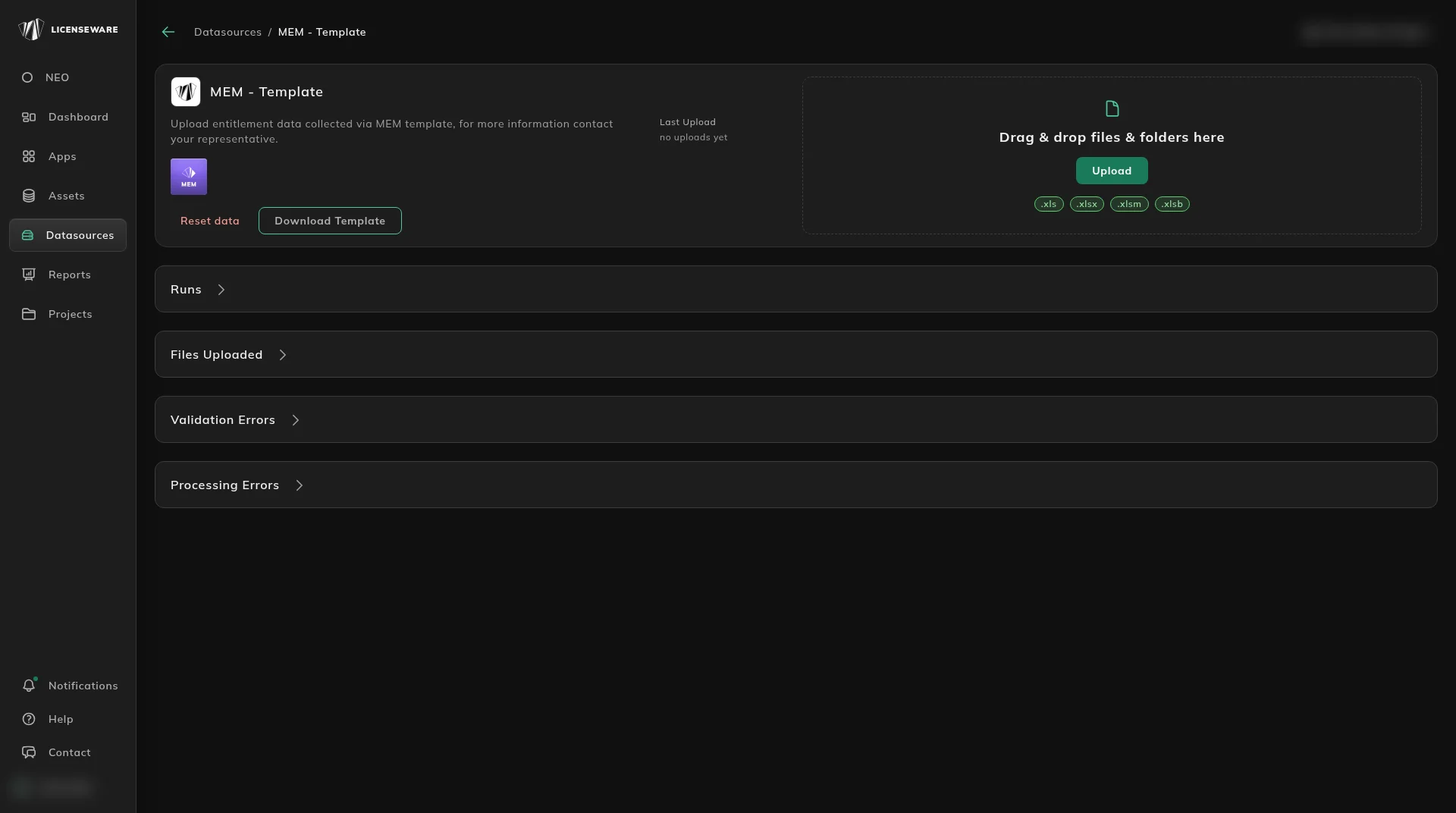
Use this template when a Microsoft License Statement does not carry the entitlement, or when you are loading entitlements without a statement. Download it from the data source: open Datasources, click MEM - Template, then Download Template. Download a fresh copy each time. Templates change.
The sheet has two parts. The top half names the columns and which of them are required. In the published example, product_family, product_name and version are required.

The lower half, under DATA LINES TO BE IMPORTED, is what gets imported. Example rows are there to show the shape. Remove them before you upload.
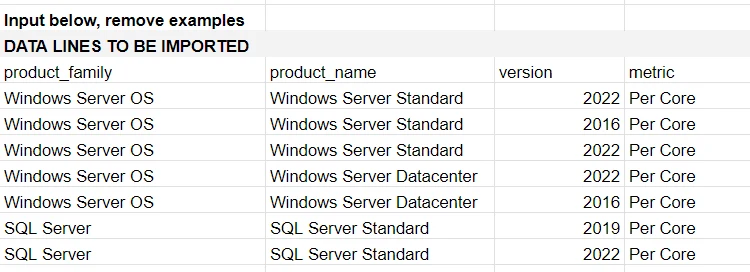
The naming follows the Microsoft License Statement. If a name is unclear, check it against a product name on Microsoft Deployment Overview.
Save the file, then upload it on that same MEM - Template data source. Open Datasources, click MEM - Template, and drag the file into the upload area or click Upload. How an upload is checked is Upload & manage data.
The entitlements those rows load sit in License and Contracts Manager. Microsoft Graph, for deployment rather than entitlements, is the API path on Microsoft Graph.