
ManageEngine
ManageEngine Endpoint Central (formerly Desktop Central) is an API integration. Connect it before you export a file.
Create credentials in ManageEngine
Section titled “Create credentials in ManageEngine”ManageEngine Endpoint Central does not ask for a client ID on the Connect panel. An administrator authorizes Licenseware in the browser.
Endpoint Central Cloud uses OAuth. READ is the read operation. ManageEngine documents DesktopCentralCloud.Inventory.READ as the scope for the installed software list. The product page is Endpoint Central. The scope list is on API scopes.
Connect in Licenseware
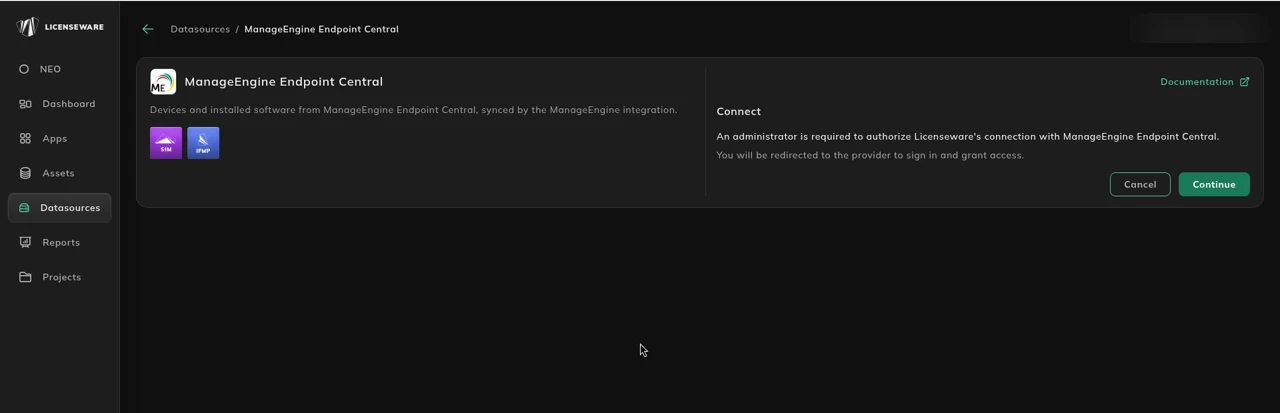
Section titled “Connect in Licenseware”- Open Datasources from the sidebar and click ManageEngine Endpoint Central.
- Click Connect. Documentation is at the top right of the source page.
- The panel says: “An administrator is required to authorize Licenseware’s connection with ManageEngine Endpoint Central.” It also says: “You will be redirected to the provider to sign in and grant access.”
- Click Continue. You sign in at the provider and grant access.
See Data sources for how to check a connection.
If you can’t connect
Section titled “If you can’t connect”ManageEngine Endpoint Central gathers detailed endpoint information from managed devices. The relevant software inventory data resides in the following modules:
- Inventory → Software Details: Lists all detected software applications, including name, version, and publisher.
- Inventory → Computers: Contains device information such as hostname, OS, and last scan time.
This data can be retrieved through the web console or the ManageEngine REST API.
Prerequisites
Section titled “Prerequisites”For console (UI) method
Section titled “For console (UI) method”- Access to the ManageEngine Endpoint Central or Desktop Central console with Inventory privileges.
- Endpoint scans completed recently (ensure up-to-date data).
- Permission to export reports from the Inventory → Software module.
For API method
Section titled “For API method”- Administrative or API access to the Endpoint Central server.
- API key or credentials for authentication.
- Network access to the Endpoint Central server (typically
https://<server>:8020or via secure HTTPS port). - A working PowerShell or curl environment for issuing REST API calls.
Two methods are available to extract the required data for SIM Template import.
Export methods
Section titled “Export methods”Option 1: ManageEngine console export (UI)
Section titled “Option 1: ManageEngine console export (UI)”This is the simplest and most commonly used method.
- Log in to the Endpoint Central Console.
- Navigate to: Inventory → Software → All Software
- In the top-right corner, click Export → CSV.
- Choose your export format and save the file (e.g.,
ManageEngine_SIM_Export.csv). - Ensure the following columns are visible in your export:
| Field Name | Description |
|---|---|
| Computer Name | Device hostname |
| Software Name | Installed application name |
| Version | Application version |
| Publisher | Vendor or publisher of the software |
Tip: If the exported CSV includes extra columns (e.g., installation date or license type), these can be safely removed before import into the SIM Template.
Option 2: ManageEngine API export (advanced / automated)
Section titled “Option 2: ManageEngine API export (advanced / automated)”ManageEngine provides an API endpoint for retrieving software details programmatically. The following PowerShell example demonstrates how to authenticate and export software inventory data in a format suitable for the SIM Template.
Step 1: Define server and API details
Section titled “Step 1: Define server and API details”# ManageEngine SIM Template Export Script# Update these variables with your environment details
$Server = "https://your-endpointcentral-server:8020"$ApiKey = "YOUR_API_KEY"$ExportPath = "C:\Exports\ManageEngine_SIM_Export.csv"Step 2: Retrieve Software Inventory
# Set request headers$Headers = @{    "Authorization" = "Zoho-authtoken $ApiKey"    "Accept"        = "application/json"}
# API endpoint for software inventory$Url = "$Server/api/1.3/inventory/software"
# Retrieve data$Response = Invoke-RestMethod -Uri $Url -Headers $Headers -Method Get
# Initialize array$ExportData = @()
foreach ($Device in $Response.result.devices) {    foreach ($App in $Device.software_list) {        $ExportData += [PSCustomObject]@{            "Device Name"        = $Device.device_name            "Software Name"      = $App.software_name            "Software Version"   = $App.version            "Software Publisher" = $App.vendor        }    }}
# Export to CSV$ExportData | Export-Csv -Path $ExportPath -NoTypeInformation -Encoding UTF8Write-Host "Export complete: $ExportPath"
This script connects to the Endpoint Central API, retrieves software data per device, and exports it in a structure compatible with the Licenseware SIM Template.
Exporting to CSV
If using the UI method, follow these steps:
- Run the export from Inventory → Software → All Software.
- Choose Export → CSV.
- Save the file as
ManageEngine_SIM_Export.csv.
If using the API method, the PowerShell script automatically generates the CSV file.
Ensure the resulting CSV includes the following headers:
Device Name,Software Name,Software Version,Software PublisherPreparing for SIM Import
- Open the Licenseware SIM Template.
- Copy and paste the exported data or import it directly from CSV.
Clean any blank rows or additional columns before saving.
Then upload it on the SIM - Template data source. See SIM template.
Troubleshooting
Section titled “Troubleshooting”| Issue | Cause | Resolution |
|---|---|---|
| Empty export | No recent inventory scan | Trigger a full inventory scan before exporting. |
| Missing publisher or version info | Software metadata incomplete | Verify in the console; add manually if needed. |
| Authentication failure (API) | Invalid API key | Regenerate the token in Admin → API Key Management. |
| Connection timeout | Firewall or proxy restrictions | Whitelist the Endpoint Central server and confirm network access. |
| Incorrect encoding | CSV saved in ANSI | Save file as UTF-8 before SIM import. |
Example output
Section titled “Example output”Device Name,Software Name,Software Version,Software PublisherLAPTOP-001,Google Chrome,129.0.6668.90,Google LLCLAPTOP-002,Microsoft 365 Apps for Enterprise,2409,Microsoft CorporationSERVER-01,Oracle Java SE Runtime Environment,8.0.411,Oracle CorporationLAPTOP-003,Adobe Acrobat DC,24.002.20933,Adobe Inc.