
Lansweeper
Connect Lansweeper in under 5 minutes
Section titled “Connect Lansweeper in under 5 minutes”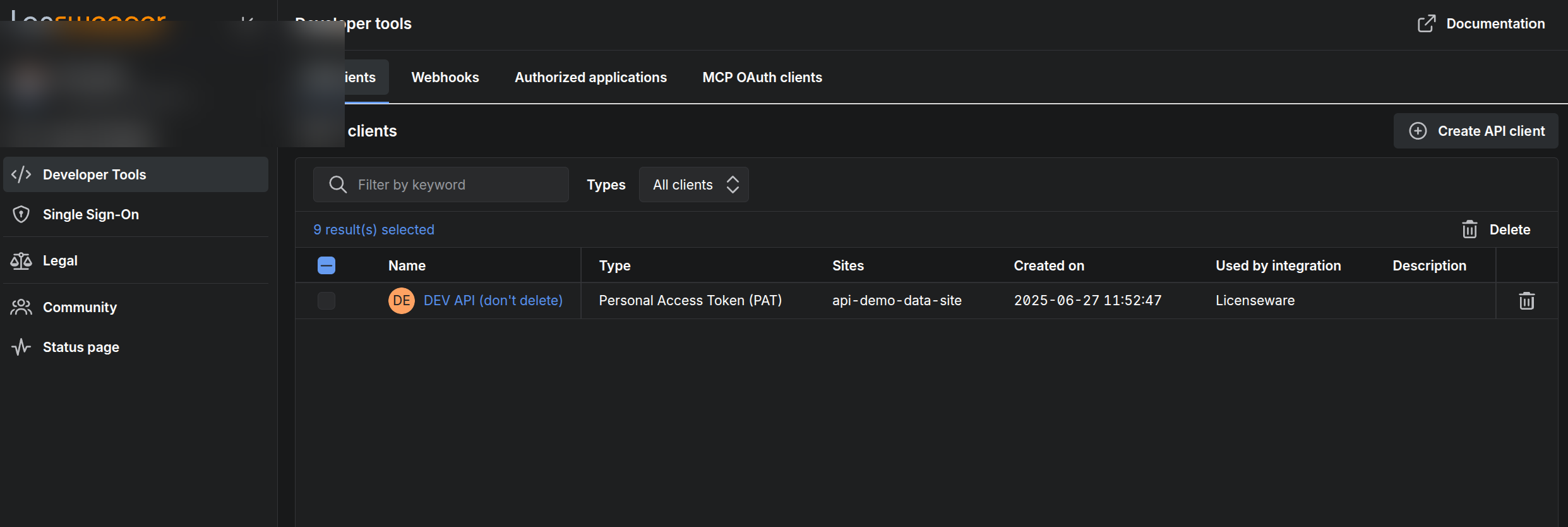
This guide connects Lansweeper Cloud to Licenseware through the Lansweeper API. Licenseware pulls software and device inventory from that environment.
Before you start
Section titled “Before you start”Ensure you have:
- A Lansweeper Cloud instance set up
- Admin access to your Lansweeper environment
- Access to the Lansweeper App Token feature for generating credentials
Connection steps
Section titled “Connection steps”1. Log into Lansweeper Cloud
Section titled “1. Log into Lansweeper Cloud”- Go to your Lansweeper Cloud environment: https://app.lansweeper.com
- Use your administrator credentials to sign in.
2. Navigate to API access
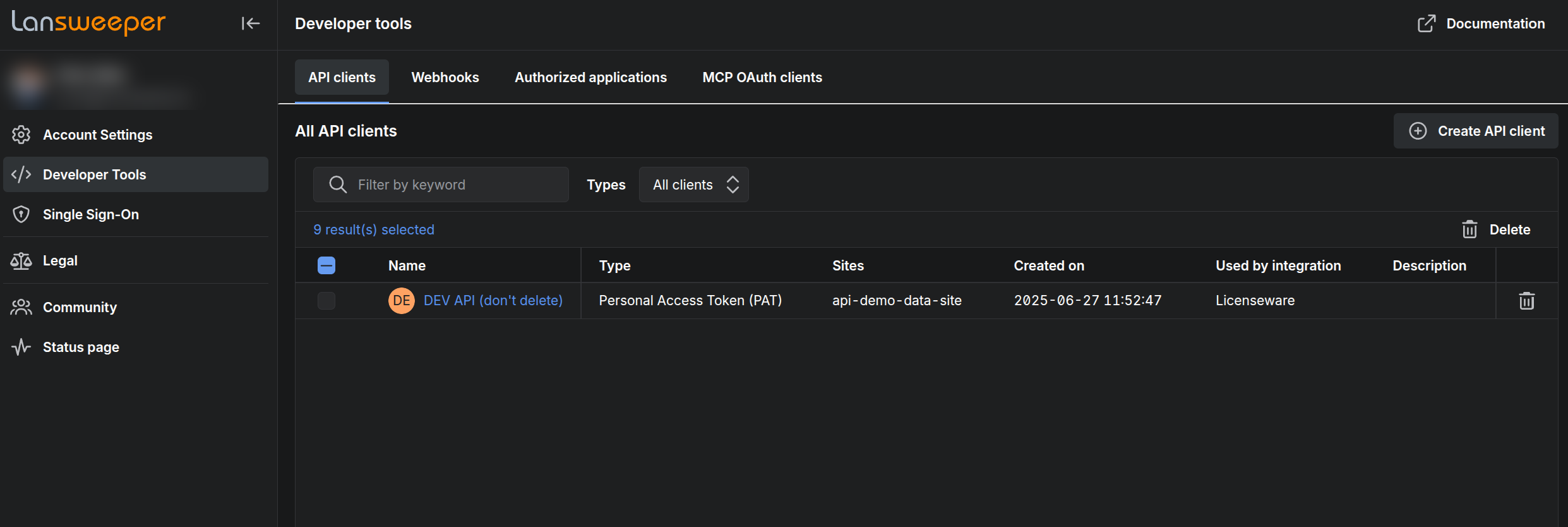
Section titled “2. Navigate to API access”In the left-hand menu, open Developer Tools. The API clients tab lists the clients you already have. Click Create API client.
3. Create an API client
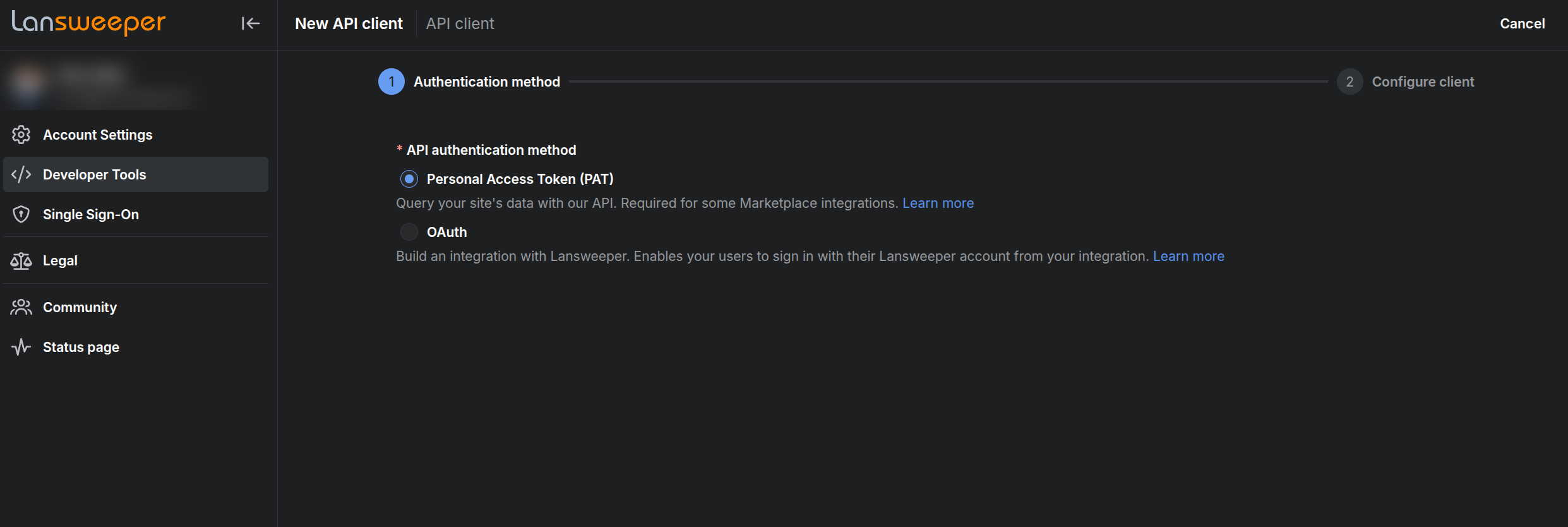
Section titled “3. Create an API client”On Authentication method, select Personal Access Token (PAT).
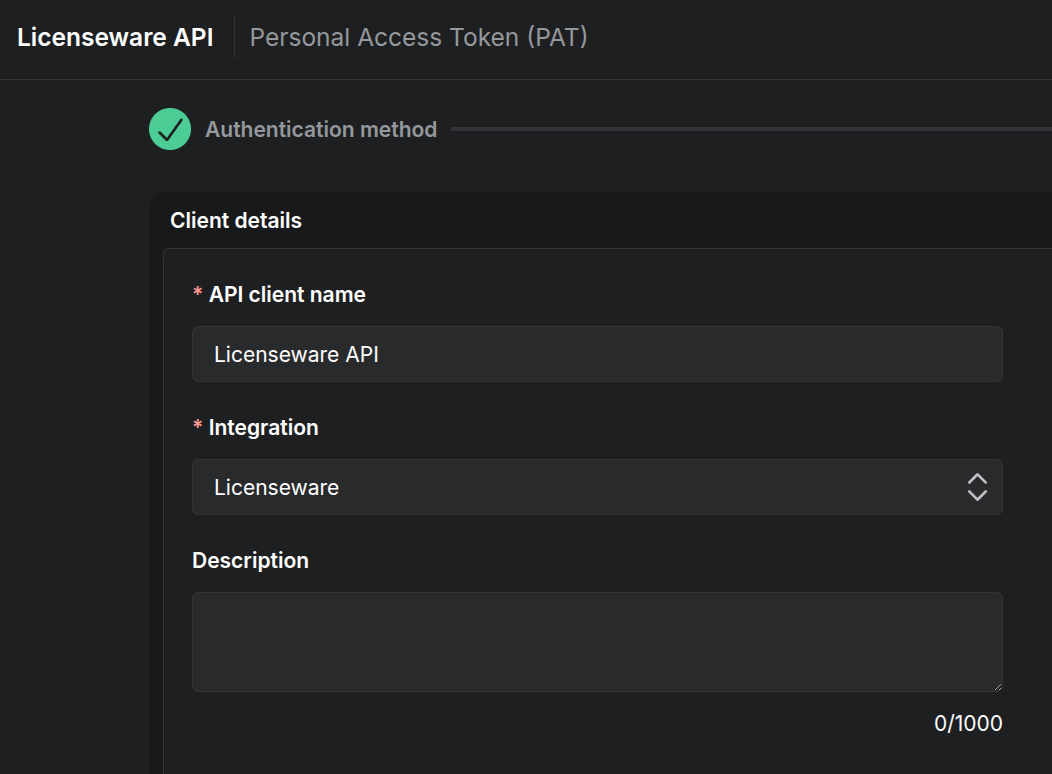
On Client details:
- Set API client name to a name you will recognize, such as Licenseware API.
- Set Integration to Licenseware.
4. Set the token and the sites
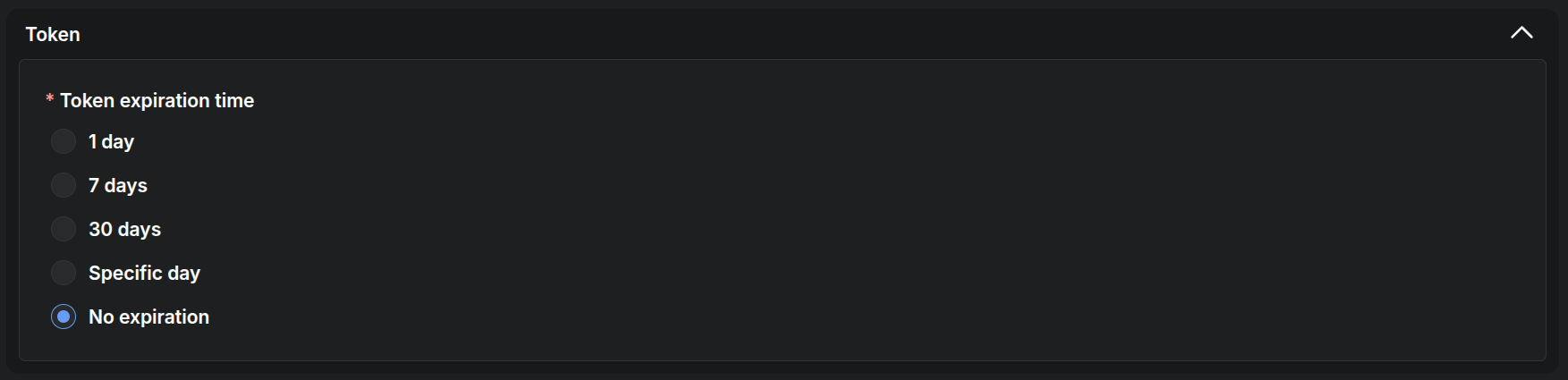
Section titled “4. Set the token and the sites”Under Token expiration time, choose how long the token stays active. No expiration is one of the options.
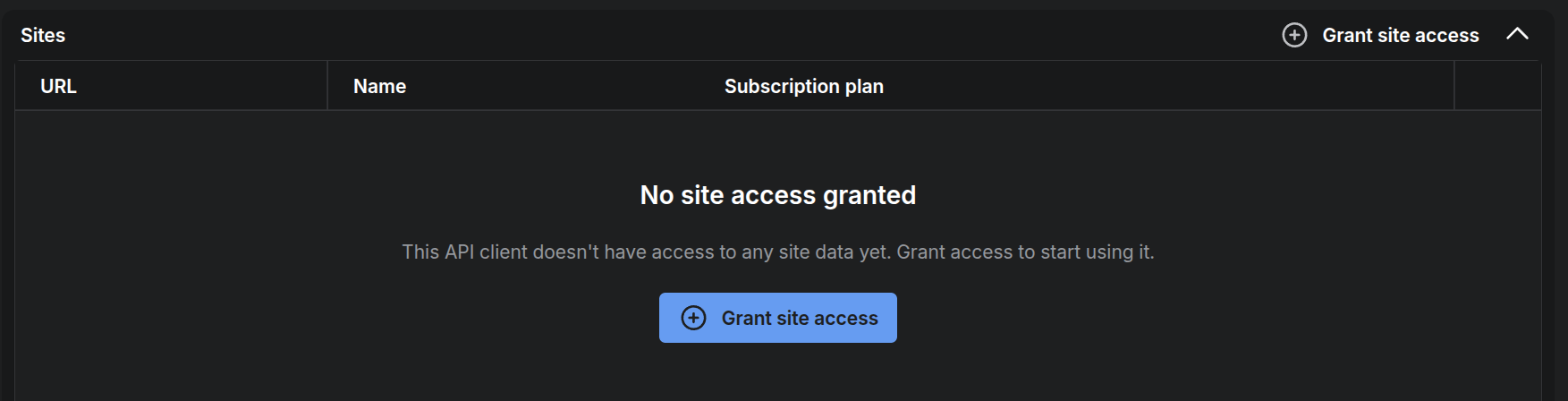
Under Sites, a new client starts with No site access granted. Click Grant site access.
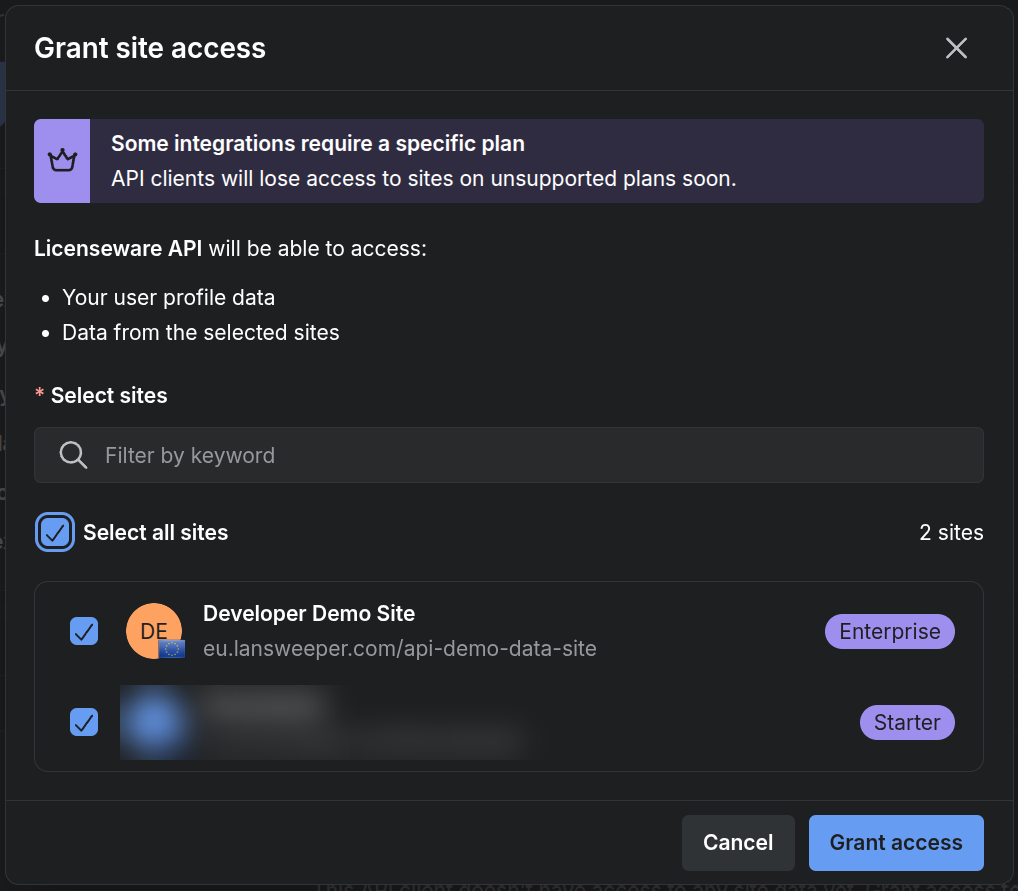
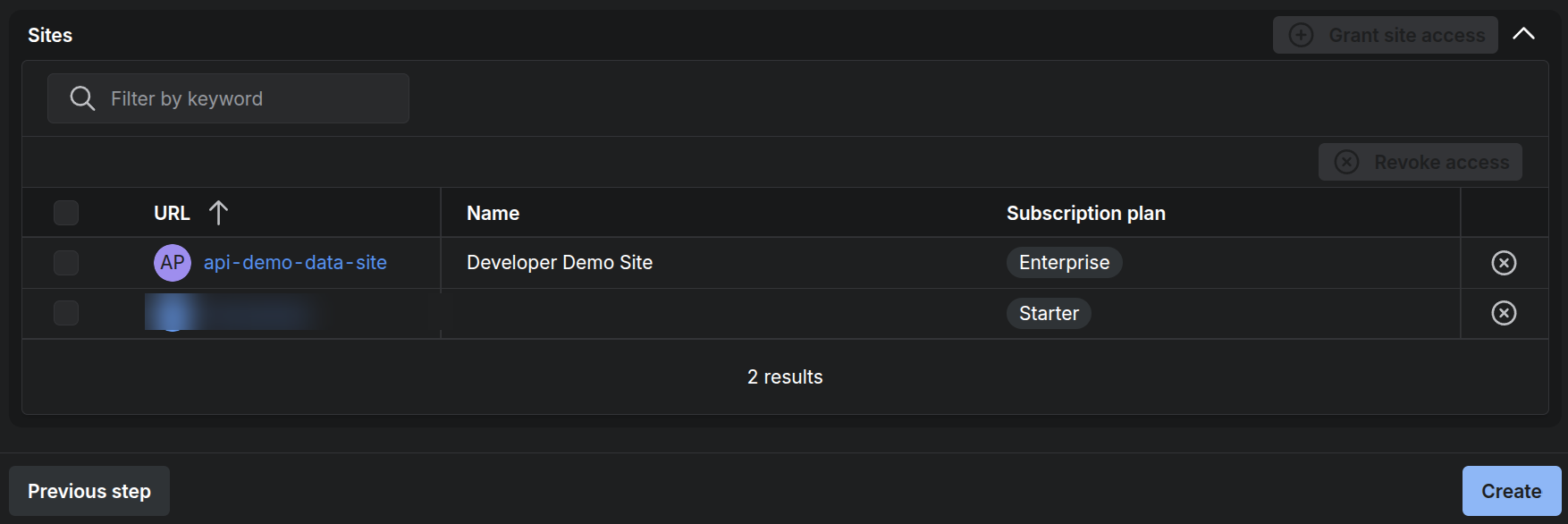
Select the sites that should sync with Licenseware, then click Grant access. The granted sites are listed. Click Create.
5. Copy the token
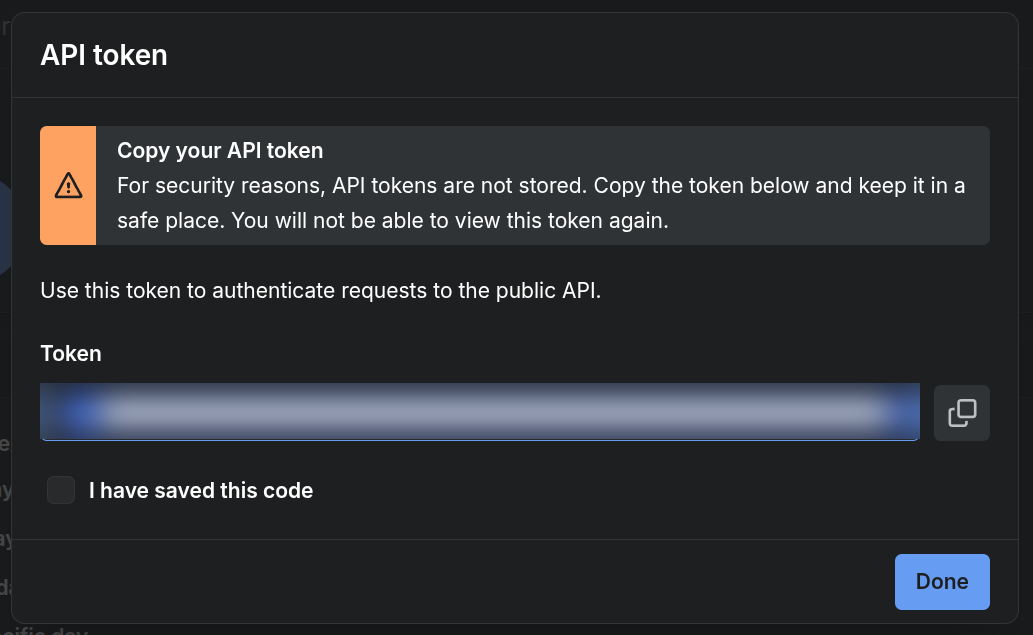
Section titled “5. Copy the token”Lansweeper shows the token once. The dialog says API tokens are not stored. Copy it, tick I have saved this code, and click Done.
6. Connect via Licenseware
Section titled “6. Connect via Licenseware”- In Licenseware, open Datasources and search for Lansweeper. Click Lansweeper Cloud.
- Click Connect.
- Paste the API token you copied in the previous step into Application identity code.
- Click Verify connection to check it works, then Save credentials.
7. Initiate import
Section titled “7. Initiate import”- Tick on the relevant data sync’s for the applications you are interested in.
- Licenseware will establish a connection and begin retrieving your software and asset data via the Lansweeper API.
- Once complete, data will be available for processing within the relevant apps (e.g. Software Inventory Manager, Java Deployment Manager, etc.).
Troubleshooting tips
Section titled “Troubleshooting tips”- The processing can take up to 24 hours to complete, allow sufficient to elapse to ensure the initial data sync can occur.
- If the sync is occurring you will see a red wheel on the reports in the report section.
- If the token is invalid or expired, you will need to generate a new one.
- Make sure the API token has correct permissions assigned.
- Double-check the Site ID, it must match your current Lansweeper Cloud environment.
- Ensure firewalls or network policies allow outbound HTTPS connections to Lansweeper’s API endpoint.
Check and fix the connection
Section titled “Check and fix the connection”In Datasources, click Lansweeper Cloud to open its page. Once it is configured, the page shows Update Credentials and Verify Connection instead of Connect. It shows when it last synced, its sync schedule (twice a week, Mon & Wed at 22:00 UTC), its run history and any Feed Errors.
| Button | What it does |
|---|---|
| Update Credentials | Opens the Application identity code so you can replace it. |
| Verify Connection | Checks that Licenseware can connect with the code it has stored. |
| Reset data | Removes everything Lansweeper Cloud has imported. The connection itself stays. |
| Delete Integration | Removes the connection’s configuration together with the devices it brought in. |
When a sync fails, the source shows Needs Attention and the reason, both on its page and in the Datasources list. In this example, Lansweeper Cloud could no longer authenticate.
- Click Update Credentials.
- Enter the Application identity code again. Stored values stay hidden, so enter the value even if it hasn’t changed: A value is stored. Enter it again to keep it when you save.
- Click Verify connection to test it, then Save credentials.
If Lansweeper is on premises
Section titled “If Lansweeper is on premises”If you run Lansweeper on premises, upload a Lansweeper export instead of this API connection. See Lansweeper On-Prem export.
Which project the connection belongs to
Section titled “Which project the connection belongs to”The connection belongs to the project you set it up in. The project lives in the region you signed up on. See Create an account.
Invite your colleagues to that project: open Projects, click the project’s ⋮ menu, then Invite, and enter their email address. When they accept the invitation and sign up, they must open Projects, then Shared with me, and switch to that project. See Projects.
What Licenseware does with this inventory
Section titled “What Licenseware does with this inventory”Software Inventory Manager processes raw software inventory and returns normalized, enriched and categorized records. SIM supports all vendors, including internal tools and niche publishers, with functional categorization and overlap detection, for rationalization and vendor consolidation. The report is Software Inventory.
Software Inventory Manager reads the Lansweeper inventory. Two NEO reports are written from that estate:
The index of NEO reports is NEO Reports.
The same inventory is what these apps read:
| App | What it does |
|---|---|
| Software Inventory Manager (SIM) | Recognizes your software, from Lansweeper or templates. |
| Microsoft Deployment Manager (MDM) | Analyzes Microsoft deployments for licensing. |
| Oracle Database Manager (ODBM) | Assesses Oracle Database use and license requirements. |
| Oracle Middleware Manager (OMWM) | Evaluates Oracle Middleware and bundles components for the best licensing. |
| Oracle Java Deployment Manager (OJDM) | Finds Java usage, versions and the applications using it. |
| Red Hat Deployment Manager (RDM) | Works out RHEL subscription requirements. |
| Infrastructure Mapper (IFMP) | Maps physical and virtual relationships, clusters and CPU capping. |
| Adobe Deployment Manager (ADM) | Analyzes Adobe deployments and licensing. |
| License and Contracts Manager (LCM) | Stores contracts and licenses and tracks renewals. |
| Self Assessment Service (SAS) | Assesses your ITAM maturity, with an AI-written report. |
| Supported Software Catalog (SSC) | Manages approved software and software requests. |
| Licenseware Collector | Agent-based inventory and software metering for Linux, Windows and macOS. |
| NEO | Ask a licensing question and get an answer in the product. |