
Jira Service Management
Jira Service Management is an API integration. Connect it before you export a file. If you can’t, the export at the end of this page uses the JSM Discovery console or the Atlassian Assets REST API to produce a CSV of devices and installed software.
Create credentials in Jira Service Management
Section titled “Create credentials in Jira Service Management”Create an API token for an Atlassian account that can view Assets objects on the site. Open Atlassian account security, create a token, and copy it. It is shown once.
The token can do whatever that account can do. The account needs the Assets User role in AdminHub, and the Object schema users role, or higher, on each schema Licenseware should read. Object viewer is not enough: it only shows object data in the Confluence macro. See Assets roles and permissions. Object reads are documented on the Assets object API.
Connect in Licenseware
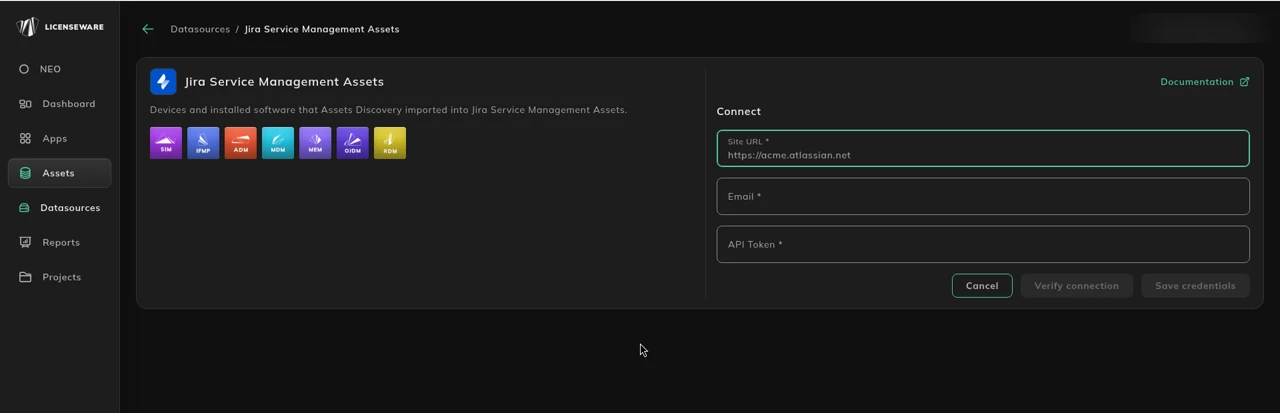
Section titled “Connect in Licenseware”- Open Datasources from the sidebar and click Jira Service Management Assets.
- Click Connect. Documentation is at the top right of the source page.
- Fill the required fields. Each one is marked with *.
- Site URL. The placeholder is
https://acme.atlassian.net. - Email. This is the Atlassian account email.
- API Token
- Site URL. The placeholder is
- Verify connection and Save credentials stay disabled until every required field is filled. Click Verify connection first, then Save credentials.
See Data sources for how to check a connection.
If you can’t connect
Section titled “If you can’t connect”JSM Discovery automatically scans your network to identify hardware and installed software across endpoints. The relevant data sources are:
- Assets (Configuration Items / CIs): Records of devices and related properties.
- Discovered Applications: Lists of software installed on each device.
- Jira Assets (Insight Schema): Central CMDB where discovered data is stored.
- Jira REST API (Assets/Insight): Enables programmatic retrieval of asset and application data.
Prerequisites
Section titled “Prerequisites”For console (UI) method
Section titled “For console (UI) method”- Access to Jira Service Management with Assets and Discovery modules enabled.
- Permission to view and export data from the relevant Insight Schema.
- Completed Discovery scans (ensure all agents have reported recently).
- Access to Reports or Object View → Export capability.
For API method
Section titled “For API method”- Administrative or API access to Atlassian Assets (formerly Insight).
- API token or credentials with read-only access.
- Access to the Atlassian REST API endpoint (e.g.
https://yourdomain.atlassian.net/rest/insight/1.0). - PowerShell or
curlenvironment to execute API queries.
Recommended Query or Method
You can extract data via the Assets console or the Atlassian REST API.
Export methods
Section titled “Export methods”Option 1: JSM Discovery console export (UI)
Section titled “Option 1: JSM Discovery console export (UI)”This is the simplest method for small to medium datasets.
- Log in to Jira Service Management (Cloud or Data Center).
- Navigate to Assets → Object Schema → [Your Discovery Schema].
- Select the Object Type for discovered software (e.g. Discovered Applications or Installed Software).
- Click Objects → Export → CSV.
- Choose the following attributes:
- Hostname / Device Name
- Software Name
- Version
- Vendor / Publisher
- Save the file as
JSM_Discovery_SIM_Export.csv.
Note: If “Vendor” or “Publisher” is not directly available, it may appear as an attribute linked to the application object type (for example, Manufacturer or Vendor relationship).
Option 2: Atlassian Assets REST API (recommended for automation)
Section titled “Option 2: Atlassian Assets REST API (recommended for automation)”For large or automated environments, use the Assets REST API to export software inventory programmatically.
Step 1: Obtain API token
Section titled “Step 1: Obtain API token”- Go to Atlassian API Tokens.
- Create a token and store it securely.
- Use your Atlassian email and token for Basic Authentication.
Step 2: Retrieve application objects
Section titled “Step 2: Retrieve application objects”PowerShell Script
# Jira Service Management Discovery SIM Template Export Script# Requires API token and read access to Assets (Insight)
$BaseUrl = "https://yourdomain.atlassian.net"$Email = "your.email@domain.com"$ApiToken = "YOUR_API_TOKEN"$ExportPath = "C:\Exports\JSM_Discovery_SIM_Export.csv"
# Encode credentials$EncodedAuth = [Convert]::ToBase64String([Text.Encoding]::ASCII.GetBytes("$Email`:$ApiToken"))$Headers = @{    "Authorization" = "Basic $EncodedAuth"    "Accept"        = "application/json"}
# Replace 123 with your Insight Schema ID and Object Type ID for 'Installed Software'$SchemaId = 123$ObjectTypeId = 456
# Retrieve application data$Url = "$BaseUrl/rest/insight/1.0/objecttype/$ObjectTypeId/objects"$Response = Invoke-RestMethod -Uri $Url -Headers $Headers -Method Get
# Initialize export data$ExportData = @()
foreach ($Obj in $Response.objects) {    $DeviceName = ($Obj.attributes | Where-Object {$_.objectTypeAttribute.name -eq "Device Name"}).objectAttributeValues.value    $SoftwareName = ($Obj.attributes | Where-Object {$_.objectTypeAttribute.name -eq "Software Name"}).objectAttributeValues.value    $Version = ($Obj.attributes | Where-Object {$_.objectTypeAttribute.name -eq "Version"}).objectAttributeValues.value    $Publisher = ($Obj.attributes | Where-Object {$_.objectTypeAttribute.name -match "Vendor|Publisher|Manufacturer"}).objectAttributeValues.value
    $ExportData += [PSCustomObject]@{        "Device Name"        = $DeviceName        "Software Name"      = $SoftwareName        "Software Version"   = $Version        "Software Publisher" = $Publisher    }}
# Export to CSV$ExportData | Export-Csv -Path $ExportPath -NoTypeInformation -Encoding UTF8Write-Host "Export complete: $ExportPath"
This script connects to your JSM Discovery schema via the API, retrieves software-related asset objects, and exports the results in SIM-ready format.
Preparing for SIM import
Section titled “Preparing for SIM import”The CSV header row must be exactly Device Name,Software Name,Software Version,Software Publisher.
- Open the Licenseware SIM Template.
- Paste the CSV data into the appropriate columns.
Clean any blank or duplicate rows before saving.
Then upload it on the SIM - Template data source. See SIM template.
Troubleshooting
Section titled “Troubleshooting”| Issue | Cause | Resolution |
|---|---|---|
| Empty export | Discovery agents not reporting | Verify Discovery configuration and recent scan activity. |
| Missing publisher/vendor field | Attribute not defined in schema | Map the correct attribute in JSM Assets or fill manually in the SIM Template. |
| API 403 Forbidden | Insufficient permissions | Ensure API token has access to the Discovery schema. |
| Pagination / limited results | API returns partial data | Add ?page= or ?resultPerPage= parameters in the API call loop. |
| Encoding issues | File saved in ANSI | Re-save the CSV with UTF-8 encoding before import. |
Example output
Section titled “Example output”Device Name,Software Name,Software Version,Software PublisherLAPTOP-001,Google Chrome,129.0.6668.90,Google LLCSERVER-02,Microsoft SQL Server 2022,16.0.432,Microsoft CorporationLAPTOP-004,Slack,4.39.95,Slack TechnologiesIMAC-01,Adobe Acrobat DC,24.002.20933,Adobe Inc.