
Ivanti
Ivanti Neurons for ITAM is an API integration. Connect it before you export a file. Ivanti Endpoint Manager (EPM) has no API connection: its export steps are at the end of this page.
Create credentials in Ivanti Neurons
Section titled “Create credentials in Ivanti Neurons”In Ivanti Neurons, open Admin, then App Registrations. Choose New registration, then Custom App, and register. Copy the client ID and the client secret. The secret is shown once. The tenant ID is in the auth URL from that registration.
The People and Device Inventory API reads devices with GET. Ivanti says the default token scope is read-only for those GET calls.
Connect in Licenseware
Section titled “Connect in Licenseware”- Open Datasources from the sidebar and click Ivanti Neurons for ITAM.
- Click Connect. Documentation is at the top right of the source page.
- Fill the required fields. Each one is marked with *.
- Instance URL. The placeholder is
https://yourcompany.ivanticloud.com. - Tenant ID
- Client ID
- Client Secret
- Instance URL. The placeholder is
- Verify connection and Save credentials stay disabled until every required field is filled. Click Verify connection first, then Save credentials.
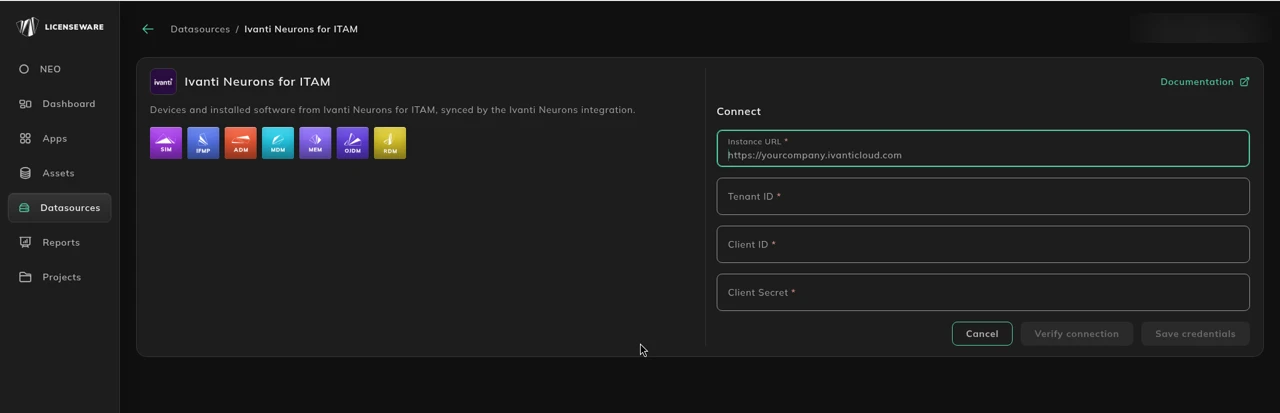
See Data sources for how to check a connection.
If you use Ivanti Endpoint Manager (EPM)
Section titled “If you use Ivanti Endpoint Manager (EPM)”EPM has no API connection. Export installed software and upload it with the SIM template. The steps below cover the console (UI), SQL and PowerShell methods, and each one produces a CSV with the fields the SIM template needs.
Ivanti Endpoint Manager maintains inventory information in the following key data sources:
- Inventory Database (LDMS): Stores device and software details collected from managed endpoints.
- Software Inventory View: Contains software names, versions, and vendors associated with each computer.
- Console Reports: Allow administrators to export pre-built or custom inventory reports.
Prerequisites
Section titled “Prerequisites”For console (UI) method
Section titled “For console (UI) method”- Access to the Ivanti Endpoint Manager Console with Inventory and Report Export permissions.
- Ensure all endpoints have completed a recent inventory scan.
- Confirm the Inventory Service is running and up to date.
For SQL or PowerShell method
Section titled “For SQL or PowerShell method”- Administrative access to the Ivanti Core Server.
- Read-only access to the LDMS database (typically Microsoft SQL Server).
- Access to SQL Server Management Studio (SSMS) or PowerShell 5.1+.
- Sufficient permissions to query and export data to CSV format.
Two primary methods are available for data extraction.
Export methods
Section titled “Export methods”Option 1: Ivanti console export (UI)
Section titled “Option 1: Ivanti console export (UI)”This method is the simplest and recommended for non-technical users.
- Open the Ivanti Endpoint Manager Console.
- Navigate to: Tools → Reporting/Monitoring → Reports → Inventory Reports
- Create a New Report or edit an existing one.
- Under Data Source, select Inventory.
- Add the following fields to your report:
- Device Name (
Computer.Device Name) - Software Name (
Software.Package Name) - Software Version (
Software.Version) - Software Publisher (
Software.Publisher)
- Click Run Report to preview results.
- Select File → Export → CSV.
- Save as
Ivanti_SIM_Export.csv.
Tip: If your export includes additional columns (e.g., installation date or software category), these can be removed prior to SIM import.
Option 2: SQL query (recommended for large environments)
Section titled “Option 2: SQL query (recommended for large environments)”For automated or large-scale extractions, query the Ivanti inventory database directly.
SQL query
Section titled “SQL query”-- Ivanti SIM Template Export QuerySELECT c.DeviceName AS [Device Name], s.DisplayName AS [Software Name], s.Version AS [Software Version], s.Publisher AS [Software Publisher]FROM Computer cJOIN Software s ON c.Computer_Idn = s.Computer_IdnORDER BY c.DeviceName, s.DisplayName;Instructions:
- Open SQL Server Management Studio.
- Connect to your LDMS (Ivanti Core) database.
- Execute the query above.
- Right-click the result grid → Save Results As → CSV File.
- Save as
Ivanti_SIM_Export.csv.
Option 3: PowerShell API or database script (optional automation)
Section titled “Option 3: PowerShell API or database script (optional automation)”You can also retrieve the same data using PowerShell and the Ivanti database connector.
# Ivanti SIM Template Export PowerShell Script# Requires SQL Server access and read permissions
$Server = "YOUR_SQL_SERVER"$Database = "LDMS"$ExportPath = "C:\Exports\Ivanti_SIM_Export.csv"
$Query = @"SELECT    c.DeviceName AS [Device Name],    s.DisplayName AS [Software Name],    s.Version AS [Software Version],    s.Publisher AS [Software Publisher]FROM    Computer cJOIN    Software s ON c.Computer_Idn = s.Computer_IdnORDER BY    c.DeviceName, s.DisplayName;"@
$ConnectionString = "Server=$Server;Database=$Database;Integrated Security=True;"$Data = Invoke-Sqlcmd -Query $Query -ConnectionString $ConnectionString$Data | Export-Csv -Path $ExportPath -NoTypeInformation -Encoding UTF8
Write-Host "Export complete: $ExportPath"
This script queries the Ivanti inventory database directly and exports the results to CSV in SIM-compatible format.
Preparing for SIM import
Section titled “Preparing for SIM import”The CSV header row must be exactly Device Name,Software Name,Software Version,Software Publisher.
- Open the Licenseware SIM Template.
- Paste or import the exported CSV data.
Remove any empty or unused rows before saving.
Then upload it on the SIM - Template data source. See SIM template.
Troubleshooting
Section titled “Troubleshooting”| Issue | Cause | Resolution |
|---|---|---|
| No software data in export | Inventory scan incomplete or database filters applied | Re-run full inventory scans and remove restrictive filters. |
| Query fails to run | Incorrect database name or permissions | Verify LDMS database name and ensure read access. |
| Publisher column blank | Some software entries lack vendor metadata | Fill missing publisher names manually before import. |
| Encoding issues | CSV saved with ANSI encoding | Re-save the file using UTF-8 encoding. |
| Partial exports | SQL query timeout | Use TOP clause for batching or increase timeout in query tool. |
Example output
Section titled “Example output”Device Name,Software Name,Software Version,Software PublisherPC-001,Google Chrome,129.0.6668.90,Google LLCPC-002,Microsoft Office 365,2409,Microsoft CorporationSRV-003,Oracle Java SE Runtime Environment,8.0.411,Oracle CorporationPC-004,Adobe Acrobat Reader,24.002.20933,Adobe Inc.