Flexera FNMS
Export installation and inventory data from Flexera (FNMS) and upload it on the Flexera data source.
Open FNMS and go to reports. Create a custom report, having a filter on Microsoft (publisher), select the columns listed below (and select the export CSV option):
Installation - Application name Installation - Inventory device name Installation - Publisher Installation - Version Installation - Last used date Inventory device - Inventory device name Inventory device - Inventory device type Inventory device - Inventory date Inventory device - Processors Inventory device - Cores (number) Inventory device - Processor type Inventory device - Number of sockets Inventory device - Model Inventory device - Manufacturer Inventory device - Operating system Inventory device - Hosted in cloud Inventory device - Hosted in Inventory device - Status
*It’s made from two different views/tables from FNMS: Installation and Inventory device
Requirements:
It is required that the resulted output will have the above-mentioned columns;
It is expected that the resulted output will be uploaded “as is”, without altering or removing the column headers (this is used for the validation when the file is uploaded).
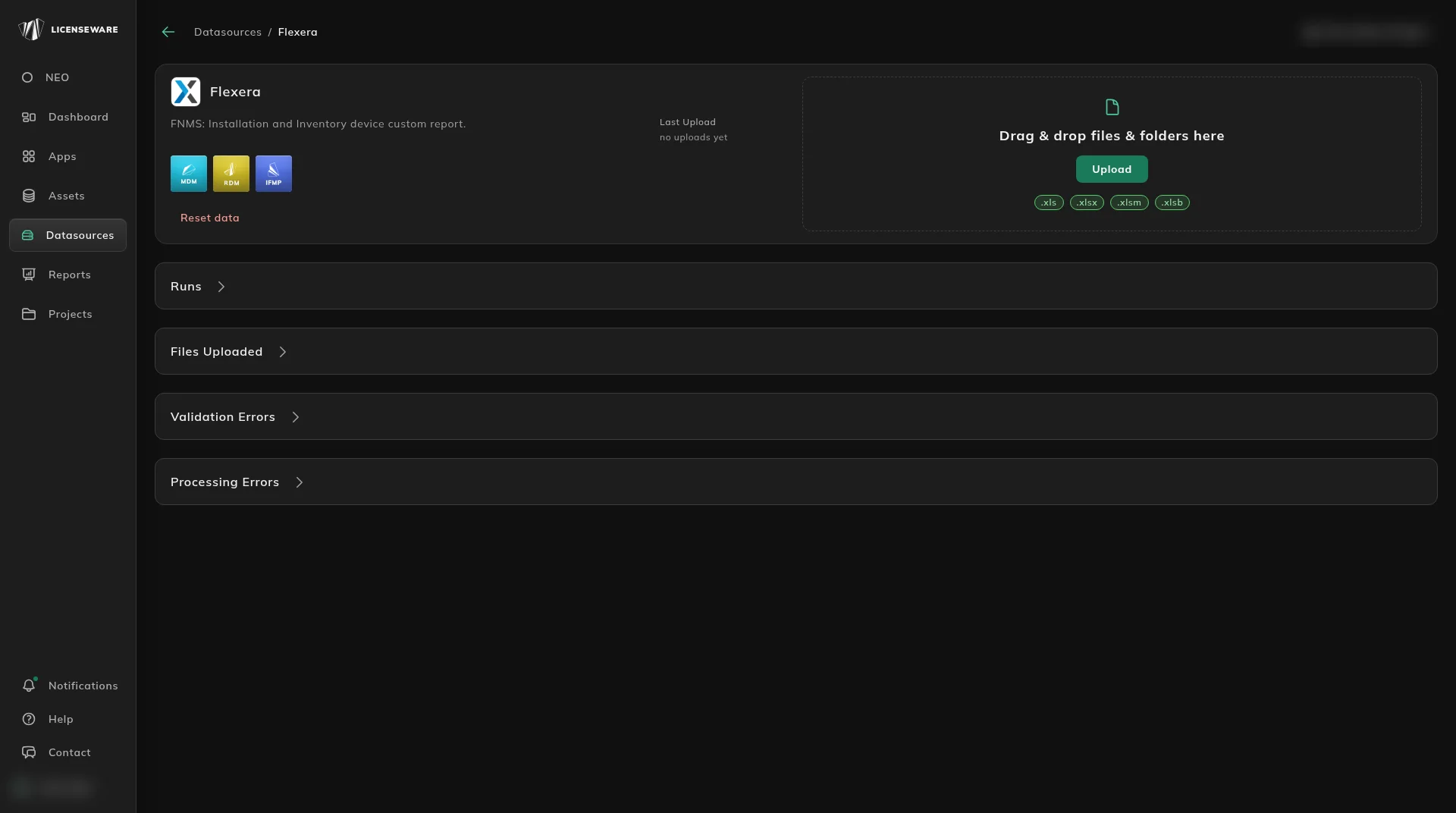
In Licenseware, open Datasources, click Flexera, and drag the file into the upload area. The source is named Flexera. Its description is “FNMS: Installation and Inventory device custom report.” It accepts .xls, .xlsx, .xlsm and .xlsb. See Upload & manage data.