
CrowdStrike Falcon software inventory for LICENSEWARE
CrowdStrike Falcon is an API integration. Connect it before you export a file.
Create credentials in CrowdStrike
Section titled “Create credentials in CrowdStrike”In the Falcon console, open Support and resources, then API clients and keys, and add an API client. Copy the client ID and the secret. The secret is shown once.
Give the client read scopes only. The hosts collection uses Hosts: Read. Installed applications in Falcon Discover use Assets: Read, on the Discover collection.
Connect in Licenseware
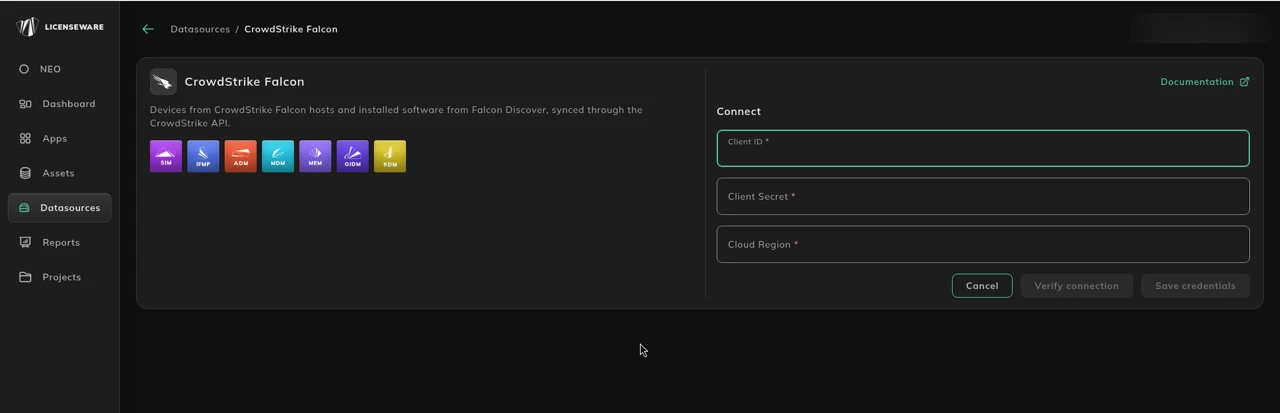
Section titled “Connect in Licenseware”- Open Datasources from the sidebar and click CrowdStrike Falcon.
- Click Connect. Documentation is at the top right of the source page.
- Fill the required fields. Each one is marked with *.
- Client ID
- Client Secret
- Cloud Region. Use
us-1,us-2,eu-1orus-gov-1.
- Verify connection and Save credentials stay disabled until every required field is filled. Click Verify connection first, then Save credentials.
See Data sources for how to check a connection.
If you can’t connect
Section titled “If you can’t connect”Export the software inventory from Falcon yourself and upload it to the SIM template.
CrowdStrike Falcon collects and stores device and application information across managed endpoints. The data comes from two places:
- Hosts (devices): hostname, device ID and platform.
- Installed applications (host apps): application name, version and vendor, as the Falcon sensor detects them.
You can export both from the CrowdStrike Falcon Console or through the Falcon REST API.
Prerequisites
Section titled “Prerequisites”For the console (UI) method
Section titled “For the console (UI) method”- Access to the CrowdStrike Falcon Console with the Device Inventory or Application Inventory modules enabled.
- Permission to generate and export inventory reports.
- Endpoints that are active and have recent sensor check-ins.
For the API method
Section titled “For the API method”- Administrative access to CrowdStrike Falcon with permission to create API clients.
- An API client ID and client secret with at least read-only access to:
Device InventoryHostsHost Applications
- PowerShell 5.1 or later, or an equivalent REST API tool such as curl or Postman.
- Internet access to the Falcon API endpoint,
https://api.crowdstrike.com.
Option 1: export from the Falcon console
Section titled “Option 1: export from the Falcon console”Use this for smaller environments or an ad-hoc export.
- Log in to the CrowdStrike Falcon Console.
- Go to Hosts → Device Inventory.
- Apply filters to include all relevant devices.
- Select a host and open the Applications tab. This needs Host Inventory visibility.
- From the top-right menu, click Export → CSV.
- Save the file as
CrowdStrike_SIM_Export.csv.
Make sure the export includes these columns:
| Field name | Description |
|---|---|
| Device Name | Hostname or endpoint identifier |
| Software Name | Application name |
| Software Version | Application version number |
| Software Publisher | Software vendor or publisher |
Option 2: export through the Falcon API
Section titled “Option 2: export through the Falcon API”Use this for large environments or a scheduled export.
Step 1: get an access token
Section titled “Step 1: get an access token”# Obtain OAuth2 access token$BaseUrl = "https://api.crowdstrike.com"$ClientId = "YOUR_CLIENT_ID"$ClientSecret = "YOUR_CLIENT_SECRET"
$TokenResponse = Invoke-RestMethod -Method Post -Uri "$BaseUrl/oauth2/token" -Body @{ client_id = $ClientId client_secret = $ClientSecret}$Token = $TokenResponse.access_tokenStep 2: get the device IDs
Section titled “Step 2: get the device IDs”# Retrieve device IDs$Headers = @{ "Authorization" = "Bearer $Token" }$DeviceIds = (Invoke-RestMethod -Uri "$BaseUrl/devices/queries/devices-scroll/v1" -Headers $Headers).resourcesStep 3: get the installed applications and write the CSV
Section titled “Step 3: get the installed applications and write the CSV”# Initialize export object$ExportData = @()
foreach ($DeviceId in $DeviceIds) { $Apps = Invoke-RestMethod -Uri "$BaseUrl/devices/entities/installed-apps/v1?ids=$DeviceId" -Headers $Headers $Device = Invoke-RestMethod -Uri "$BaseUrl/devices/entities/devices/v1?ids=$DeviceId" -Headers $Headers $Hostname = $Device.resources[0].hostname
foreach ($App in $Apps.resources) { $ExportData += [PSCustomObject]@{ "Device Name" = $Hostname "Software Name" = $App.name "Software Version" = $App.version "Software Publisher" = $App.vendor } }}
# Export to CSV$ExportPath = "C:\Exports\CrowdStrike_SIM_Export.csv"$ExportData | Export-Csv -Path $ExportPath -NoTypeInformation -Encoding UTF8
Write-Host "Export complete: $ExportPath"The script saves the file to the path you set in $ExportPath.
Prepare the file for the SIM template
Section titled “Prepare the file for the SIM template”The CSV header row must be exactly Device Name,Software Name,Software Version,Software Publisher.
- Open the Licenseware SIM Template.
- Go to the Software Inventory tab.
- Paste or import the CSV data.
- Check that the columns line up:
| Column | Expected field |
|---|---|
| A | Device Name |
| B | Software Name |
| C | Software Version |
| D | Software Vendor or Publisher |
Save the template, then upload it on the SIM - Template data source. See SIM template.
Troubleshooting
Section titled “Troubleshooting”| Issue | Cause | Resolution |
|---|---|---|
| No data in export | Host Inventory module not licensed or enabled | Confirm that the Host Inventory feature is active in your tenant. |
| Missing vendor data | Some apps lack publisher metadata | Fill it in by hand or supplement it from another data source. |
| API 401 Unauthorized | Invalid or expired access token | Run the authentication step again to get a new token. |
| Partial export | Pagination not handled | Add scroll or pagination support to the script for large datasets. |
| Encoding issues | CSV not in UTF-8 | Save the CSV as UTF-8 before you import it. |
Example output
Section titled “Example output”Device Name,Software Name,Software Version,Software PublisherLAPTOP-001,Google Chrome,129.0.6668.90,Google LLCSERVER-01,Microsoft SQL Server 2022,16.0.432,Microsoft CorporationLAPTOP-002,Slack,4.39.95,Slack TechnologiesLAPTOP-003,Adobe Acrobat DC,24.002.20933,Adobe Inc.