
Manage Collector agents
Use the Agents tab to see which machines are reporting, and to ask one agent, or several, to collect, pause, or update.
Open the list
Section titled “Open the list”Click Apps, then Licenseware Collector. Agents is the first tab.
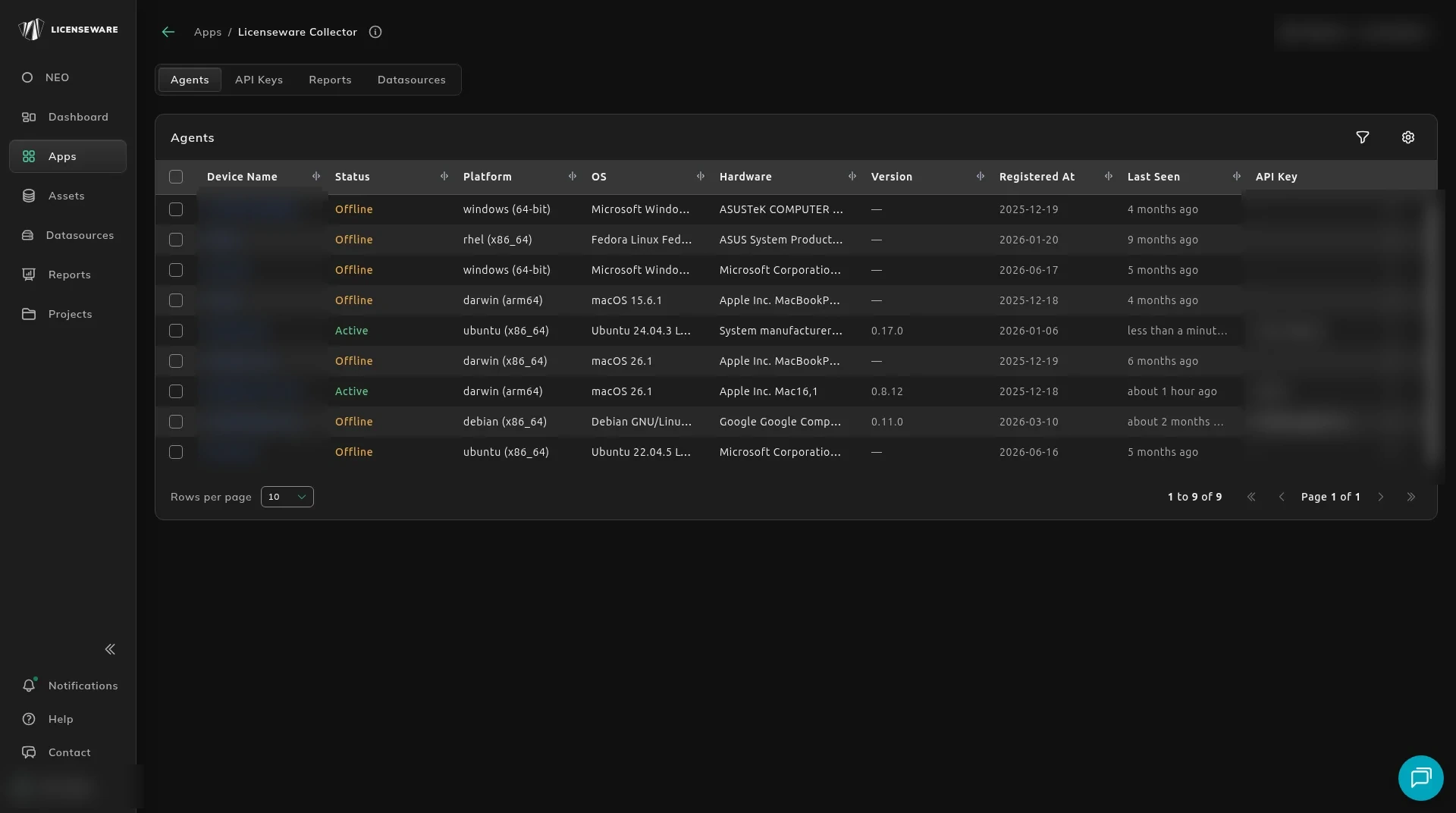
| Column | What it shows |
|---|---|
| Device Name | A link to that agent. |
| Status | Active or Offline. |
| Platform | The platform the agent reported. |
| OS | The operating system. |
| Hardware | The hardware description. |
| Version | The agent version, or a dash when it has not reported one. |
| Registered At | The date the agent enrolled. |
| Last Seen | How long ago the agent last checked in. |
| API Key | The name of the key the agent used, or a dash. |
Filters puts a box under each column. Columns is the gear. Tick the columns you want. The list pages, with Rows per page.
Act on one agent
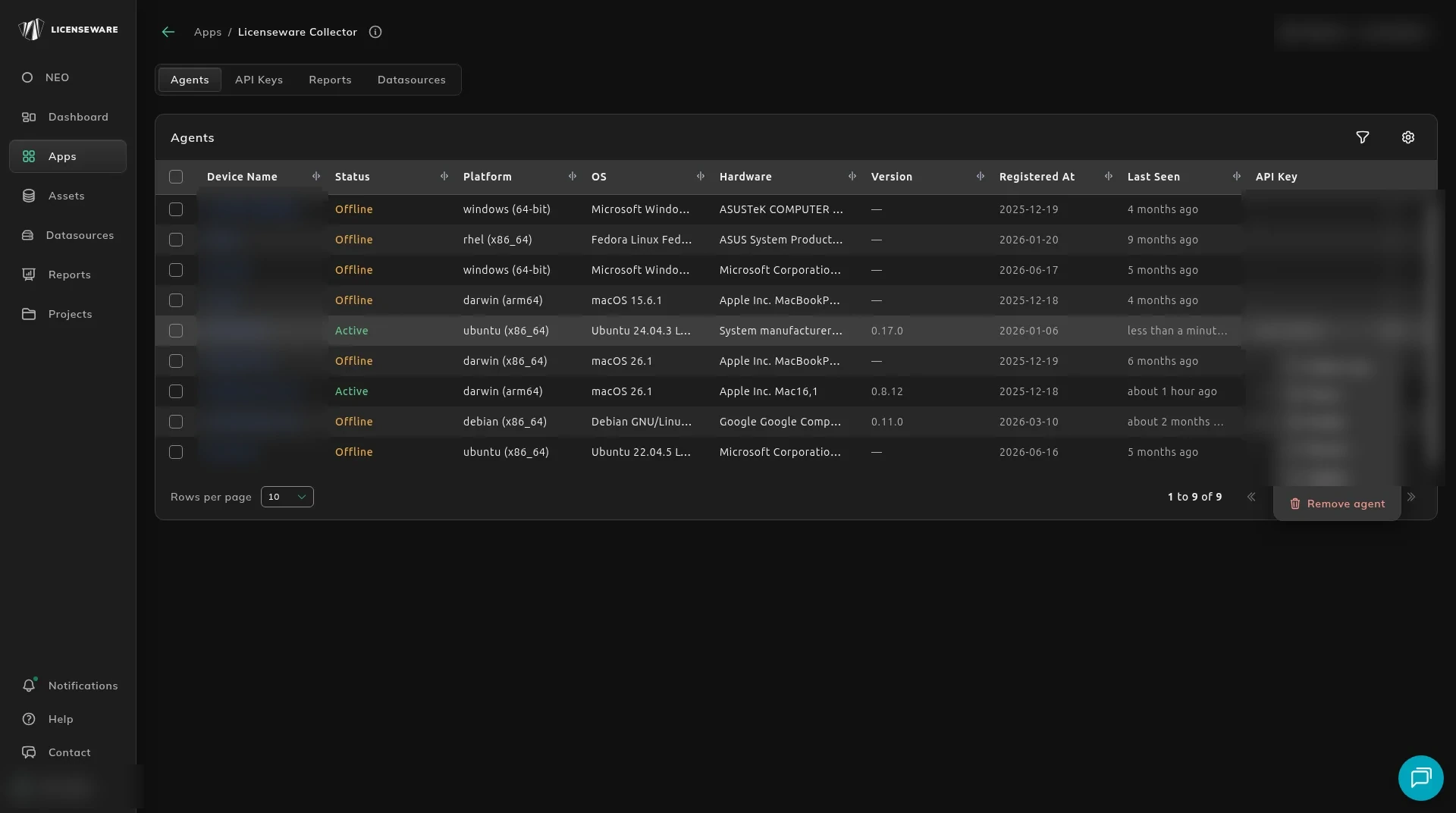
Section titled “Act on one agent”The ⋮ menu on a row is:
- Collect now
- Pause
- Enable
- Restart
- Update
- Remove agent
Remove agent is shown in red.
Act on several agents
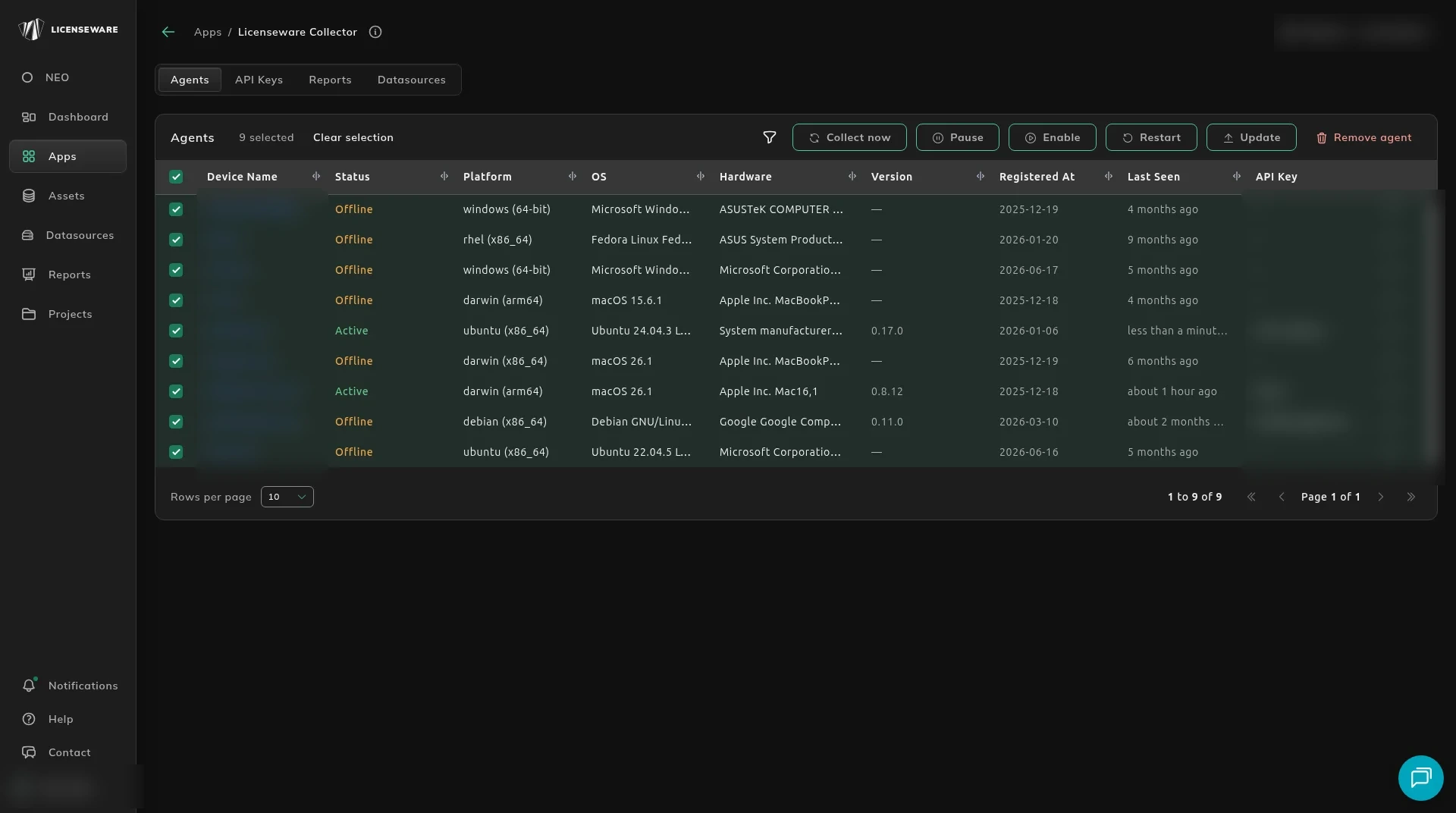
Section titled “Act on several agents”Select the rows. The header checkbox selects every row on the page. The title becomes a count of how many are selected, with Clear selection and the same actions: Collect now, Pause, Enable, Restart, Update, and Remove agent.
Open an agent
Section titled “Open an agent”Click the device name.
The header shows the device, the OS and model, and Collect now, Pause, Restart, Update, and Remove agent. A strip shows STATUS, LAST SEEN, AGENT VERSION, and REGISTERED.
System & Hardware lists platform, OS name, OS version, manufacturer, model, CPU, processors, cores, architecture, agent version, UUID, and the API key name.
The timeline on the right records Scheduled data (snapshots uploaded) and Collection requested (sync completed), with the time of each one.
What to do next
Section titled “What to do next”The inventory those agents uploaded is the Collector Inventory report, and the same records on Assets.