
The SQL Edition Bulk Edit Template enables you to update the SQL Server edition recorded against specific devices in the Microsoft Deployment Manager (MDM) application. Discovery and inventory tools frequently misreport SQL editions, particularly where Developer, Evaluation, or Express instances appear identical to paid editions at the binary level, and the edition has a direct impact on the licensing cost and metric applied to the device. This template gives you a controlled way to correct those values in bulk.
Common scenarios include:
- Correcting misidentified editions where the inventory tool reports a generic value (e.g. "SQL Server") rather than the specific edition installed
- Reclassifying Developer or Evaluation instances that have been picked up as Standard or Enterprise
- Applying confirmed edition data following a manual audit, vendor confirmation, or review of purchase records
Purpose
By using the bulk edit template, you can:
- Override the SQL Server edition recorded against one or many devices
- Ensure the licensing analysis applies the correct edition-specific rules (Enterprise, Standard, Web, Express, Developer, Evaluation)
- Avoid over- or under-licensing caused by inaccurate discovery data
Template Download
You can download the template here
The template contains three columns, all of which are mandatory:
| Field | Description | Example |
|---|---|---|
device_name |
Hostname of the device as it appears in MDM, matching the source discovery data exactly. | device 1 |
product_family |
The product family the edition applies to. For this template, use SQL Server. |
SQL Server |
edition |
The corrected SQL Server edition to apply to the device. | Express, Standard, Enterprise, Web, Developer, Evaluation |
📌 Note: All three fields are mandatory for each row to be processed. Edition values must match Microsoft's official edition names.
How to Use
- Navigate to the Apps section.
- Select Microsoft Deployment Manager.
- Under the Uploaders tab, select the uploader: MDM - Device Bulk Edit
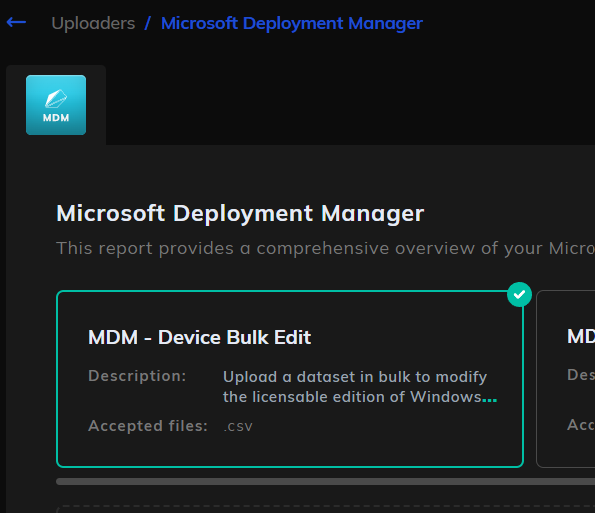
- Upload your completed .csv file using drag-and-drop or the upload button.
- Once the file is verified, click Process Files at the bottom of the page.
The new edition values will be applied to the matching devices and reflected in the next licensing analysis run.
Best Practices
- Ensure that device names match the originals from the discovery/inventory tool exactly, including casing and any domain suffixes.
- Use one row per device — if a device hosts multiple SQL instances of different editions, contact support, as instance-level edits are handled separately.
- Use Microsoft's standard edition names (Enterprise, Standard, Web, Express, Developer, Evaluation) rather than abbreviations or marketing names.
- Keep a record of the source of the override (audit, vendor confirmation, MSDN entitlement) outside the template to support audit defensibility.
- Re-run the analysis after upload to confirm the edition change has flowed through to the SQL Server Details report.
Troubleshooting
If your upload is rejected:
- Check for missing or misspelled headers — they must read exactly
device_name,product_family,edition. - Confirm the file type is .csv.
- Ensure all three fields are filled on every row.
- Verify that each
device_namematches an existing device in MDM. - Confirm the
editionvalue is a recognised SQL Server edition. - Review the error description in the History tab for more detail.