
Add and review a license
A license is what you are entitled to: a quantity of a product, on its own or under a contract.
Find a license
Section titled “Find a license”Click Licenses.
| Column | What it shows |
|---|---|
| License Name | A link to the license page. |
| Contract Name | A link to the contract, or a dash when the license has no contract. |
| License Type | For example Subscription. |
| Vendor | The vendor, or a dash. |
| Status | For example Active (Automatic). Automatic means the status follows the dates. |
| Lifecycle Status | Set when you have one. |
| Start Date, End Date, Days Remaining | The license period. |
| Total Quantity, Total Value, Currency | Quantity and value. |
| Datasource | For example User Input. |
+ is Add license.
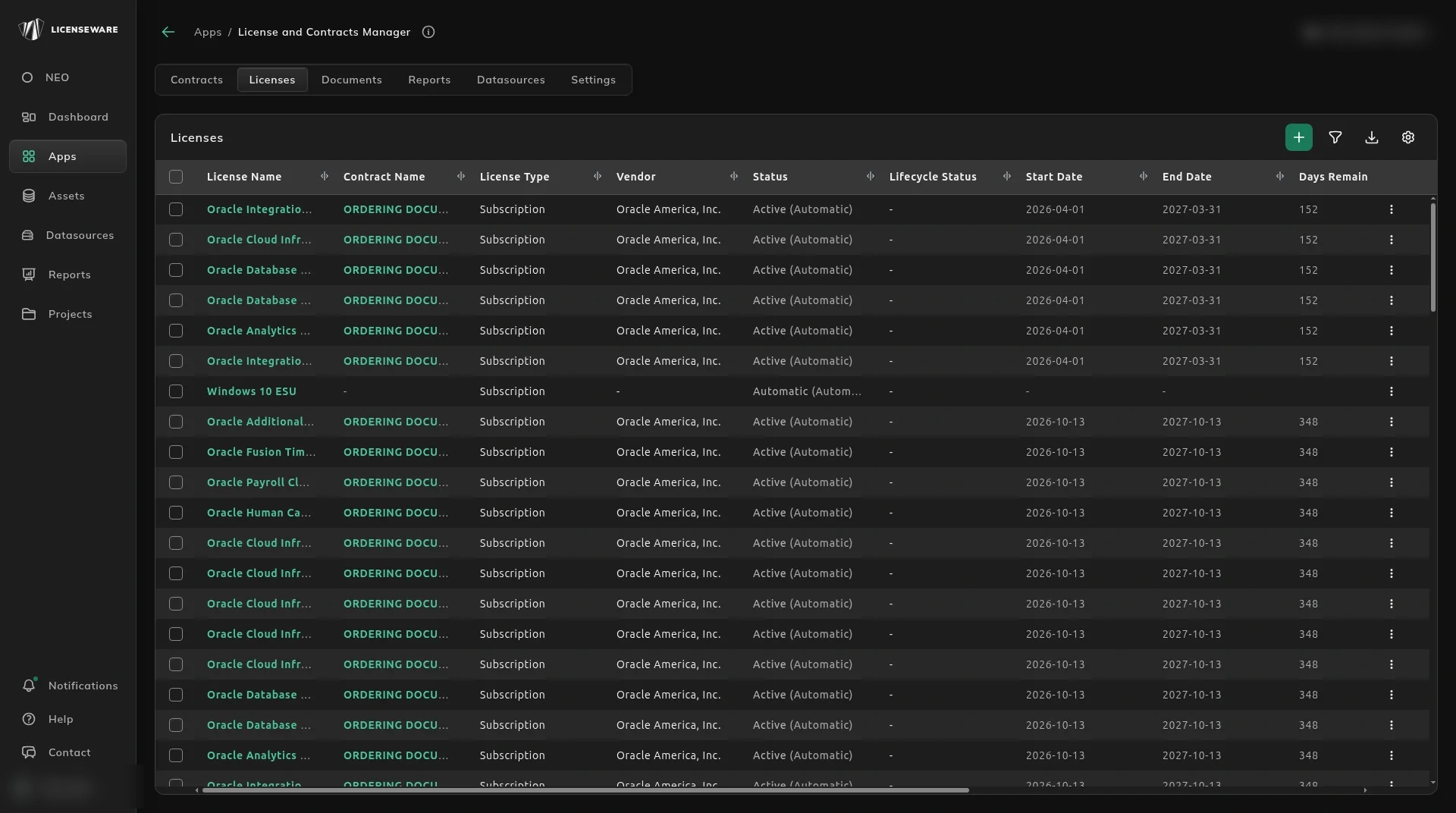
The row menu is Edit and Delete.
A license does not have to sit on a contract. Contract Name and Vendor are then a dash.
Add a license
Section titled “Add a license”Click +. The form title is Add License.
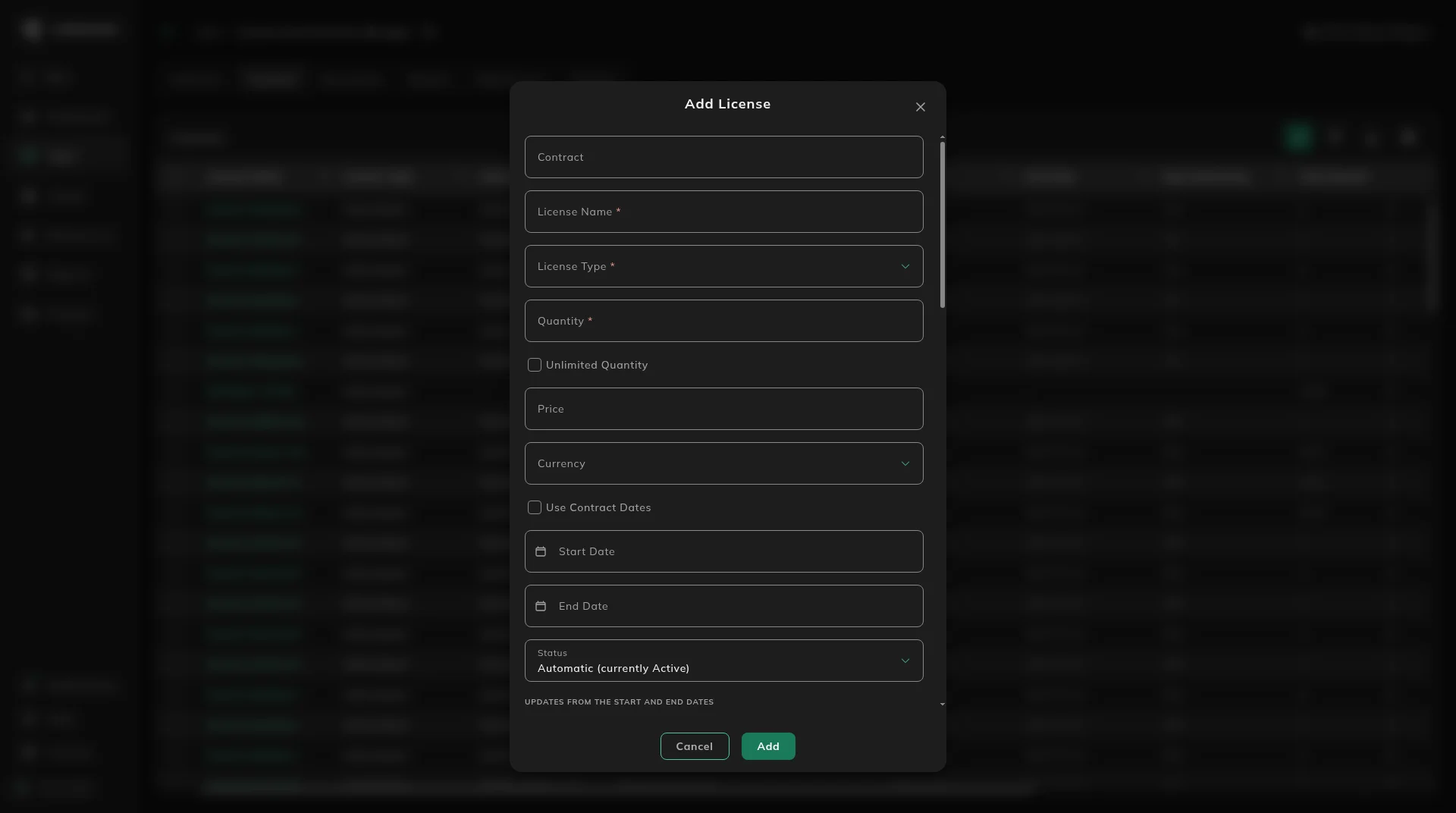
From a contract page, Contract is filled in and you cannot change it. From the Licenses tab, Contract is a search (“Search contracts by name or number”) and you can leave it empty.
| Field | Notes |
|---|---|
| License Name, License Type | Required. Types: Perpetual, Subscription, Open-Source, Freeware, Support, Maintenance. |
| Quantity | Required. See Unlimited Quantity below. |
| Price, Currency | Optional. |
| Use Contract Dates | When ticked, the license uses the contract dates. From the Licenses tab this starts unticked. |
| Start Date, End Date | Used when Use Contract Dates is off. |
| Status | Same idea as a contract: Automatic updates from the dates. The hint is “UPDATES FROM THE START AND END DATES”. |
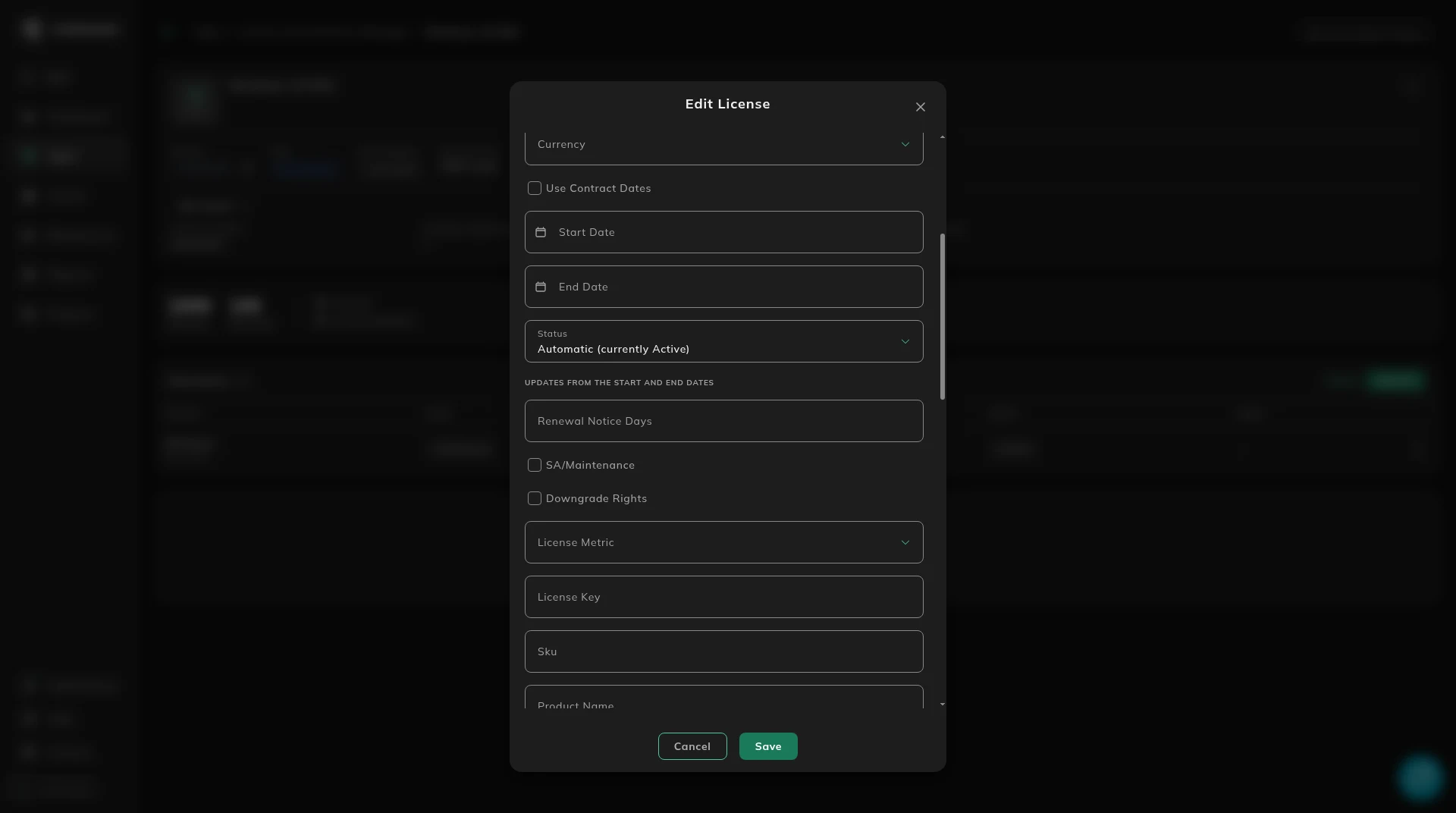
| Renewal Notice Days | See below. |
| SA/Maintenance, Downgrade Rights | Optional. |
| License Metric, License Key, Sku | Optional. |
| Product Name, Product Version, Product Edition, Product Publisher | Optional. |
| End of Support, End of Extended Support, End of Life | Optional dates. |
| Website, Notes, Description | Optional. |
| Cost Center, Business Unit, Department | Optional. |
Template fields for licenses appear under those. You can also add a Label and Value row with Add Fields, and remove a row with the ⊗ icon.
Unlimited Quantity sits under Quantity. Tick it for a site license or another entitlement with no cap. Entering 0 does not mean unlimited.
Set Renewal Notice Days and Licenseware emails a reminder on that day, then again at each of 90, 60 and 30 days that falls after it. See Set a renewal reminder for worked examples.
Add saves the license. To load licenses in bulk, use the LCM - Template on Datasources. See Contracts.
Edit a license
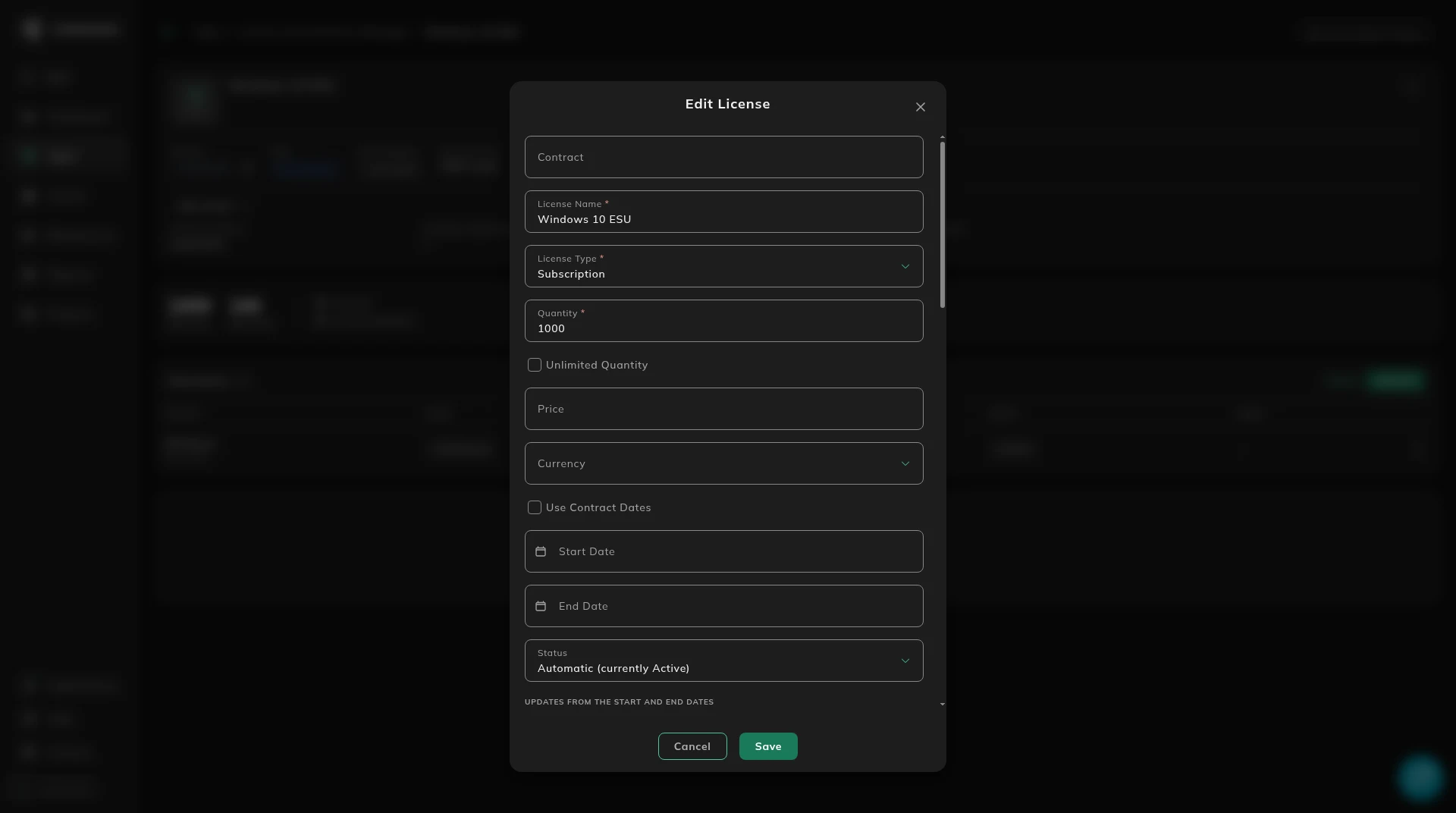
Section titled “Edit a license”On the Licenses tab, open the row menu and click Edit. You can also edit a license from the Licenses card on its contract. Either way it opens the same form, Edit License.
Licenses from extracted documents
Section titled “Licenses from extracted documents”When you upload a contract with Extract with NEO, NEO proposes the licenses it finds. They are created when you accept them and click Save changes. See Review the licenses.
Open a license
Section titled “Open a license”Click the license name.
The header shows the name and a ⋮ menu. The summary includes STATUS, TYPE, DATASOURCE (for example User Input), ENTITLED QTY, PERIOD and FROM CONTRACT.
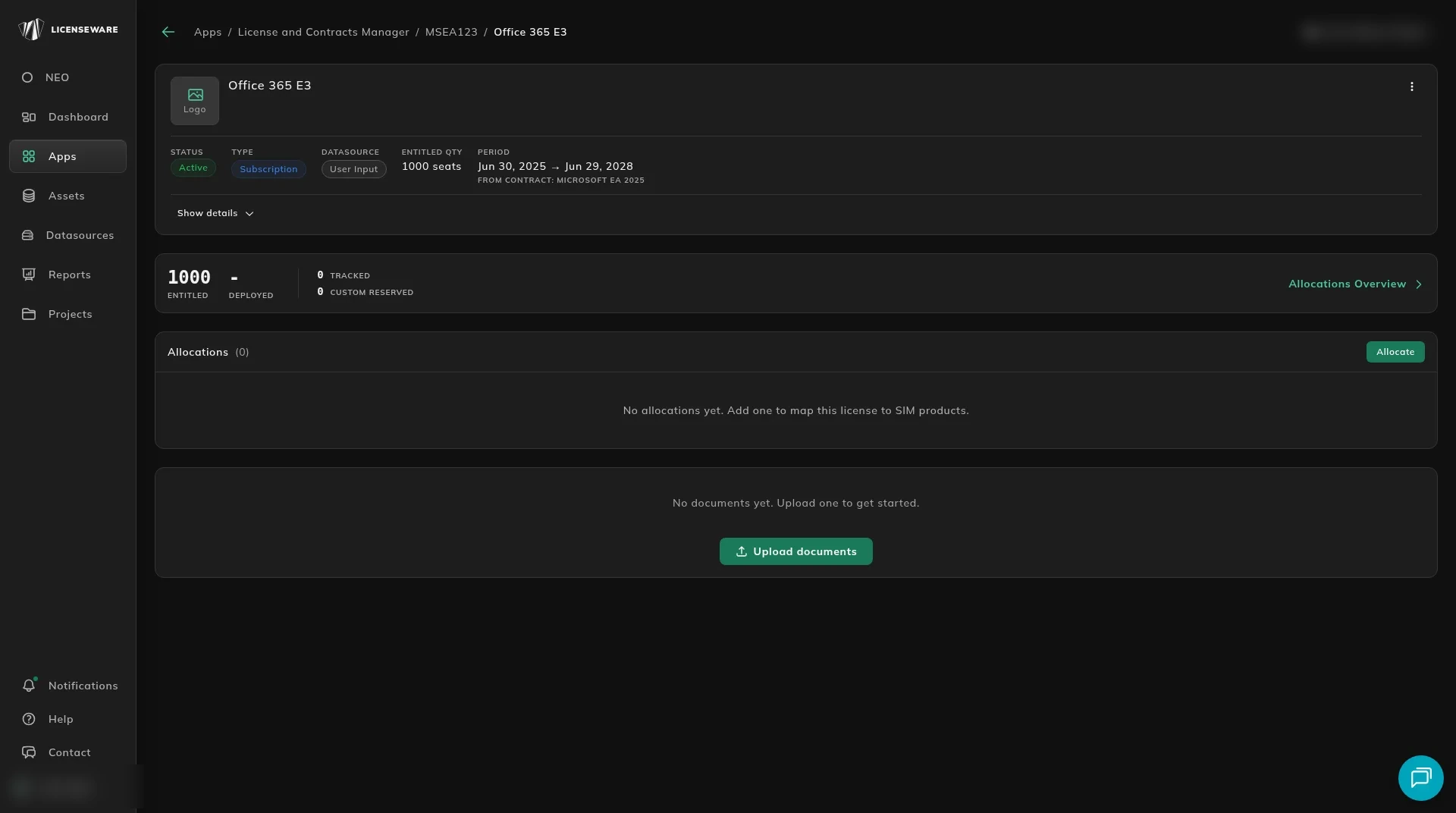
Show details adds PRICE, CURRENCY, LICENSE METRIC, STATUS SOURCE, CONTRACT NAME and the custom license fields.
The license page also has its own documents: “No documents yet. Upload one to get started.” and Upload documents. See Documents.
Next, allocate the license to a deployed product or a custom reservation, so LCM can show whether it is covered.