
Add and review a contract
A contract in LCM is the agreement you can renew, cost and evidence. The Contracts tab is where you find one, add one, or open the page that holds its licenses and files.
Find a contract
Section titled “Find a contract”Click Apps, License and Contracts Manager. Contracts is already selected.
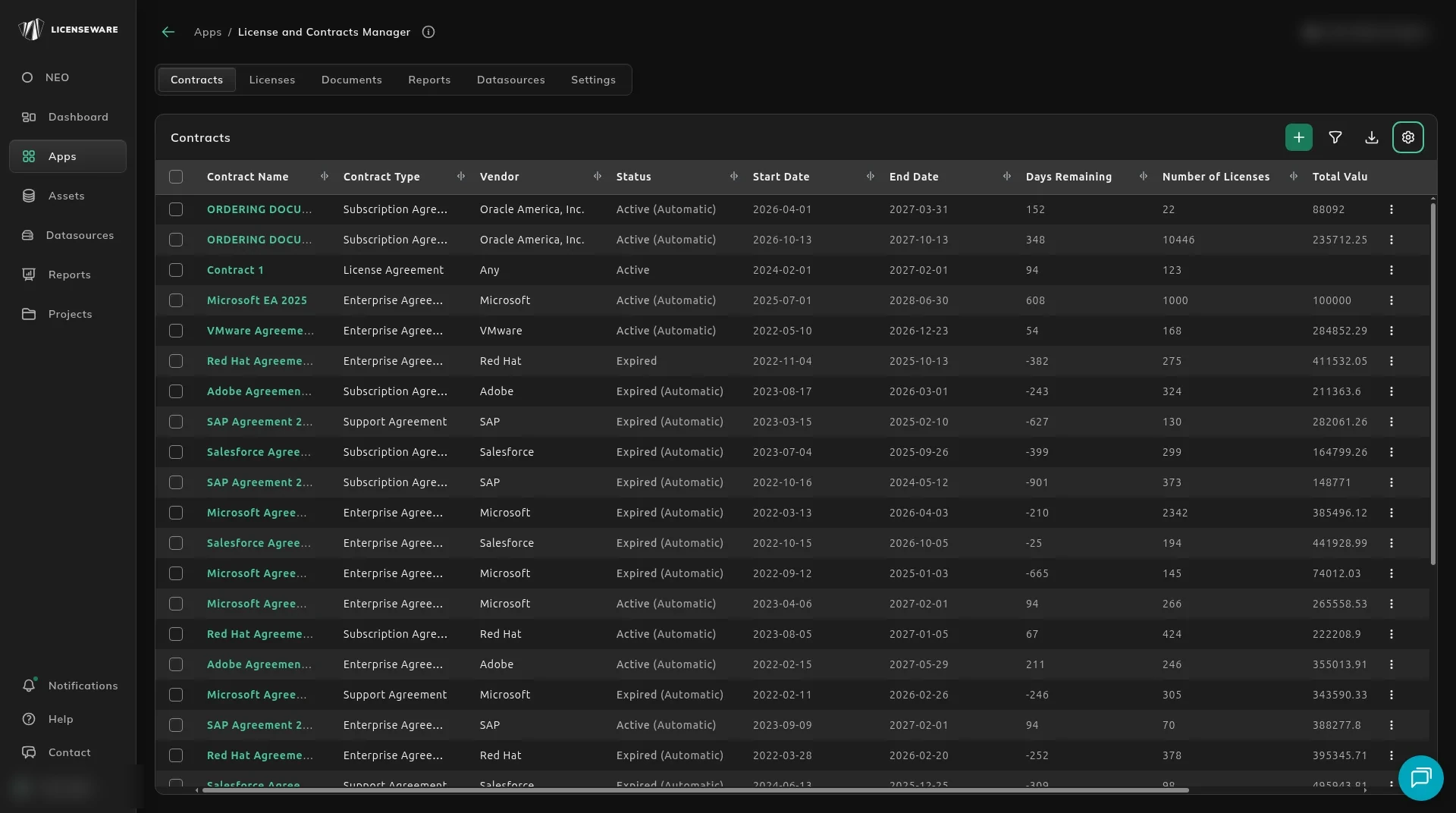
The grid loads every contract.
| Column | What it shows |
|---|---|
| Contract Name | A link to the contract page. |
| Contract Type | For example Subscription Agreement, Enterprise Agreement, Support Agreement or License Agreement. |
| Vendor | The vendor. A contract with no vendor can show Any. |
| Status | Active, Active (Automatic), Expired or Expired (Automatic). (Automatic) means LCM set the status from the start and end dates. |
| Start Date and End Date | The contract period. |
| Days Remaining | Days until the end date. |
| Number of Licenses | Licenses on the contract. |
| Total Value and Currency | The value, or a dash when there is none. |
The first column is a checkbox. The header checkbox selects every row.
+ is Add contract. The ⋮ menu on a row is Add license, Edit and Delete.
Add a contract
Section titled “Add a contract”Click +. The dialog is Choose Contract Option, with the line “Pick a contract option based on your needs”.
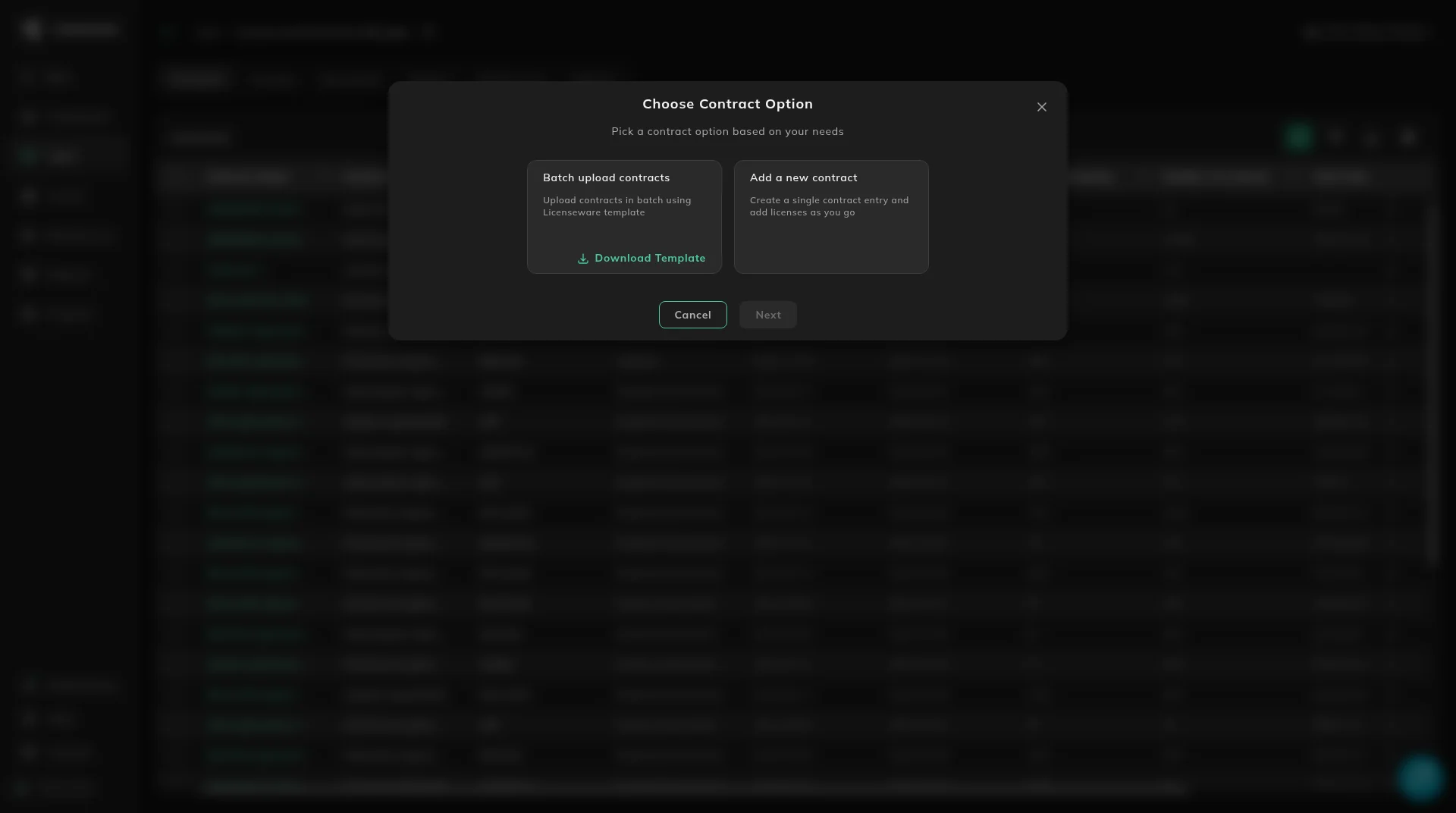
Next stays off until you pick a card. Cancel or the X closes the dialog.
One contract
Section titled “One contract”Choose Add a new contract (“Create a single contract entry and add licenses as you go”) and click Next.
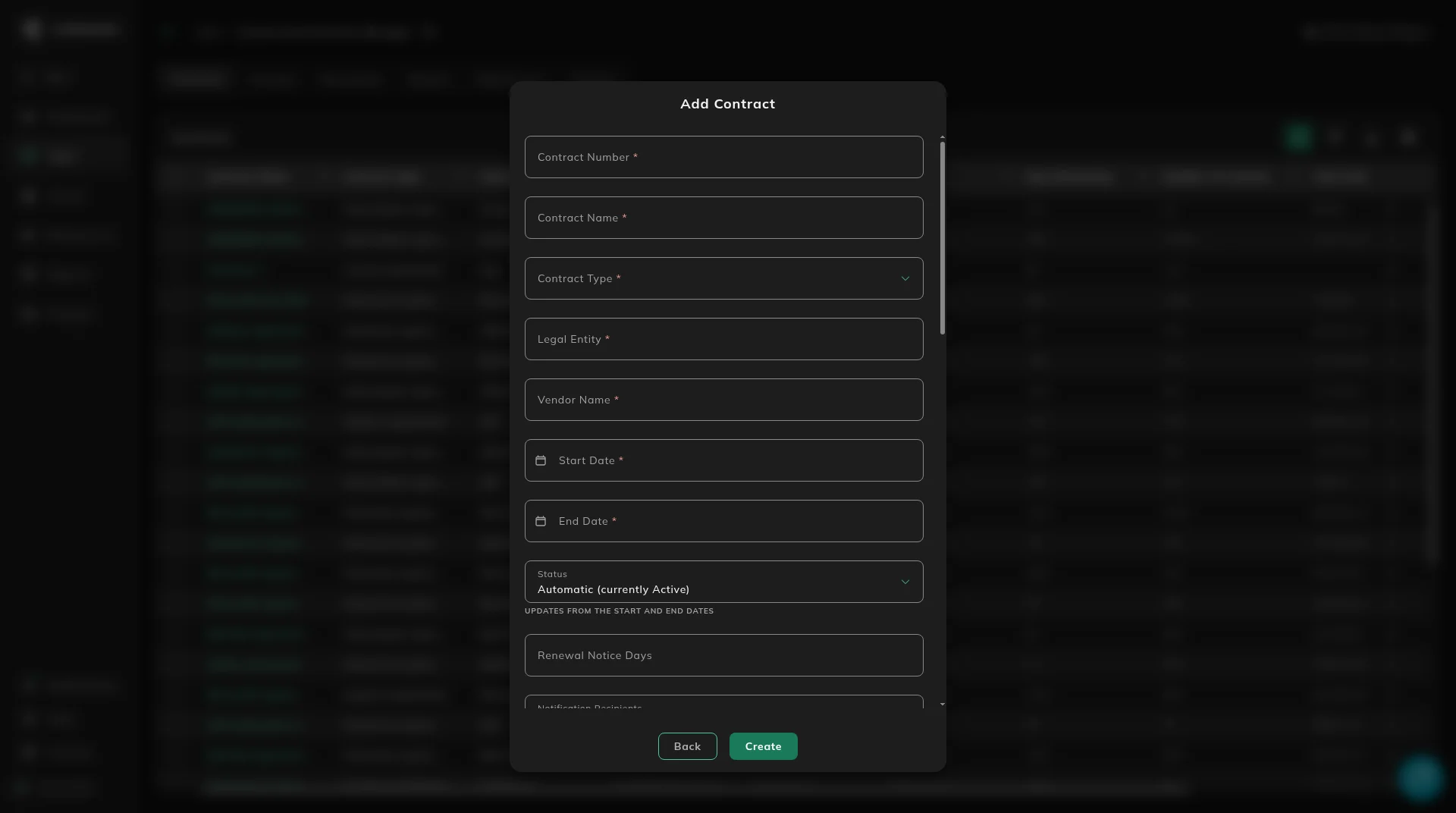
The form is Add Contract. Required fields are marked. In order:
| Field | Notes |
|---|---|
| Contract Number, Contract Name | Required. Contract Number is unique in the project, for example AGR-12345 or MS-EA-2024. Contract Name is a title, for example Microsoft EA 2024-2027. |
| Contract Type | Required. License Agreement, Enterprise Agreement, Support Agreement, Subscription Agreement, Reseller Agreement, Audit Agreement, Evaluation Agreement, Custom Agreement, Service Agreement. |
| Legal Entity, Vendor Name | Required. |
| Start Date, End Date | Required. Date pickers. |
| Status | Automatic (currently Active) is the default. The hint is “UPDATES FROM THE START AND END DATES”. Also Active, Expired, Future, Renewed, Terminated. |
| Renewal Notice Days | Set Renewal Notice Days and Licenseware emails a reminder on that day, then again at each of 90, 60 and 30 days that falls after it. See Set a renewal reminder for worked examples. |
| Notification Recipients | Pick who gets the renewal email, from the users who have access to the project. Shown on the contract as RECIPIENTS when you click Show details, next to NOTIFICATION DATE. |
| Purchase Date, Total Value, Currency | Optional. |
| Business Owner, Po Number, Invoice Number, Sla Terms | Optional. |
| Reseller Name, Reseller Type | Optional. |
| Description, Notes | Longer text. |
| Cost Center, Business Unit, Department | Optional. |
Fields from the contract template appear under those. At the bottom of the form you can also add a per-record custom field: a Label and a Value that stay on this contract only and do not appear on any other record. When to use that instead of a Settings template is on custom fields. Back returns to the two cards. Create saves the contract.
For more than a handful of agreements, use the LCM template. One new agreement, a first look at LCM, or a one-off addition is what this form is for. The field names and types are on the field reference.
The row checkbox, and the header checkbox, select contracts. Deleting is irreversible. Download the table first if you might still need the rows.
A batch
Section titled “A batch”Choose Batch upload contracts (“Upload contracts in batch using Licenseware template”). Download Template is on that card. Next becomes Go to datasource, which opens the LCM - Template source on Datasources. Licenses in bulk go through that same template.
Open a contract
Section titled “Open a contract”Click the contract name.
Header
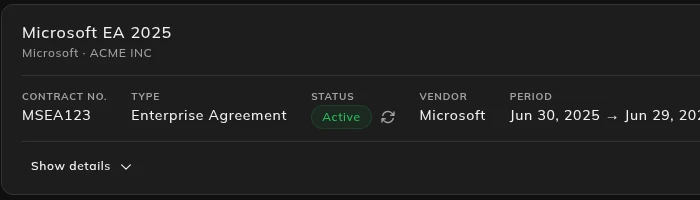
Section titled “Header”The title is the contract name. Under it, vendor and legal entity. The ⋮ menu is Edit and Delete. Add license is on the contract list, and on the Licenses card.
The summary shows CONTRACT NO., TYPE, STATUS (with a refresh icon), VENDOR, PERIOD, TOTAL VALUE, TOTAL UNITS, DAYS REMAINING and DURATION.
Show details adds LEGAL ENTITY, RENEWAL NOTICE, NOTIFICATION DATE, RECIPIENTS and any custom fields. Hide details closes that block. An empty custom field is shown as a dash.
Licenses, allocations, documents
Section titled “Licenses, allocations, documents”Licenses lists the licenses on this contract. + opens Add License. The row menu is Edit and Delete.
Allocations Overview is empty until a license is allocated to a product. The empty text is: “No allocations yet on this contract’s licenses. Add allocations on individual licenses to see product-level compliance here.”
Documents lists files on the contract. The upload icon opens Upload documents. A row’s menu is View, Download, Extract, Analyze with NEO and Delete.