
Match a license to what is deployed
You need a license first. See Add and review a license.
A license is what you are entitled to. An allocation is what you have tied to a deployed product, or held back on purpose. Until you allocate, LCM can store the quantity and it cannot show whether that quantity covers what SIM sees.
On the license page, a strip under the header counts ENTITLED, DEPLOYED, TRACKED and CUSTOM RESERVED. Allocations lists each product, whether it is tracking deployment or a custom reservation, how many are deployed, the metric and the notes.
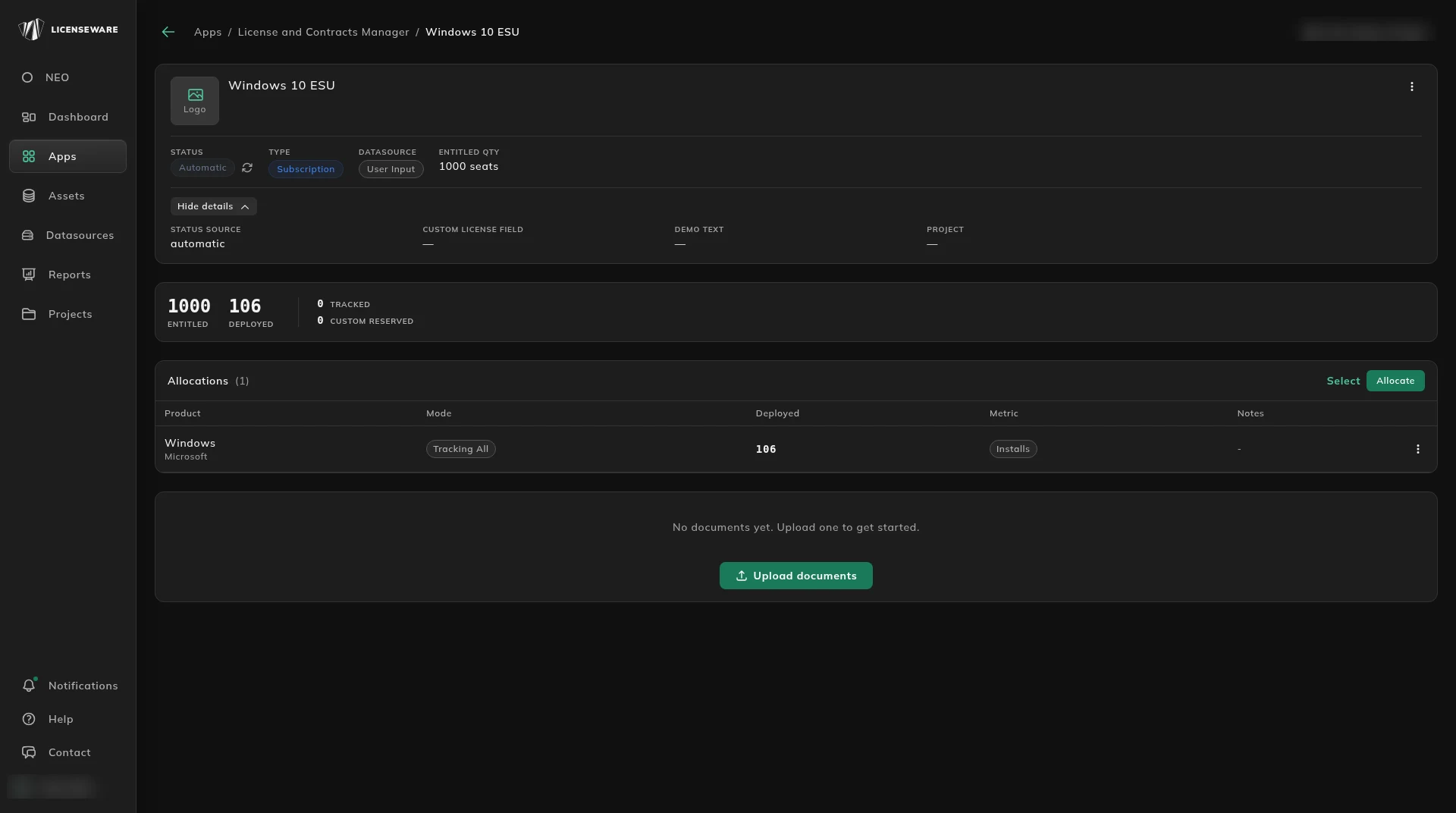
Allocate the license
Section titled “Allocate the license”Allocations starts empty: “No allocations yet. Add one to map this license to SIM products.”
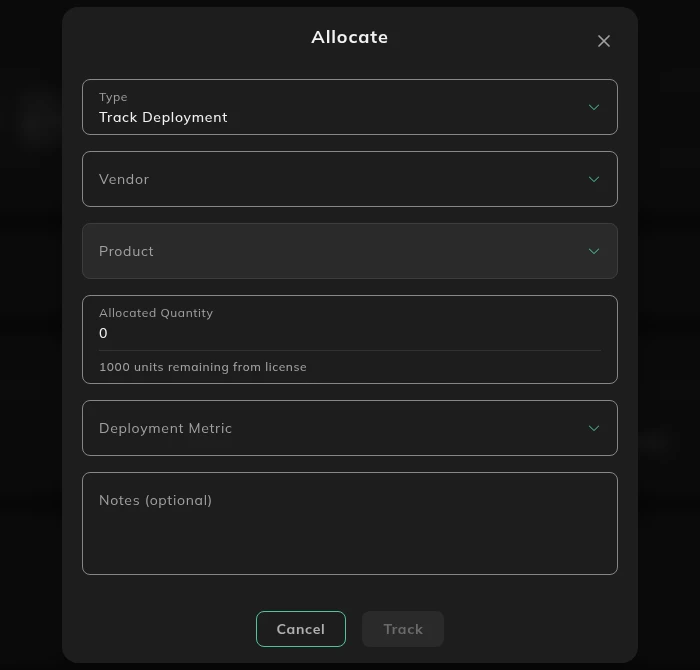
Click Allocate.
| Field | Notes |
|---|---|
| Type | Track Deployment or Custom Reservation. |
| Vendor | “Select a vendor first”. |
| Product | Stays off until you pick a vendor. These are SIM products. |
| Allocated Quantity | The hint shows how many units are still free on the license. |
| Deployment Metric | The metric for this allocation. |
| Notes | Optional. |
Track saves it, and stays off until the form is complete.
Track Deployment allocates against software the collectors have found and that the deployment apps show, including Microsoft Deployment Manager and Oracle Database Manager. The allocation links the license to a deployed product, and Deployed updates as that collector data refreshes. Custom Reservation is for something that is not deployment data: a CAL covering devices, a support entitlement, or a slice of the pool held for a department, project or cost center.
Both types consume the same pool. A license of 275 units could have 100 allocated with Track Deployment to Microsoft 365 Apps, 50 reserved with Custom Reservation for Sales, and 125 still available.
Before you allocate, the contract has to exist in LCM with at least one license, and the product has to be in the platform. That means a collector has run and the software is visible in the matching deployment app.
Glossary
Section titled “Glossary”- License. An entitlement under a contract, with a Quantity, or with Unlimited Quantity ticked.
- Allocation. A link between a license and either a deployment or a custom reservation. It consumes some or all of the pool.
- Allocated Quantity. The units that one allocation consumes.
- Deployed. The units the platform has discovered for that product.
- Allocated. The units assigned to the product across every allocation, of both types.
- Uncovered. Deployed units with no allocation.
DeployedminusAllocated, and never below zero.
Track Deployment
Section titled “Track Deployment”- Open the contract, then the license.
- In Allocations, click Allocate.
- Set Type to Track Deployment.
- Vendor is the publisher of the deployed software, for example Microsoft. The product list filters on it.
- Product is the deployed product, for example 365 Apps or Office. This is what the deployment data shows, which is not always the name on the contract.
- Allocated Quantity is how many units to allocate. To leave the entitlement uncapped, tick Unlimited Quantity on the license. Do not enter 0.
- Deployment Metric is how consumption is measured, Installs or Users. Pick the one that matches how the license is actually consumed. The wrong metric is the most common cause of a utilization number you cannot trust.
- Notes is optional. Put the assumption, the logic, or anything an auditor would ask.
- Click Track.
Custom Reservation
Section titled “Custom Reservation”Use this when the thing you are allocating does not appear as a deployment.
- Server CALs. A client access license does not show up as installed software, and it still consumes the pool.
- Business unit allocations. A chunk of the pool held for a department, project or cost center, for a budget or a chargeback.
- Support entitlements. Something on the contract, such as SQL Server Support, that is not a deployable product.
- Open the license and click Allocate.
- Set Type to Custom Reservation.
- Name the reservation, for example
Server CALsorSales BU. - Allocated Quantity is how many units it consumes. The dialog shows the live remainder, for example “275 units remaining from license”.
- Notes is optional.
- Click Track to save. The button stays off until the form is complete.
A custom reservation counts in Allocated and has no Deployed counterpart.
Quantity and Unlimited Quantity
Section titled “Quantity and Unlimited Quantity”How to set Unlimited Quantity is on Add and review a license. For allocation, there are three cases:
- Capped license, capped allocation. Quantity is a number and Unlimited Quantity is off. The allocation takes a fixed share. This is the usual case.
- Capped license, allocation up to that quantity. The allocation can consume up to the license Quantity.
- Unlimited Quantity ticked. There is no cap, so Available is meaningless. Use a specific allocation only when you want to ring-fence usage for a report.
Allocations Overview
Section titled “Allocations Overview”Each contract and each license has an overview of every product or reservation linked to it, with three numbers:
- Deployed. Units discovered in the environment.
- Allocated. Units assigned by either allocation type.
- Uncovered. Deployed units with no allocation.
DeployedminusAllocated, floored at zero.
The contract view rolls up every license on the contract. Use it for the portfolio. The license view is one entitlement, when you are checking that one.
Tick Unlimited Quantity when the agreement is a pool. A fixed allocation is for a genuine ring-fence. Use the notes. The allocation is the audit story, and the reason belongs there. Use a custom reservation for an organizational split, not as a stand-in for deployment data that is missing. If the software can be discovered and it is not in the platform yet, get it in. Do not paper over the gap with a reservation.
Until you allocate, DEPLOYED, TRACKED and CUSTOM RESERVED stay empty, and the contract’s Allocations Overview stays empty too.