

Adobe Deployment Overview
Adobe Deployment Overview finds users who hold components of a Creative Cloud bundle, so you can decide per user whether single-app plans or the full suite is cheaper.
A user with just Photoshop and Illustrator is usually cheaper on two single-app plans. At Adobe’s UK teams list prices, checked October 2026, two single apps cost less than the full suite, and from three apps the suite is usually cheaper. Those list prices go stale, and a VIP or enterprise agreement can differ. Check the price you actually pay on Adobe’s UK teams plans.
Read the report per user, not per device. Two installs for the same user are one license.
Open it from Apps, then Adobe Deployment Manager, on the Reports tab, or from Reports.
If this project has no Adobe data, the card opens a panel that reads Missing data - click apps to upload, with the ADM icon, and the report body stays closed. The view below is a project that has data. Device and user names in these shots are blurred.
At a glance
Section titled “At a glance”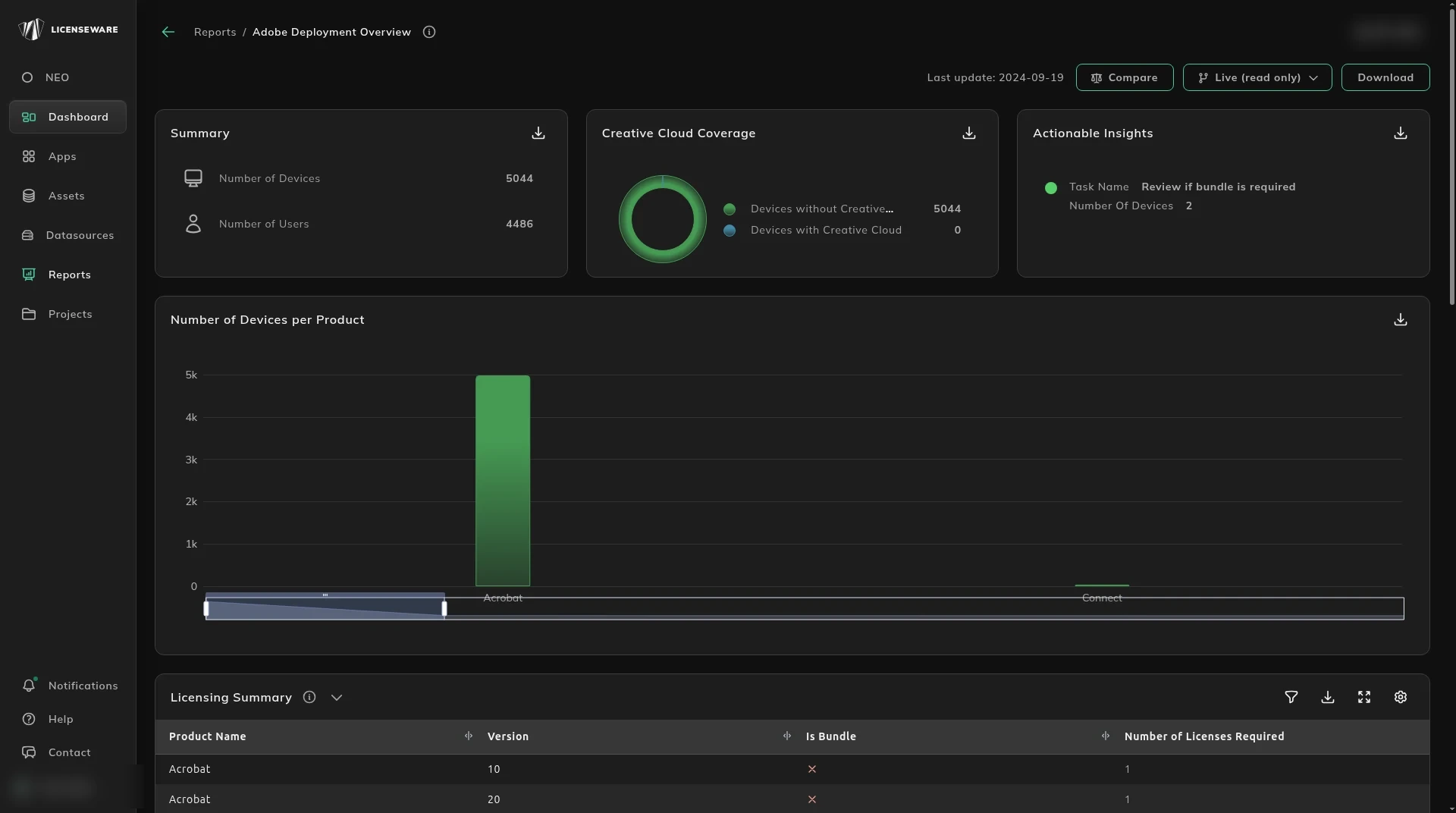
- Summary is Number of Devices and Number of Users. For a named user, buy against the users. The device count is where those installs sit, and two devices for one user are still one license. This overview supports a rapid read of deployment scope, and it highlights where a cost saving or a corrective action is available.
- Creative Cloud Coverage splits devices without Creative Cloud from devices with it. That split shows under-use or over-use of bundled products, and who already has the suite against who is running the components separately.
- Actionable Insights is a task, such as Review if bundle is required, and the number of devices. Open the detail and group it by user before you change a plan.
- Number of Devices per Product shows which titles are actually installed, such as Acrobat and Connect. Photoshop and Illustrator together, with nothing else from the suite, is the two-app case. The spread of versions on those titles is where an upgrade, or a legacy risk, shows up.
What needs a license
Section titled “What needs a license”Licensing Summary is the requirement: product name, version, whether it is a bundle, and the number of licenses required. Download that table for one row per device, with the user. See Using reports. A bundle row is the full suite. Separate rows for the component apps are the single-app alternative. Separating bundled deployments from standalone ones is how you apply the right licensing model. The counts are what you take into budgeting and a vendor discussion, and they are the base dataset for the Adobe position. Compare those counts per user, not by adding every device.
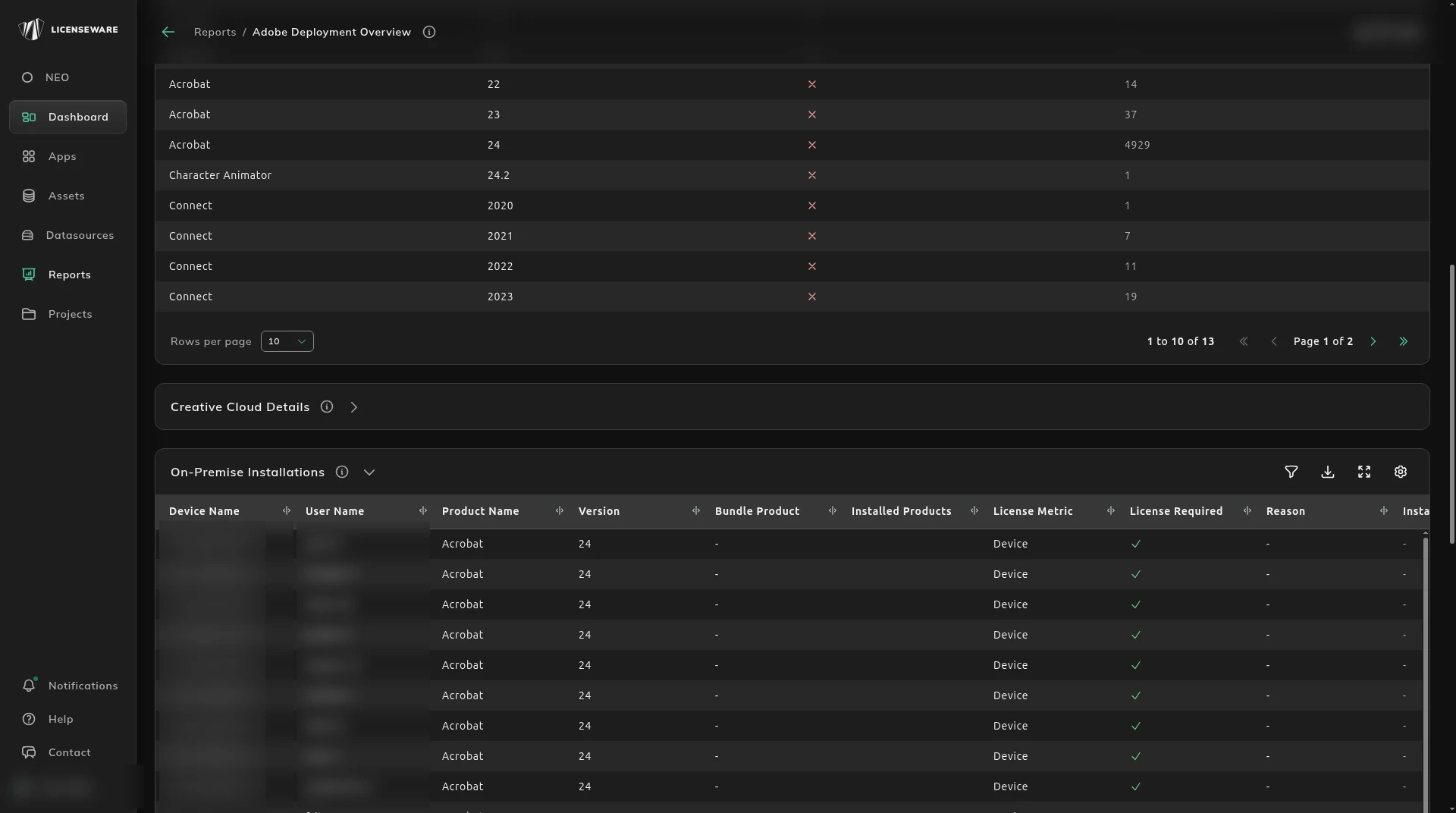
On-Premise Installations lists every Adobe product installed on the device, including products outside the Creative Cloud suite. It is the full inventory by device and user, with the licensing detail: product, version, bundle product, installed products, license metric, whether a license is required, the reason, and the install date. Both the Creative Cloud installs and the standalone installs have to be in that assessment, or coverage is only half the estate. Group the rows by user. The apps on that user’s rows are what you price: two apps, or three or more.
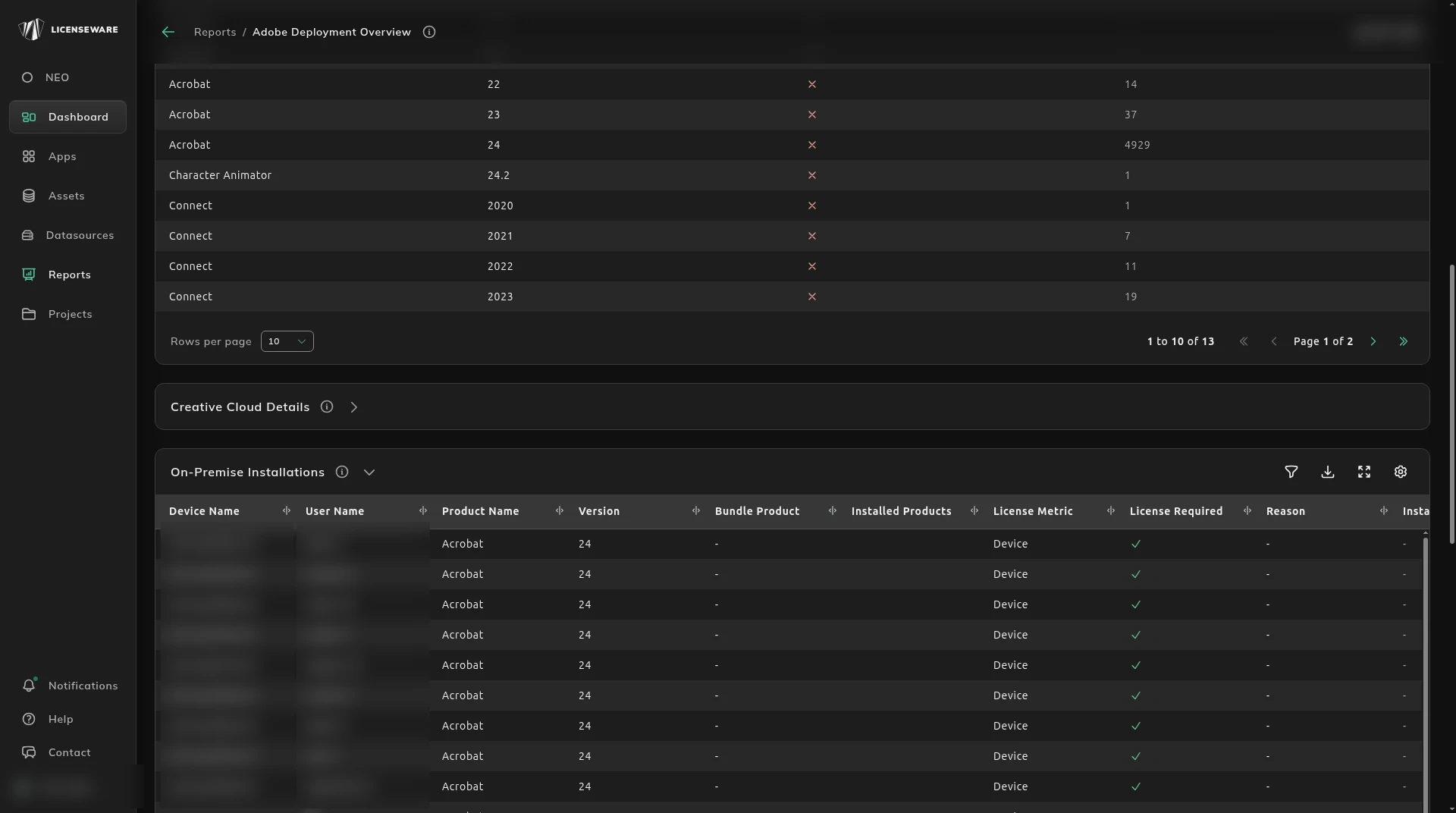
Creative Cloud Details is the named-user side of the bundle: device, user, product, version, installed products, whether it is licensable, the reason, the metric, and the install date. The split between bundled and standalone apps is what you use for cost attribution. Compare the install footprint with the licensing terms to find a deployment that does not match the entitlement, and to right-size. An empty table means the project has no Creative Cloud assignment to set against the installs. Coverage saying no device has Creative Cloud is the same finding.
!Creative Cloud Details, with no rows
Actionable Insights Details flags devices that may need a Creative Cloud bundle based on the installed product mix. Several standalone apps on one device, or one user with installs across several devices, is the case where a bundle may be better value or a better compliance fit. The table shows the task, the device, the user, and the installed products, so you can see the product set per device and per user and choose a bundle or individual licenses. Those rows are also where a consolidation shows up. The same capture also shows the start of Raw Adobe Software. Collapse the rows to one line per user before you treat a device as its own license. The price test above still applies: two single-app plans can be cheaper than the suite, and from three apps the suite is usually cheaper.
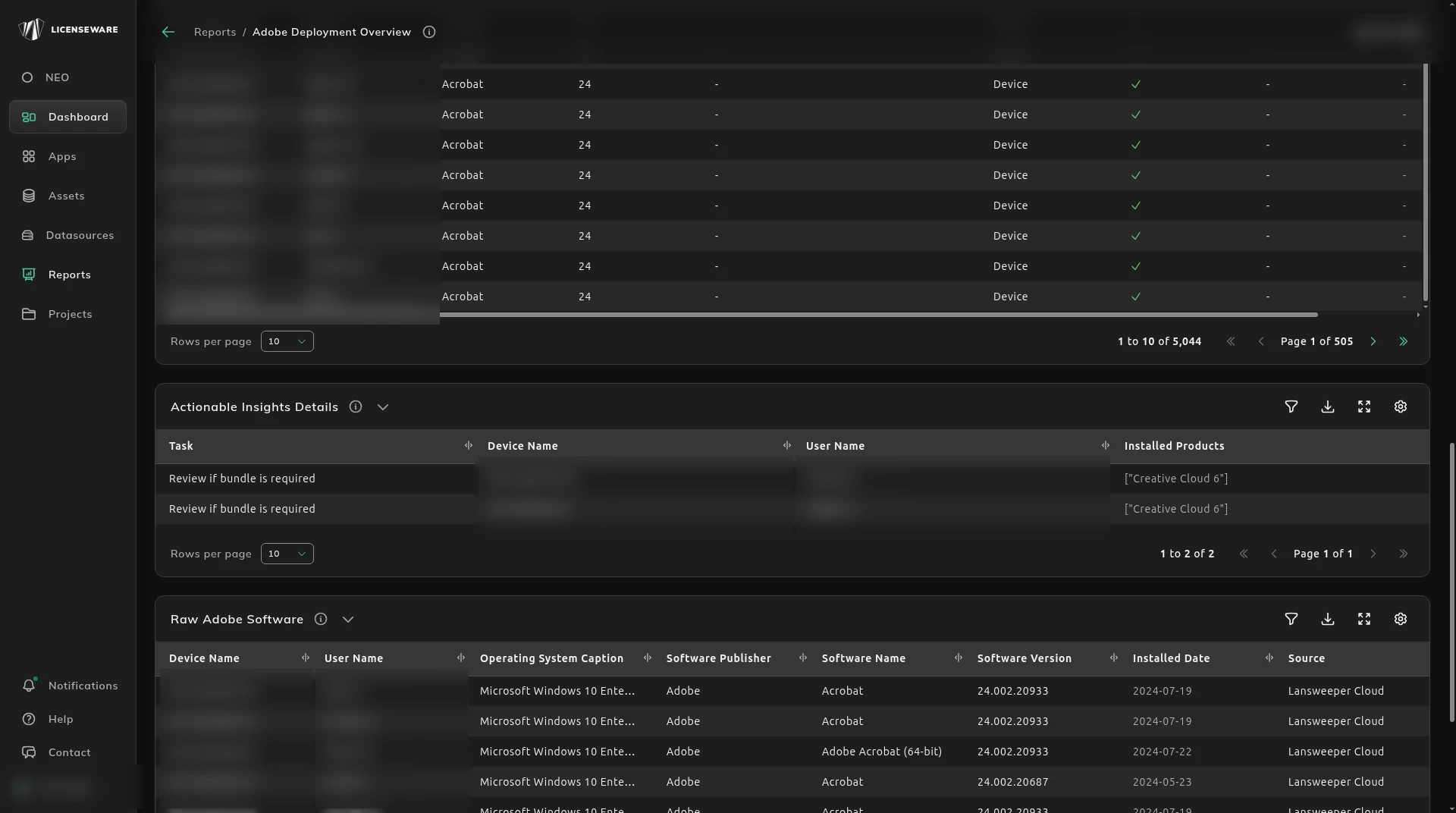
Raw Adobe Software is the discovery string before recognition: device, user, operating system, publisher, software name, version, install date, and source. Use it when the product name on the summary does not match what you expected to see. This unprocessed data is what you use to validate the licensing position, and it is the trail for an audit or an internal review.